Angular
Authany 帮助您为 Angular 应用添加用户登录功能,并提供预置的登录页面和用户设置页面,加速开发进程。
跟随此  15 分钟 教程,使用 Angular 与 Authany SDK 创建一个简单的应用。
说明
本教程的完整示例代码,请查看并克隆 GitHub 上的示例项目。
说明
本教程适用于 Angular 17 及以上版本,该版本使用独立组件(standalone components),无需 NgModule 即可启动应用。示例项目基于 Angular 22 构建(独立组件、无 Zone 变更检测)。如果您使用的是仍然依赖 NgModule 的旧版 Angular,请根据实际情况调整相应步骤。
目录
- 在 Authany 中设置应用
- 创建一个简单的 Angular 项目
- 将 Authany SDK 安装到项目中
- 实现用户服务
- 实现身份验证跳转页面
- 添加登录按钮
- 显示用户信息
- 添加登出按钮
- 打开用户设置
- 调用 API
在 Authany 中设置应用
前往 https://manage.authany.com/ 注册账号,并创建一个项目。
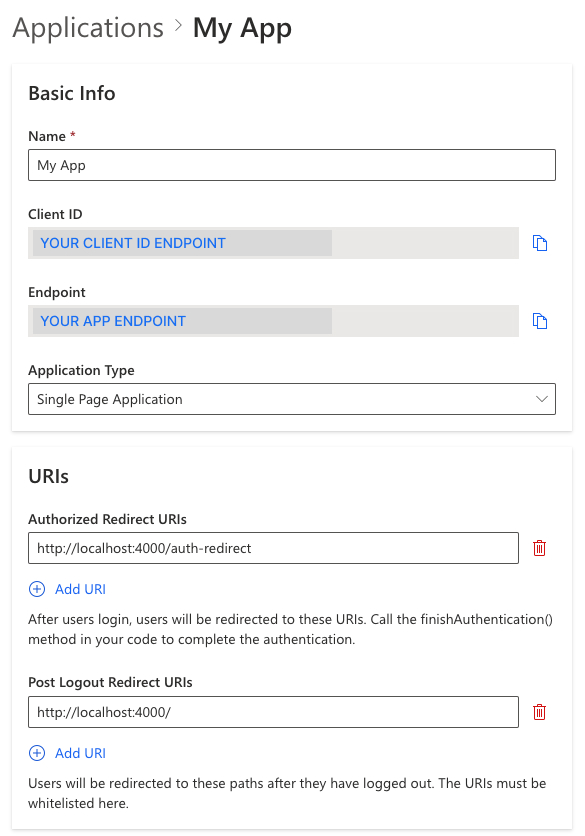
然后,我们需要在项目管理台中创建一个应用。
在管理台中创建应用
- 在左侧菜单栏中进入 应用。
- 在顶部工具栏中点击 ⊕Add Application。
- 输入应用名称,例如 "MyAwesomeApp"。
- 选择 Single Page Application 作为应用类型
- 点击 "Save" 创建应用
配置授权重定向 URI
重定向 URI 是应用中的一个 URL,用户通过 Authany 登录后会被跳转到这里。在该路径下,需要发起一次 finish authentication 调用来完成登录流程。
在本教程中,请将 http://localhost:4000/auth-redirect 添加到 Authorize Redirect URIs 中。
配置登出后重定向 URI
登出后重定向 URI 是用户登出后会被跳转到的 URL,该 URL 必须加入白名单。
在本教程中,请将 http://localhost:4000/ 添加到 Post Logout Redirect URIs 中。
在进行下一步之前,请先 保存 配置。
步骤 1:创建一个简单的 Angular 项目
以下是搭建 Angular 项目脚手架的推荐步骤。如果您是将 Authany 添加到已有项目中,可以跳过这部分,直接查看下一节的步骤 2:将 Authany SDK 安装到项目中。
安装 Angular CLI
要安装 Angular CLI,请打开终端窗口并运行以下命令:
说明
Windows 用户可参考 https://angular.dev/tools/cli/setup-local 了解安装 Angular CLI 的更多信息。
创建初始工作区
运行以下 CLI 命令,创建一个新的工作区,并生成一个启用了路由的初始应用 my-app。
# Create a workspace called my-app
ng new my-app --routing --defaults
# Move into the project directory
cd my-app
在 Angular 17+ 中,这会生成一个独立组件(standalone)应用。生成的重要文件包括:
src/main.ts— 使用bootstrapApplication(AppComponent, appConfig)启动应用src/app/app.config.ts— 应用的 providers(我们将在这里配置 Authany 和路由)src/app/app.routes.ts— 路由定义
说明
较新版本的 Angular CLI 生成组件和服务文件时不带 .component / .service 后缀(例如生成 app.ts 和类 App,而不是 app.component.ts 和类 AppComponent)。本教程及示例项目使用带后缀的命名方式。两种方式下代码逻辑完全一致——只需让文件名和类名与您的 CLI 生成结果保持一致即可。
编辑启动应用的脚本
在 package.json 文件中,编辑 script 部分的 start 脚本
start 脚本会以开发模式在端口 4000(而非默认端口)上运行应用。
编辑 app.component.html 文件
默认情况下,Angular CLI 已经为我们生成了一个初始应用,但为了简化教程,我们建议对其中一些文件从头进行修改。
在 src/app/app.component.html 文件中,删除所有内容,并添加以下一行:
运行初始应用
现在运行 npm start 来启动项目,您将在 http://localhost:4000 上看到 "Hello world"。
步骤 2:将 Authany SDK 安装到项目中
在 Angular 项目目录中运行以下命令,安装 Authany Web SDK
必须在调用任何其他 SDK 函数(例如 finishAuthentication() 或 fetchUserInfo())之前完成 Authany 的配置,而配置过程是异步的。在 Angular 中确保这一点最干净的方式,是在应用初始化阶段运行 authgear.configure(),让应用只有在 Authany 准备就绪后才渲染。
在 src/app/app.config.ts 中,注册一个调用 configure 的应用初始化器(app initializer):
// src/app/app.config.ts
import {
  ApplicationConfig,
  provideAppInitializer,
  provideBrowserGlobalErrorListeners,
} from '@angular/core';
import { provideRouter } from '@angular/router';
import authgear from '@authgear/web';

import { routes } from './app.routes';

export const appConfig: ApplicationConfig = {
  providers: [
    provideBrowserGlobalErrorListeners(),
    provideRouter(routes),
    // Configure Authgear before the app renders. configure() must complete
    // before any other SDK call, so blocking bootstrap here avoids a race in
    // which the redirect page or home page runs before the SDK is ready.
    provideAppInitializer(async () => {
      try {
        await authgear.configure({
          endpoint: '<your_app_endpoint>',
          clientID: '<your_client_id>',
          sessionType: 'refresh_token',
        });
      } catch (e) {
        // Don't block bootstrap if Authgear is unreachable; the app will
        // render in the logged-out state and login can be retried.
        console.error(e);
      }
    }),
  ],
};
Authany 容器实例接受 endpoint 和 clientID 作为参数,这两个值可以在在 Authany 中设置应用一节创建的应用页面中获取。
由于该初始化器是被 await 的,当任何路由开始渲染时,Authany 都已经可以使用。
说明
现在运行 npm start,如果 Authany SDK 配置成功,您应该会看到一个显示 "Hello World" 的页面,且控制台中没有错误信息
步骤 3:实现用户服务
由于我们希望在应用的任意位置引用登录状态,因此将该状态放入一个 service 中,即 /src/app/services/ 文件夹下的 user.service.ts。
在 user.service.ts 中会维护一个 isLoggedIn 状态。该状态通过 onSessionStateChange 回调自动更新,该回调保存在本地 SDK 容器的 delegate 中。我们将该状态以 Angular signal 的形式暴露出来,以便界面能够响应式更新(这在无 Zone 变更检测——较新版本 Angular 的默认方式——下同样适用)。
// src/app/services/user.service.ts
import { Injectable, signal } from '@angular/core';
import authgear from '@authgear/web';

@Injectable({
  providedIn: 'root',
})
export class UserService {
  // By default the user is not logged in
  readonly isLoggedIn = signal(false);

  constructor() {
    // When the sessionState changed, logged in state will also be changed
    authgear.delegate = {
      onSessionStateChange: (container) => {
        // sessionState is now up to date
        // value of sessionState can be "NO_SESSION" or "AUTHENTICATED"
        const sessionState = container.sessionState;
        this.isLoggedIn.set(sessionState === 'AUTHENTICATED');
      },
    };
  }
}
onSessionStateChange delegate 会在 configure() 运行期间触发,因此 UserService 必须在 configure() 之前被实例化——否则会错过已登录用户的初始状态。请更新 src/app/app.config.ts 中的应用初始化器,先注入该服务:
// src/app/app.config.ts
import { inject, provideAppInitializer } from '@angular/core';
import authgear from '@authgear/web';
import { UserService } from './services/user.service';

// ...

    provideAppInitializer(async () => {
      // Instantiate UserService first so its onSessionStateChange delegate is
      // registered before configure() runs and can observe the initial state.
      inject(UserService);
      try {
        await authgear.configure({
          endpoint: '<your_app_endpoint>',
          clientID: '<your_client_id>',
          sessionType: 'refresh_token',
        });
      } catch (e) {
        console.error(e);
      }
    }),
步骤 4:实现身份验证跳转页面
接下来,我们将添加一个 "auth-redirect" 页面,用于在用户通过 Authany 完成身份验证后处理验证结果。
使用以下命令创建 auth-redirect 组件:
处理完跳转后,我们会注入路由(router)来进行导航。
在 Auth Redirect 组件中调用 Authany 的 finishAuthentication() 函数,将 token 发回 Authany 服务器以换取访问令牌和刷新令牌。不必担心这些技术细节,finishAuthentication() 会为您完成所有繁重的工作,并保存身份验证数据。
身份验证完成后,UserService 中的 isLoggedIn 状态会自动被设为 true。最后,导航回根路径(/),也就是我们的 Home 页面。
最终的 auth-redirect.component.ts 如下所示
// src/app/auth-redirect/auth-redirect.component.ts
import { Component, OnInit, inject } from '@angular/core';
import { Router } from '@angular/router';
import authgear from '@authgear/web';

@Component({
  selector: 'app-auth-redirect',
  templateUrl: './auth-redirect.component.html',
  styleUrl: './auth-redirect.component.css',
})
export class AuthRedirectComponent implements OnInit {
  private readonly router = inject(Router);

  ngOnInit(): void {
    authgear
      .finishAuthentication()
      .catch((e) => console.error(e))
      .then(() => {
        this.router.navigate(['']);
      });
  }
}
步骤 5:为应用添加路由
接下来,我们将添加一个 "Home" 页面。使用以下命令创建 home 组件:
然后将 HomeComponent 和 AuthRedirectComponent 作为路由导入。我们可以在工作区生成时创建的 app.routes.ts 文件中添加这些路由:
// src/app/app.routes.ts
import { Routes } from '@angular/router';
import { HomeComponent } from './home/home.component';
import { AuthRedirectComponent } from './auth-redirect/auth-redirect.component';

export const routes: Routes = [
  { path: '', component: HomeComponent },
  { path: 'auth-redirect', component: AuthRedirectComponent },
];
路由已经在 app.config.ts 中通过 provideRouter(routes)(在步骤 2 中添加)提供。请确保根组件通过导入 RouterOutlet 并在模板中使用它,来渲染路由对应的组件。
// src/app/app.component.ts
import { Component } from '@angular/core';
import { RouterOutlet } from '@angular/router';

@Component({
  selector: 'app-root',
  imports: [RouterOutlet],
  templateUrl: './app.component.html',
  styleUrl: './app.component.css',
})
export class AppComponent {}
将 src/app/app.component.html 中的内容替换为以下代码:
此时的文件结构应如下所示
src
├── (...)
├── main.ts
└── app
    ├── app.config.ts
    ├── app.routes.ts
    ├── app.component.ts
    ├── app.component.html
    ├── (...)
    ├── auth-redirect
    │   ├── auth-redirect.component.ts
    │   ├── auth-redirect.component.html
    │   └── (...)
    ├── home
    │   ├── home.component.ts
    │   ├── home.component.html
    │   └── (...)
    └── services
        └── user.service.ts
步骤 6:添加登录按钮
首先,我们将在 home.component.ts 中导入 Authany 依赖并注入 UserService,然后添加 startLogin 方法,该方法会调用 startAuthentication(options),将用户跳转到登录页面。
// src/app/home/home.component.ts
import { Component, inject } from '@angular/core';
import { UserService } from '../services/user.service';
import authgear, { PromptOption } from '@authgear/web';

@Component({
  selector: 'app-home',
  templateUrl: './home.component.html',
  styleUrl: './home.component.css',
})
export class HomeComponent {
  readonly user = inject(UserService);

  startLogin(): void {
    authgear
      .startAuthentication({
        redirectURI: 'http://localhost:4000/auth-redirect',
        prompt: PromptOption.Login,
      })
      .then(
        () => {
          // started authorization, user should be redirected to Authgear
        },
        (err) => {
          // failed to start authorization
          console.error(err);
        }
      );
  }
}
说明
在 @authgear/web v5 及以上版本中,prompt 接受一个 PromptOption 枚举值(例如 PromptOption.Login)。导入并使用该枚举可以让调用保持类型安全。
然后,您可以在 home.component.html 中添加一个按钮,用于触发 startLogin 方法:
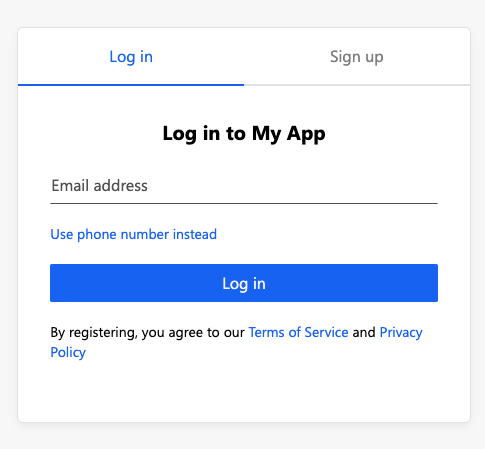
现在您可以运行 npm start,点击登录按钮后,会跳转到 Authany 登录页面。
步骤 7:显示用户信息
Authany SDK 可以帮助您轻松获取已登录用户的信息。
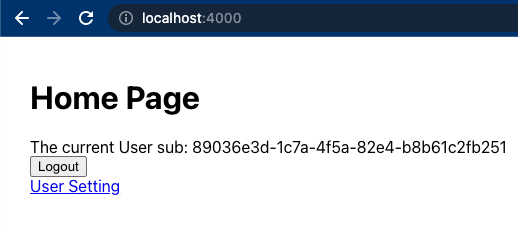
在上一步中,用户已成功登录,接下来我们尝试在 Home 页面中打印该用户的用户 ID(sub)。
在 home 组件中,我们将添加一个简单的加载提示,以及一条打印 Sub ID 的问候信息。我们会添加两个条件元素,使其仅在用户登录后显示;同时也可以让登录按钮仅在用户未登录时显示。
利用 UserService 中的 isLoggedIn 来控制页面上的组件。通过 fetchUserInfo() 获取用户信息,并访问其 sub 属性。我们将加载状态和问候信息状态都存储为 signal,以保持模板的响应式更新。
// src/app/home/home.component.ts
import { Component, OnInit, inject, signal } from '@angular/core';
import { UserService } from '../services/user.service';
import authgear, { PromptOption } from '@authgear/web';

@Component({
  selector: 'app-home',
  templateUrl: './home.component.html',
  styleUrl: './home.component.css',
})
export class HomeComponent implements OnInit {
  readonly user = inject(UserService);

  readonly isLoading = signal(false);
  readonly greetingMessage = signal('');

  async updateGreetingMessage() {
    this.isLoading.set(true);
    try {
      if (this.user.isLoggedIn()) {
        const userInfo = await authgear.fetchUserInfo();
        this.greetingMessage.set('The current User sub: ' + userInfo.sub);
      }
    } finally {
      this.isLoading.set(false);
    }
  }

  ngOnInit(): void {
    this.updateGreetingMessage().catch((e) => {
      console.error(e);
    });
  }

  startLogin(): void {
    authgear
      .startAuthentication({
        redirectURI: 'http://localhost:4000/auth-redirect',
        prompt: PromptOption.Login,
      })
      .then(
        () => {
          // started authorization, user should be redirected to Authgear
        },
        (err) => {
          // failed to start authorization
          console.error(err);
        }
      );
  }
}
在 home.component.html 中,使用新的 @if 控制流,并通过调用各个 signal 来读取其值:
<h1>Home Page</h1>
@if (isLoading()) {
  <span>Loading</span>
}
@if (greetingMessage()) {
  <span>{{ greetingMessage() }}</span>
}
@if (!user.isLoggedIn()) {
  <div>
    <button type="button" (click)="startLogin()">Login</button>
  </div>
}
重新运行应用,用户的用户 ID(sub)应该会打印在 Home 页面上。
步骤 8:添加登出按钮
最后,我们在用户登录后添加一个登出按钮。
在 home.component.html 中,我们将在模板里添加一个条件元素:
并添加 logout 方法:
logout(): void {
  authgear
    .logout({
      redirectURI: 'http://localhost:4000/',
    })
    .then(
      () => {
        this.greetingMessage.set('');
      },
      (err) => {
        console.error(err);
      }
    );
}
重新运行应用,现在点击登出按钮即可登出。
步骤 9:打开用户设置
Authany 提供了内置界面,供用户设置自己的属性并更改安全设置。
使用 open 函数打开位于 <your_app_endpoint>/settings 的设置页面
在 home.component.html 的登出按钮区域,追加一个条件链接。
@if (user.isLoggedIn()) {
  <div>
    <button type="button" (click)="logout()">Logout</button>
    <br />
    <a target="_blank" rel="noreferrer" (click)="userSetting($event)" href="#">
      User Setting
    </a>
  </div>
}
并添加 userSetting 方法(注意新增的 Page 导入):
import authgear, { Page, PromptOption } from '@authgear/web';

async userSetting(event: MouseEvent) {
  event.preventDefault();
  event.stopPropagation();
  await authgear.open(Page.Settings);
}
最终的 home.component.ts 如下:
// src/app/home/home.component.ts
import { Component, OnInit, inject, signal } from '@angular/core';
import { UserService } from '../services/user.service';
import authgear, { Page, PromptOption } from '@authgear/web';

@Component({
  selector: 'app-home',
  templateUrl: './home.component.html',
  styleUrl: './home.component.css',
})
export class HomeComponent implements OnInit {
  readonly user = inject(UserService);

  readonly isLoading = signal(false);
  readonly greetingMessage = signal('');

  async updateGreetingMessage() {
    this.isLoading.set(true);
    try {
      if (this.user.isLoggedIn()) {
        const userInfo = await authgear.fetchUserInfo();
        this.greetingMessage.set('The current User sub: ' + userInfo.sub);
      }
    } finally {
      this.isLoading.set(false);
    }
  }

  ngOnInit(): void {
    this.updateGreetingMessage().catch((e) => {
      console.error(e);
    });
  }

  startLogin(): void {
    authgear
      .startAuthentication({
        redirectURI: 'http://localhost:4000/auth-redirect',
        prompt: PromptOption.Login,
      })
      .then(
        () => {
          // started authorization, user should be redirected to Authgear
        },
        (err) => {
          // failed to start authorization
          console.error(err);
        }
      );
  }

  logout(): void {
    authgear
      .logout({
        redirectURI: 'http://localhost:4000/',
      })
      .then(
        () => {
          this.greetingMessage.set('');
        },
        (err) => {
          console.error(err);
        }
      );
  }

  async userSetting(event: MouseEvent) {
    event.preventDefault();
    event.stopPropagation();
    await authgear.open(Page.Settings);
  }
}
最终的 home.component.html 如下:
<h1>Home Page</h1>
@if (isLoading()) {
  <span>Loading</span>
}
@if (greetingMessage()) {
  <span>{{ greetingMessage() }}</span>
}
@if (!user.isLoggedIn()) {
  <div>
    <button type="button" (click)="startLogin()">Login</button>
  </div>
}
@if (user.isLoggedIn()) {
  <div>
    <button type="button" (click)="logout()">Logout</button>
    <br />
    <a target="_blank" rel="noreferrer" (click)="userSetting($event)" href="#">
      User Setting
    </a>
  </div>
}
后续步骤:调用 API
要访问后端应用服务器上的受限资源,HTTP 请求需要在 Authorization 头中携带访问令牌。Web SDK 提供了 fetch 函数来自动处理这一点,您也可以通过 authgear.accessToken 获取令牌。
方式 1:使用 Authany SDK 提供的 fetch 函数
Authany SDK 提供了 fetch 函数,供您调用应用服务器。该 fetch 函数会自动在应用请求中携带 Authorization 头,并自动处理访问令牌的刷新。authgear.fetch 实现了 fetch 规范。
authgear
    .fetch("YOUR_SERVER_URL")
    .then(response => response.json())
    .then(data => console.log(data));
方式 2:将访问令牌添加到 HTTP 请求头
您可以通过 authgear.accessToken 获取访问令牌。每次使用访问令牌前,请调用 refreshAccessTokenIfNeeded,该函数会进行检查,只有在令牌过期时才会发起网络请求刷新令牌。请将访问令牌放入应用请求的 Authorization 头中。
authgear
    .refreshAccessTokenIfNeeded()
    .then(() => {
        // access token is ready to use
        // accessToken can be string or undefined
        // it will be empty if user is not logged in or session is invalid
        const accessToken = authgear.accessToken;

        // include Authorization header in your application request
        const headers = {
            Authorization: `Bearer ${accessToken}`
        };
    });