Android SDK
本指南介绍如何将 Authany 集成到 Android 应用中。支持的平台包括:
- Android 5.0(API 21)及以上版本
按照本指南,只需 🕐 10 分钟即可将 Authany 添加到您的 Android 应用中。
说明
本教程演示应用的完整代码可以在这个 GitHub 仓库中找到。
在 Authany 中设置应用
在 https://manage.authany.com 注册一个 Authany 管理台账号,或者使用您自建部署的 Authany。
在项目列表中,创建一个新项目或选择一个已有项目。接下来,我们需要在该项目中创建一个应用。
步骤 1:在管理台中创建应用
在左侧菜单栏中进入 应用。
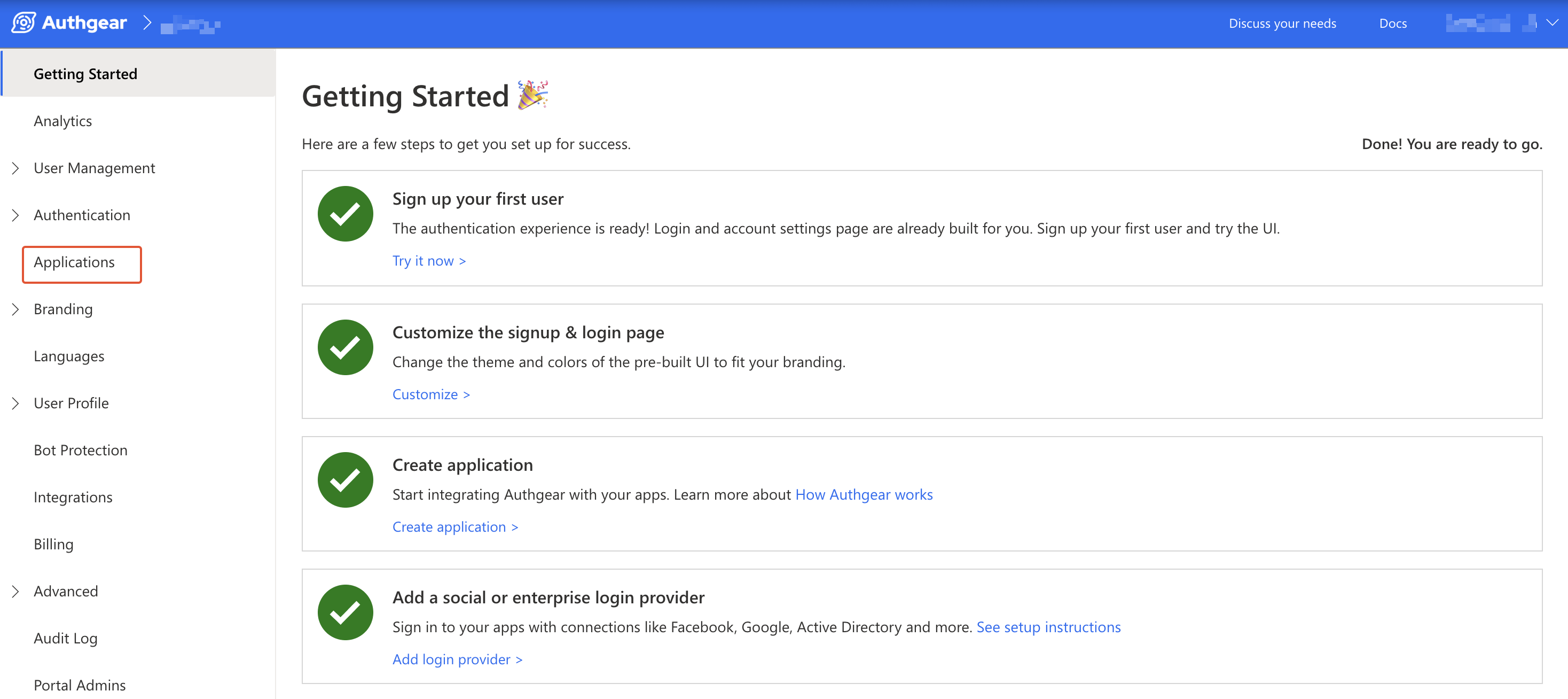
在顶部工具栏中点击 ⊕新增应用。
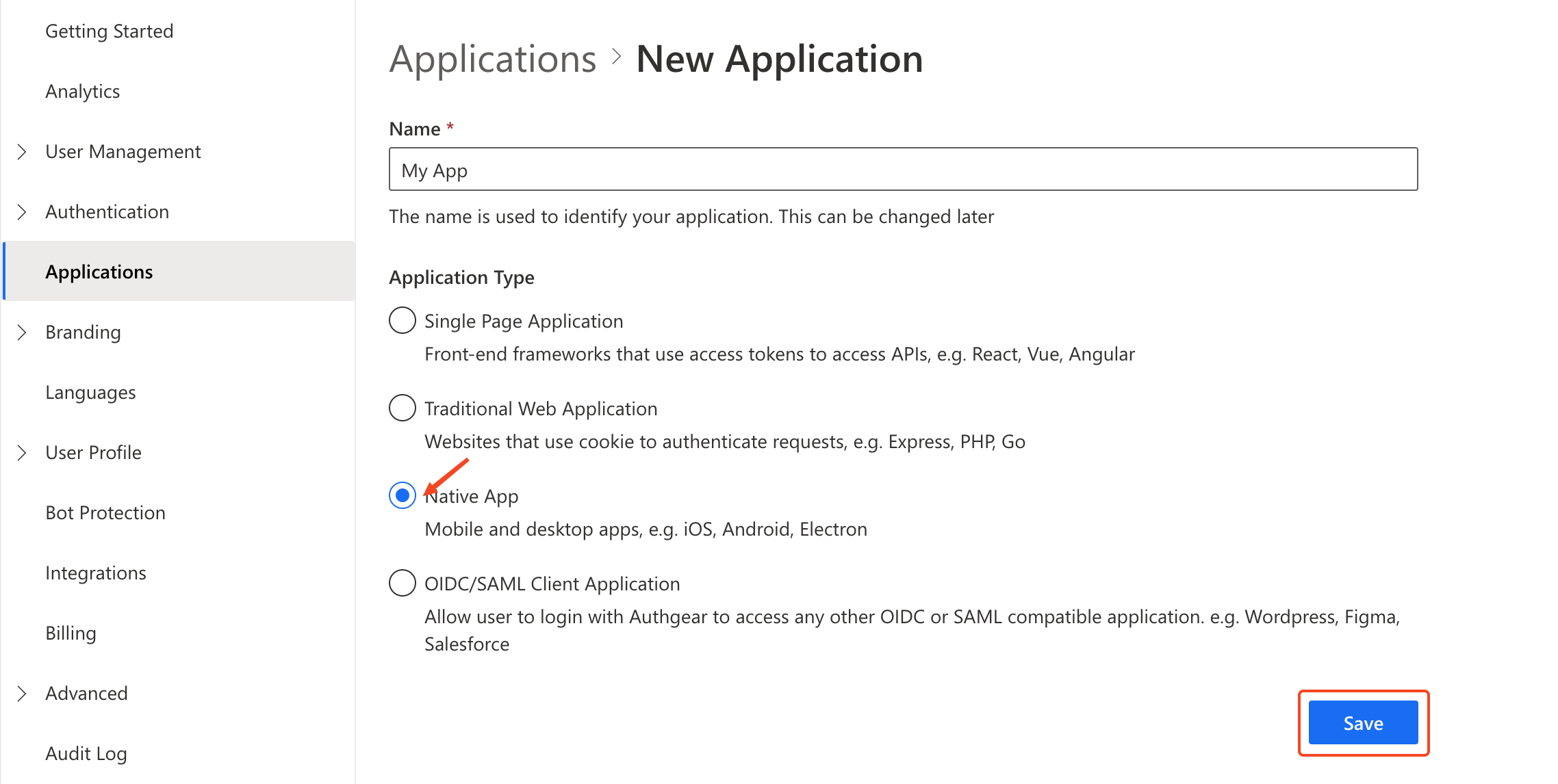
输入应用名称,并将应用类型选择为 Native App。点击「保存」。
您会看到一份可以帮助您完成设置的指南列表,然后点击「下一步」。
步骤 2:配置应用
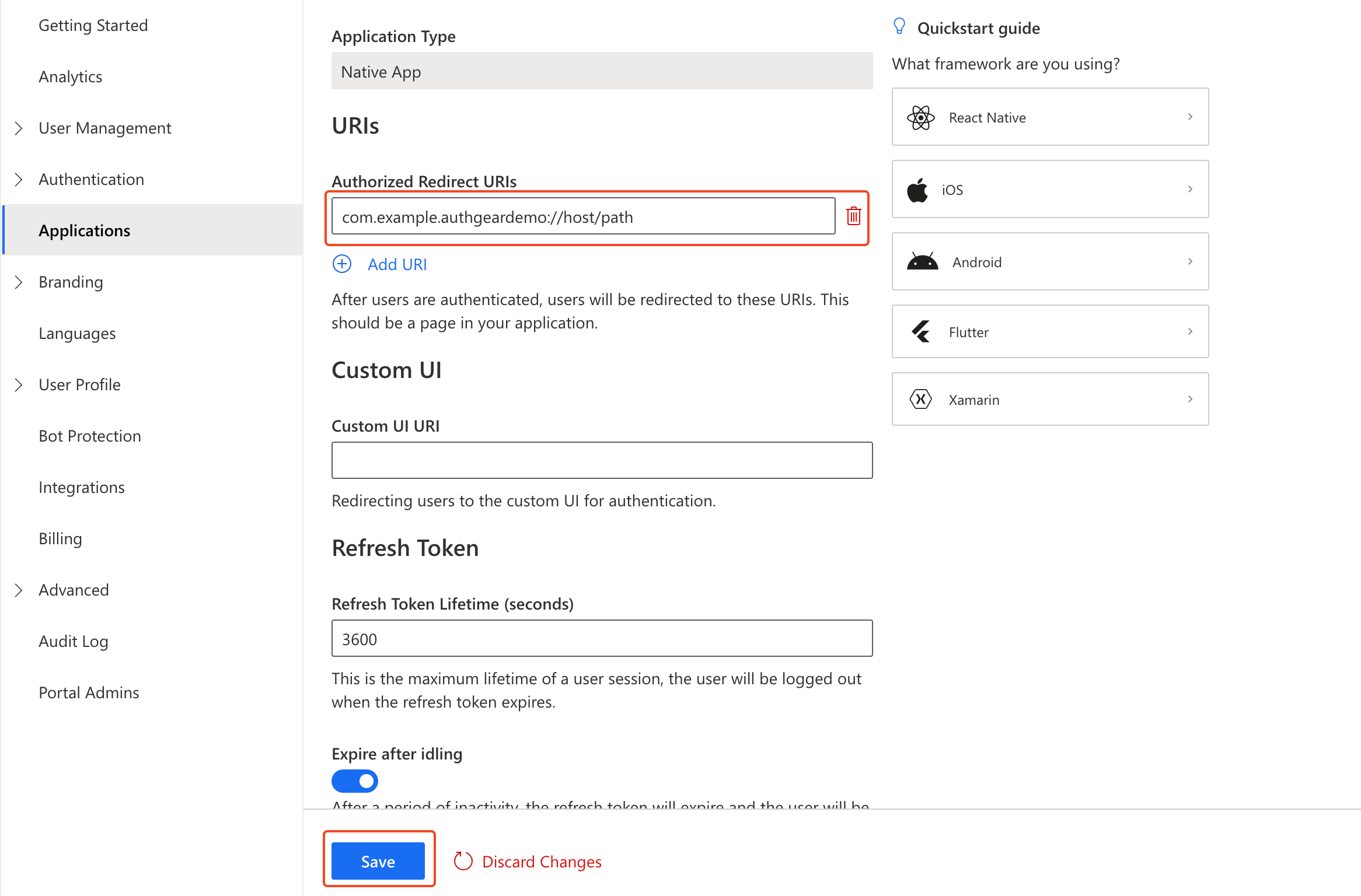
定义一个自定义 URI scheme,用户完成身份验证后,Authany 会用它把用户重定向回您的应用。该 scheme 应基于您 Android 应用的包名。对于本指南中创建的演示应用,scheme 为:com.example.authgeardemo://host/path。想了解更多关于在 Android 中设置自定义 URI scheme 的内容,请查看官方文档。
返回 Authany 管理台,将您定义的 URL scheme 添加为重定向 URI。对于我们的演示应用,请添加以下 URI:
在顶部工具栏点击「保存」,并记下 Client ID,后续在 Android 应用中会用到。您也可以之后在应用列表中重新获取它。
将 Authany 添加到 Android 应用
在这一步中,我们会使用前面步骤中设置好的 Authany 客户端应用,为 Android 应用添加用户身份验证。
Authany SDK 同时支持 Jetpack Compose 和传统的 View/XML UI 工具包。下面的步骤 4分别提供了两种实现方式,请选择与您应用匹配的标签页。
前置条件
跟着本指南操作,您需要准备以下内容:
- 电脑上已安装 Android Studio
- 具备 Kotlin 或 Java 的基础知识
步骤 1:创建 Android 应用项目
本指南将创建一个简单的新 Android 应用项目。如果您是要把 Authany 添加到已有应用中,可以跳过这一步。
打开 Android Studio,按以下信息创建一个新项目:
- 在 Activity 选择界面,选择 Empty Activity(Jetpack Compose)或 Empty Views Activity(XML),本指南两种都会介绍。Android Studio 当前默认使用的 Empty Activity 采用的是 Jetpack Compose。
- 名称:My Demo App
- 构建配置语言:Groovy DSL
说明
本指南建议将构建配置语言设置为 Groovy DSL,这样可以更方便地直接复制粘贴我们提供的 Gradle 配置,而不需要做太多改写。
步骤 2:将 Authany SDK 添加到项目中
Authany Android SDK 让您的 Android 应用更方便地与 Authany 的端点和服务交互。
该 SDK 发布在 Maven Central 上。请确保项目中已启用 mavenCentral() 仓库。新建的 Android Studio 项目默认已包含该仓库;如果没有,请将其添加到项目的 settings.gradle 文件中:
dependencyResolutionManagement {
    repositoriesMode.set(RepositoriesMode.FAIL_ON_PROJECT_REPOS)
    repositories {
        mavenCentral()
    }
}
接下来,在应用级(/app/build.gradle)的 build.gradle 文件的 dependencies 部分添加 Authany SDK:
撰写本文时,3.0.0 是最新版本。您可以在 Maven Central 或 release 标签中查看是否有更新版本。
启用 Java 8+ API desugaring 支持
要为项目启用 Java 8+ API desugaring 支持,请对应用级的 build.gradle 文件做以下修改。
- 在
android>compileOptions部分中添加coreLibraryDesugaringEnabled true:
- 然后在 dependencies 部分添加 coreLibraryDesugaring:
dependencies {
    // Other implementations
    coreLibraryDesugaring 'com.android.tools:desugar_jdk_libs:2.0.3'
}
想了解更多关于 Java 8+ API desugaring 支持的内容,请查看这里。
注意
您应用的窗口主题(window theme)必须继承自 Theme.AppCompat 主题。SDK 的身份验证界面(OAuthActivity、OAuthRedirectActivity)都是 AppCompatActivity,如果应用主题是普通的框架主题,登录时 Android 会抛出 You need to use a Theme.AppCompat theme (or descendant) with this activity 错误。
Empty Views Activity 项目默认已经使用了 Material Components(AppCompat 的子类)主题。如果您创建的是 Jetpack Compose 项目,请打开 res/values/themes.xml,确保应用主题的父主题是 AppCompat 或 Material 3,例如:
<resources>
    <style name="Theme.MyDemoApp" parent="Theme.AppCompat.DayNight.NoActionBar" />
</resources>
您的 Compose UI 仍然会有自己的主题;这里设置的只是窗口主题。
同步 Gradle 后继续。
步骤 3:设置重定向 URI
在应用的 AndroidManifest.xml 中添加以下 activity 条目。intent 系统会把重定向 URI 分发给 OAuthRedirectActivity,之后的处理由 SDK 完成。
<!-- 应用的其他配置内容,这里为简洁起见省略 -->
<application>
    <!-- 其他 activity 或条目 -->

    <!-- 添加以下 activity -->
    <!-- 需要设置 android:exported="true" -->
    <!-- 参见 https://developer.android.com/about/versions/12/behavior-changes-12#exported -->
    <activity android:name="com.oursky.authgear.OAuthRedirectActivity"
        android:exported="true"
        android:launchMode="singleTask">
        <intent-filter>
            <action android:name="android.intent.action.VIEW" />
            <category android:name="android.intent.category.DEFAULT" />
            <category android:name="android.intent.category.BROWSABLE" />
            <!-- 将 data 配置为您应用实际使用的重定向 URI -->
            <!-- 这里使用的是在管理台中配置的 com.example.authgeardemo://host/path -->
            <!-- 注意:AuthenticateOptions 中提供的 redirectURI 也必须与此匹配 -->
            <data android:scheme="com.example.authgeardemo"
                android:host="host"
                android:pathPrefix="/path"/>
        </intent-filter>
    </activity>
</application>
面向 API level 30 及以上(Android 11 及以上)
如果您的 Android 应用面向 API level 30 及以上(Android 11 及以上),需要在 AndroidManifest.xml 中添加一个 queries 部分。
<?xml version="1.0" encoding="utf-8"?>
<manifest xmlns:android="http://schemas.android.com/apk/res/android">
  <!-- Other elements such <application> -->
  <queries>
    <intent>
      <action android:name="android.support.customtabs.action.CustomTabsService" />
    </intent>
  </queries>
</manifest>
步骤 4:实现身份验证
现在初始化 Authany,并搭建包含 Login 按钮的界面,同时为已登录用户提供 User Settings 和 Logout。请选择与您 UI 工具包匹配的标签页,两者最终实现的流程相同。
请将下面代码中的 <CLIENT_ID> 和 <AUTHGEAR_ENDPOINT> 替换为您 Authany 客户端应用配置页面中的对应值。
SDK 暴露的是 suspend 函数,因此您需要在 Compose 中通过 rememberCoroutineScope() 和 LaunchedEffect 来调用它们。
在 MainActivity 中创建 Authany 实例,并承载您的 Compose UI:
class MainActivity : ComponentActivity() {

    private lateinit var authgear: Authgear

    override fun onCreate(savedInstanceState: Bundle?) {
        super.onCreate(savedInstanceState)
        authgear = Authgear(application, "<CLIENT_ID>", "<AUTHGEAR_ENDPOINT>")
        setContent {
            MaterialTheme {
                Surface(modifier = Modifier.fillMaxSize()) {
                    MainScreen(authgear)
                }
            }
        }
    }
}
MainScreen 这个 composable 会在首次出现时配置 Authany(恢复已有会话),然后根据 sessionState 显示 Login 按钮或已登录视图:
private const val REDIRECT_URI = "com.example.authgeardemo://host/path"
private const val TAG = "AuthgearDemo"

@Composable
fun MainScreen(authgear: Authgear) {
    val scope = rememberCoroutineScope()
    var configuring by remember { mutableStateOf(true) }
    var email by remember { mutableStateOf<String?>(null) }
    var busy by remember { mutableStateOf(false) }

    // Configure once when the screen first appears; restore an existing session.
    LaunchedEffect(Unit) {
        try {
            authgear.configure()
            if (authgear.sessionState == SessionState.AUTHENTICATED) {
                email = authgear.fetchUserInfo().email
            }
        } catch (e: Throwable) {
            Log.e(TAG, "configure failed", e)
        }
        configuring = false
    }

    Column(
        modifier = Modifier
            .fillMaxSize()
            .padding(24.dp),
        horizontalAlignment = Alignment.CenterHorizontally,
        verticalArrangement = Arrangement.Center,
    ) {
        when {
            configuring -> CircularProgressIndicator()

            email != null -> {
                Text("Welcome, $email")
                OutlinedButton(
                    enabled = !busy,
                    onClick = { authgear.open(Page.SETTINGS) },
                    modifier = Modifier.padding(top = 16.dp),
                ) { Text("User Settings") }
                Button(
                    enabled = !busy,
                    onClick = {
                        scope.launch {
                            busy = true
                            try {
                                authgear.logout()
                                email = null
                            } catch (e: Throwable) {
                                Log.e(TAG, "logout failed", e)
                            }
                            busy = false
                        }
                    },
                ) { Text("Logout") }
            }

            else -> {
                Button(
                    enabled = !busy,
                    onClick = {
                        scope.launch {
                            busy = true
                            try {
                                email = authgear.authenticate(AuthenticateOptions(REDIRECT_URI)).email
                            } catch (e: Throwable) {
                                Log.e(TAG, "login failed", e)
                            }
                            busy = false
                        }
                    },
                ) { Text("Login") }
            }
        }
    }
}
说明
configure、authenticate、logout 和 fetchUserInfo 都是 Authgear 上的 suspend 扩展函数,如果显示无法解析,请导入它们(例如 import com.oursky.authgear.configure)。其他无法解析的类也请一并导入。
启用 View Binding
在应用级(/app/build.gradle)的 build.gradle 文件中,向 android 代码块下添加以下内容:
搭建布局
打开 res/layout/activity_main.xml,删除默认的「Hello World!」TextView,添加一个标题、一个 Login 按钮,以及登录后显示的视图(进度条、欢迎文字、User Settings 和 Logout 按钮),并将它们分组以便统一显示或隐藏:
<TextView
    android:id="@+id/app_title"
    android:layout_width="wrap_content"
    android:layout_height="wrap_content"
    android:text="My Demo App!"
    app:layout_constraintBottom_toBottomOf="parent"
    app:layout_constraintEnd_toEndOf="parent"
    app:layout_constraintStart_toStartOf="parent"
    app:layout_constraintTop_toTopOf="parent" />

<Button
    android:id="@+id/login_btn"
    android:layout_width="wrap_content"
    android:layout_height="wrap_content"
    android:text="Login"
    app:layout_constraintEnd_toEndOf="parent"
    app:layout_constraintStart_toStartOf="parent"
    app:layout_constraintTop_toBottomOf="@+id/app_title" />

<ProgressBar
    android:id="@+id/progressBar"
    style="?android:attr/progressBarStyleHorizontal"
    android:layout_width="0dp"
    android:layout_height="wrap_content"
    android:layout_marginTop="48dp"
    android:indeterminate="true"
    android:visibility="invisible"
    app:layout_constraintEnd_toEndOf="parent"
    app:layout_constraintStart_toStartOf="parent"
    app:layout_constraintTop_toTopOf="parent" />

<TextView
    android:id="@+id/welcome_text"
    android:layout_width="wrap_content"
    android:layout_height="wrap_content"
    android:text="welcome user"
    app:layout_constraintEnd_toEndOf="parent"
    app:layout_constraintStart_toStartOf="parent"
    app:layout_constraintTop_toTopOf="@+id/login_btn" />

<Button
    android:id="@+id/user_settings_btn"
    android:layout_width="wrap_content"
    android:layout_height="wrap_content"
    android:text="User Settings"
    app:layout_constraintEnd_toEndOf="parent"
    app:layout_constraintStart_toStartOf="parent"
    app:layout_constraintTop_toBottomOf="@+id/welcome_text" />

<Button
    android:id="@+id/logout_btn"
    android:layout_width="wrap_content"
    android:layout_height="wrap_content"
    android:text="Logout"
    app:layout_constraintEnd_toEndOf="parent"
    app:layout_constraintStart_toStartOf="parent"
    app:layout_constraintTop_toBottomOf="@+id/user_settings_btn" />

<androidx.constraintlayout.widget.Group
    android:id="@+id/logged_in_views"
    android:layout_width="wrap_content"
    android:layout_height="wrap_content"
    android:visibility="gone"
    app:constraint_referenced_ids="welcome_text,user_settings_btn,logout_btn" />
完整的 activity_main.xml 文件可以在这里查看。
初始化 Authany 并绑定按钮
在 MainActivity.kt 中,使用 view binding 初始化 Authany,调用 configure(),并连接各个按钮:
class MainActivity : AppCompatActivity() {

    private lateinit var authgear: Authgear
    private lateinit var binding: ActivityMainBinding

    override fun onCreate(savedInstanceState: Bundle?) {
        super.onCreate(savedInstanceState)
        binding = ActivityMainBinding.inflate(layoutInflater)
        setContentView(binding.root)

        authgear = Authgear(application, "<CLIENT_ID>", "<AUTHGEAR_ENDPOINT>")
        authgear.configure(object : OnConfigureListener {
            override fun onConfigured() {
                updateUi(authgear)
            }

            override fun onConfigurationFailed(throwable: Throwable) {
                Log.d("TAG", throwable.toString())
                // Something went wrong, check the client ID or endpoint.
            }
        })

        binding.loginBtn.setOnClickListener { startLogin() }
        binding.logoutBtn.setOnClickListener { logout() }
        binding.userSettingsBtn.setOnClickListener { openUserSettings() }
    }
}
实现具体操作
在 MainActivity 中添加以下方法。startLogin() 用于启动身份验证流程,updateUi() 用于反映会话状态(并获取用户邮箱),logout() 用于结束会话,openUserSettings() 用于打开预置的设置页面:
fun startLogin() {
    binding.progressBar.visibility = View.VISIBLE
    val options = AuthenticateOptions("com.example.authgeardemo://host/path")
    authgear.authenticate(options, object : OnAuthenticateListener {
        override fun onAuthenticated(userInfo: UserInfo) {
            updateUi(authgear)
        }

        override fun onAuthenticationFailed(throwable: Throwable) {
            binding.progressBar.visibility = View.INVISIBLE
            Log.d("TAG", throwable.toString())
        }
    })
}

fun updateUi(authgear: Authgear) {
    val state = authgear.sessionState
    if (state == SessionState.AUTHENTICATED) {
        binding.loginBtn.visibility = View.GONE
        binding.loggedInViews.visibility = View.VISIBLE
        // Get userInfo and display in welcome text
        authgear.fetchUserInfo(object : OnFetchUserInfoListener {
            override fun onFetchedUserInfo(userInfo: UserInfo) {
                binding.welcomeText.text = userInfo.email
            }

            override fun onFetchingUserInfoFailed(throwable: Throwable) {
                Log.d("TAG", "Failed to fetch UserInfo")
            }
        })
    } else {
        binding.loggedInViews.visibility = View.GONE
        binding.loginBtn.visibility = View.VISIBLE
    }
    binding.progressBar.visibility = View.INVISIBLE
}

fun logout() {
    binding.progressBar.visibility = View.VISIBLE
    authgear.logout(true, object : OnLogoutListener {
        override fun onLogout() {
            updateUi(authgear)
        }

        override fun onLogoutFailed(throwable: Throwable) {
            Log.d("TAG", throwable.toString())
        }
    })
}

fun openUserSettings() {
    authgear.open(Page.SETTINGS)
}
说明
请导入所有显示为无法解析的类。
检查点
在设备或模拟器上运行您的应用,并点击 Login。由于您已经在步骤 3中设置了重定向 URI,Authany 登录页面会随之打开,登录成功后会返回应用,显示用户的邮箱以及 User Settings 和 Logout 按钮。
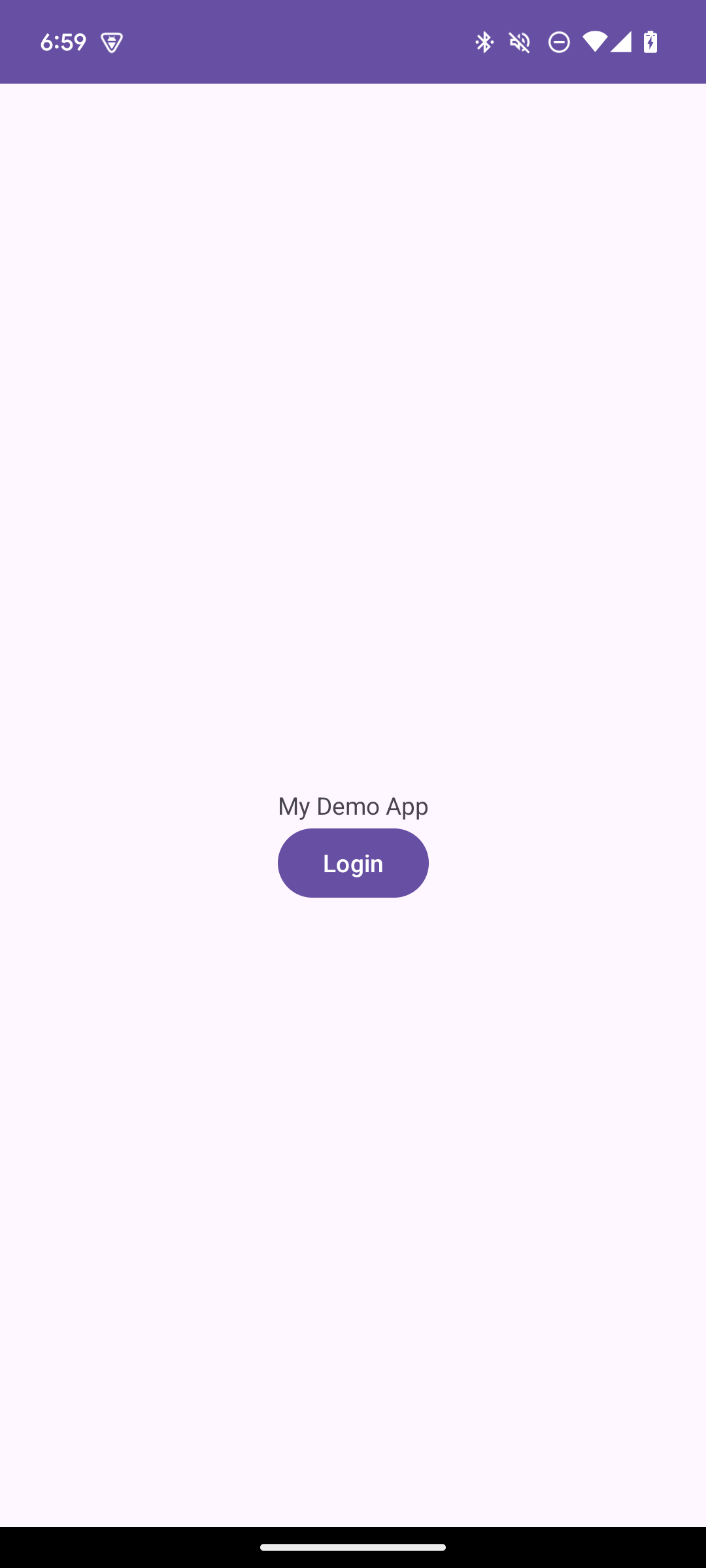
演示应用截图
更多操作
获取登录状态
您可以使用用户的登录状态来判断用户是否已登录,并据此展示用户信息、登出按钮等内容,就像我们在步骤 4中做的那样。SessionState 反映的是 SDK 本地状态中记录的用户登录状态。这意味着即使 SessionState 为 AUTHENTICATED,如果会话已在远端被吊销,该会话仍可能是无效的。初始化 Authany SDK 后,请在合适的时机调用 fetchUserInfo 来更新 SessionState。
// After authgear.configure, it only reflect SDK local state.
// value can be NO_SESSION or AUTHENTICATED
val state = authgear.sessionState
SessionState 的值可以是 UNKNOWN、NO_SESSION 或 AUTHENTICATED。初始时,sessionState 为 UNKNOWN。调用 authgear.configure 后,如果找到了之前的会话,状态会变为 AUTHENTICATED;如果没有找到,则变为 NO_SESSION。
获取用户信息
在某些情况下,您可能需要通过 SDK 获取当前用户信息(例如像我们在步骤 4中那样,在界面上显示邮箱地址)。可以使用 fetchUserInfo 函数获取用户信息,参见示例。
在 HTTP 请求中使用访问令牌
每次使用访问令牌前都调用 refreshAccessTokenIfNeeded,该函数只有在访问令牌已过期时才会检查并发起网络请求。请将访问令牌放入应用请求的 Authorization 请求头中。如果您的项目中使用了 OKHttp,也可以使用 SDK 提供的拦截器扩展,详见说明。
说明
访问令牌是一种 JSON Web Token(JWT)。
try {
    authgear.refreshAccessTokenIfNeededSync()
} catch (e: OAuthException) {
    // Something went wrong
}

val accessToken = authgear.accessToken
if (accessToken == null) {
    // The user is not logged in, or the token is expired.
    // It is up to the caller to decide how to handle this situation.
    // Typically, the request could be aborted
    // immediately as the response would be 401 anyways.
    return
}

val headers = mutableMapOf<String, String>()
headers["authorization"] = "Bearer $accessToken"

// Submit the request with the headers..
后续步骤 
为了保护您的应用服务器免受未经授权的访问,您需要将 Authany 集成到后端。
Android SDK 参考文档
有关 Android SDK 的详细文档,请访问 Android SDK 参考文档