使用 Express 实现 Authentication Flow API
借助 Authentication Flow API,您可以用自己从零搭建的自定义界面,替换 Authany 提供的默认 Auth UI。
在这篇文章中,我们将通过一个示例,演示如何使用 Express 和 Authentication Flow API 构建自己的自定义登录和注册页面。
在继续之前,您需要先熟悉以下关于 Authentication Flow API 的概念:
- URL Query:这是 Authany 在初始化身份验证流程时,附加到您的自定义界面 URI 上的一组额外 URL 查询参数。发起 Authentication Flow API 的初始请求时,必须包含这个 URL query,才能在流程结束时获取
finish_redirect_uri的值。 - Endpoint:您的 Authany 项目域名可以在 Authany 管理台的应用配置页面的端点部分看到。完整的端点是您的 Authany 域名加上某个操作对应的有效路径(例如发起一个新的身份验证流程,或向已有流程发送输入)。例如,
https://my-project.authanyid.com/api/v1/authentication_flows用于发起身份验证流程,https://my-project.authanyid.com/api/v1/authentication_flows/states/input用于向已有流程发送输入。 - State Token:Authentication Flow API 支持像默认 Auth UI 中那样的多步骤界面身份验证。State Token(状态令牌)可以用来实现这类多步骤身份验证流程。您可以通过状态令牌,把上一步的信息传递给下一步。例如,把步骤 A 结果中的状态令牌作为步骤 B 的输入,以延续上一步的状态。
- Inputs:您可以在 HTTP 请求体中使用
input或batch_input参数向 Authentication Flow API 传值。当需要以数组形式传多个值时使用batch_input,只传 1 个值时使用input。 - Finish Redirect URI:这是一个 URL,用于在身份验证流程结束时把用户重定向回您的应用。
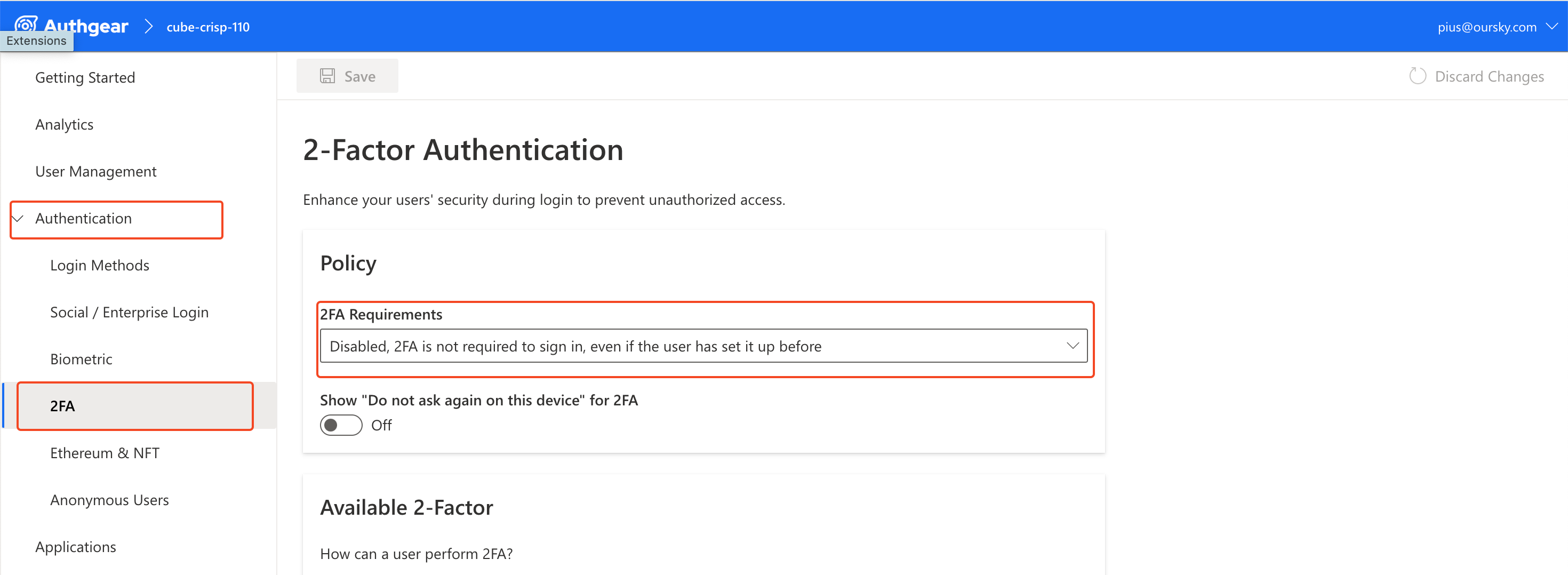
注意:为了跟随本教程完成示例应用的实现,您需要在 Authany 管理台的身份验证 > 登录方式中启用一种支持"邮箱和密码"的登录方式。同时,需要在 Authany 管理台的身份验证 > 2FA 中关闭双重验证要求。
前提条件
要跟随本文中的示例进行操作,您需要具备以下条件:
- 本地机器上已安装 Node.js。
- 一款代码编辑器,例如 VS Code、Sublime、Atom 等。
- 一个 Authany 账号。您可以在这里免费创建一个。
- 熟悉 npm 等命令行工具。
- 为您的 Authany 项目启用自定义界面。联系我们以启用自定义界面。
接下来,按照以下步骤设置您的 Authany 项目,使其使用自定义身份验证界面。
第一部分:在管理台中配置 Authany 项目
让应用准备好使用自定义身份验证界面的重要一步,是在 Authany 管理台中配置好您的 Authany 项目。在本节中,我们将介绍示例应用所需的配置。
步骤 1:设置 Authany 应用
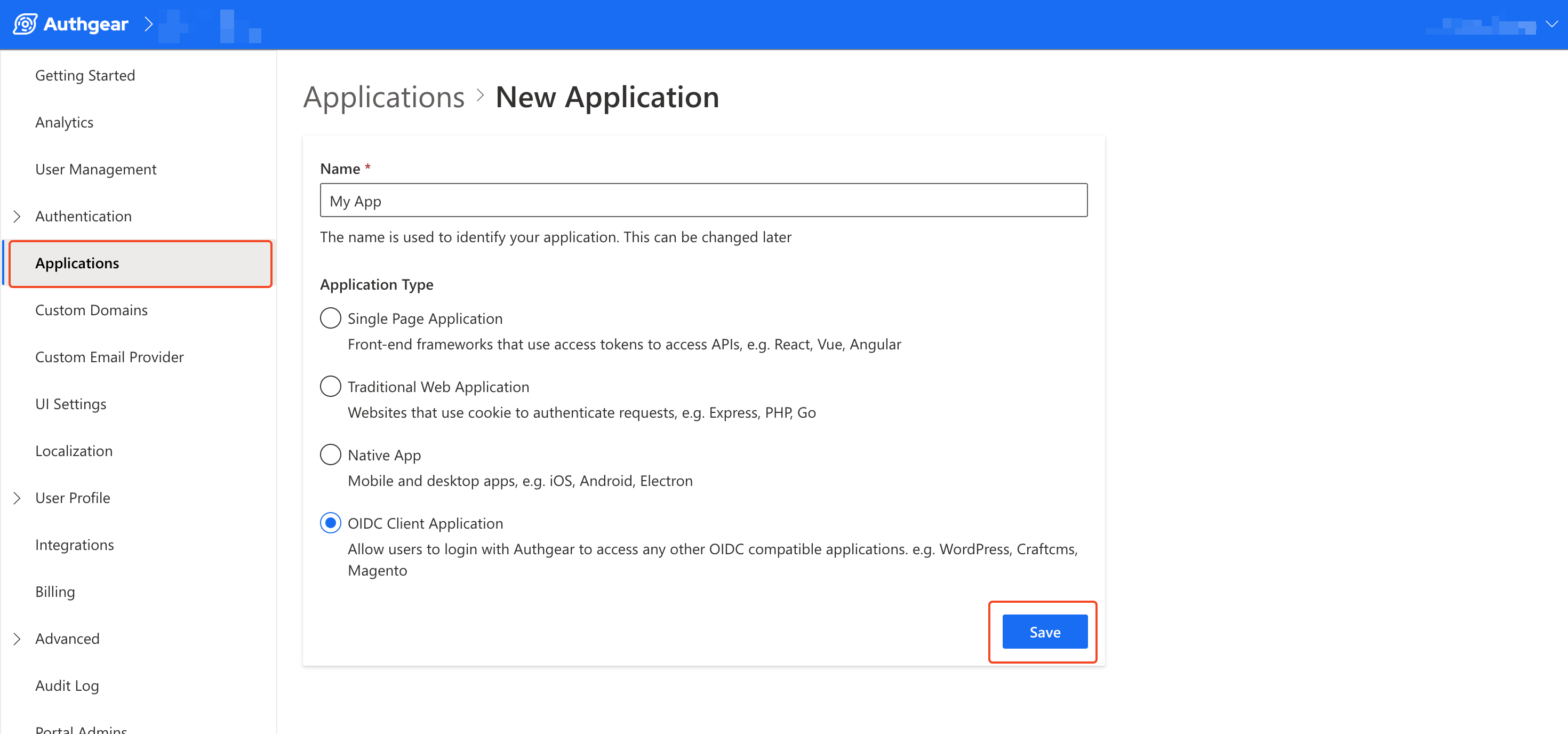
登录 Authany 管理台,进入应用部分。选择一个已有应用进行修改,或点击添加应用按钮创建新应用。
按以下信息配置您的应用:
- 应用名称:My app <或任意您喜欢的名称>
- 应用类型:OIDC 客户端应用
完成后,点击保存按钮以继续。
注意:您可以根据将与 Authany 及您的自定义界面交互的客户端应用的性质,在管理台上选择任意应用类型。
在本示例中,请选择 OIDC 客户端应用作为应用类型。
步骤 2:添加授权重定向 URI
授权重定向 URI(Authorized Redirect URI)是您应用中的一个页面,您希望 Authany 在身份验证流程结束时把用户重定向到这里。
要添加授权重定向 URI,滚动到 Authany 应用配置页面的 URI 部分。点击添加 URI按钮,然后为您的应用输入一个有效的 URI。
在我们的示例中,重定向 URI 为:
完成后,点击保存按钮以保留您的更改。
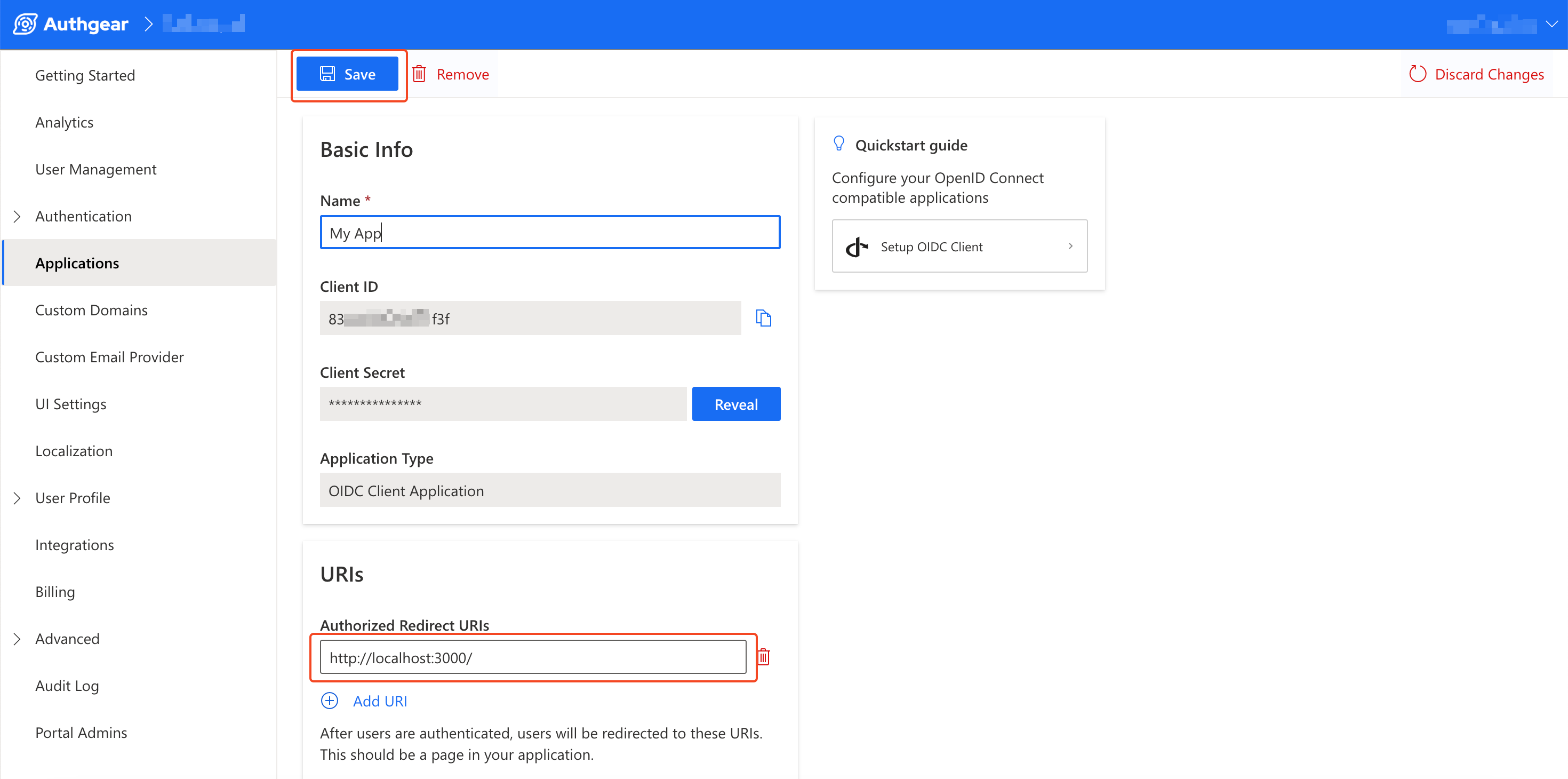
Authany portal app config redirect uri
步骤 3:设置自定义界面 URI
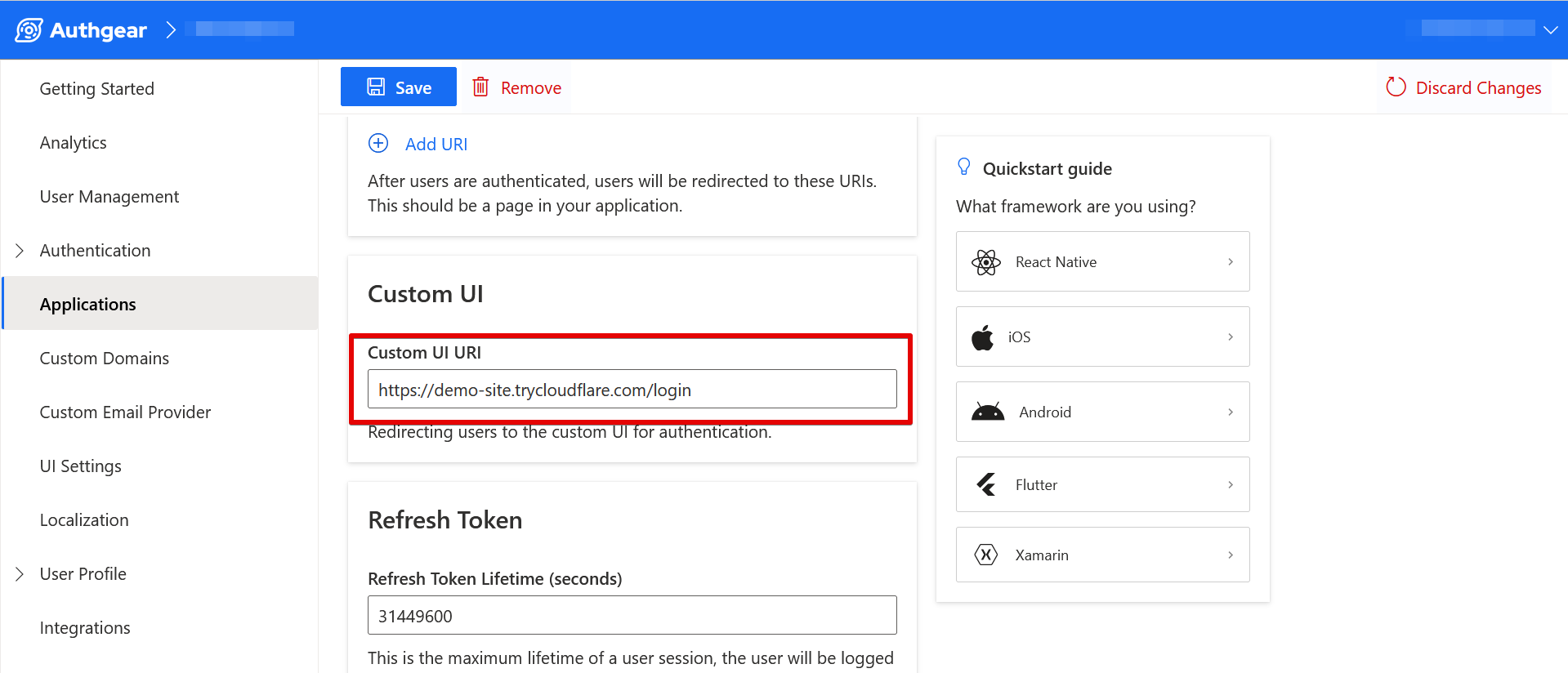
要在 Authany 中使用自定义身份验证界面,您需要在 Authany 管理台的自定义界面 URI 字段中指定自定义界面的 URI。这会使您的应用在登录/注册时展示自定义界面而不是默认的 Auth UI。自定义界面 URI 本质上就是指向您自定义登录页面的链接。
由于我们将在与 Express 服务器同一台电脑上运行的浏览器中测试示例应用,您可以将以下值用作自定义界面 URI:
另外,您也可以使用 CloudFlare Tunnel 为本地 Express 应用获取一个公开 URL。有关如何在本地机器上设置 CloudFlare Tunnel 的更多说明,请参见这里。
要设置自定义界面 URI,滚动到应用配置页面的自定义界面部分,将该 URL(例如 CloudFlare Tunnel 提供的唯一公开 URL)粘贴到自定义界面 URI文本框中。
注意:对于我们的示例应用,您必须在 URL 中包含 /login 路径,以便用户被直接重定向到我们的登录路由。
步骤 4:启用邮箱 + 密码登录选项并关闭 2FA
在本教程的示例应用中,用户将使用邮箱和密码登录。因此,您需要在 Authany 管理台中启用这个选项。
为此,请在身份验证 > 登录方式下启用"邮箱 + 密码"选项。
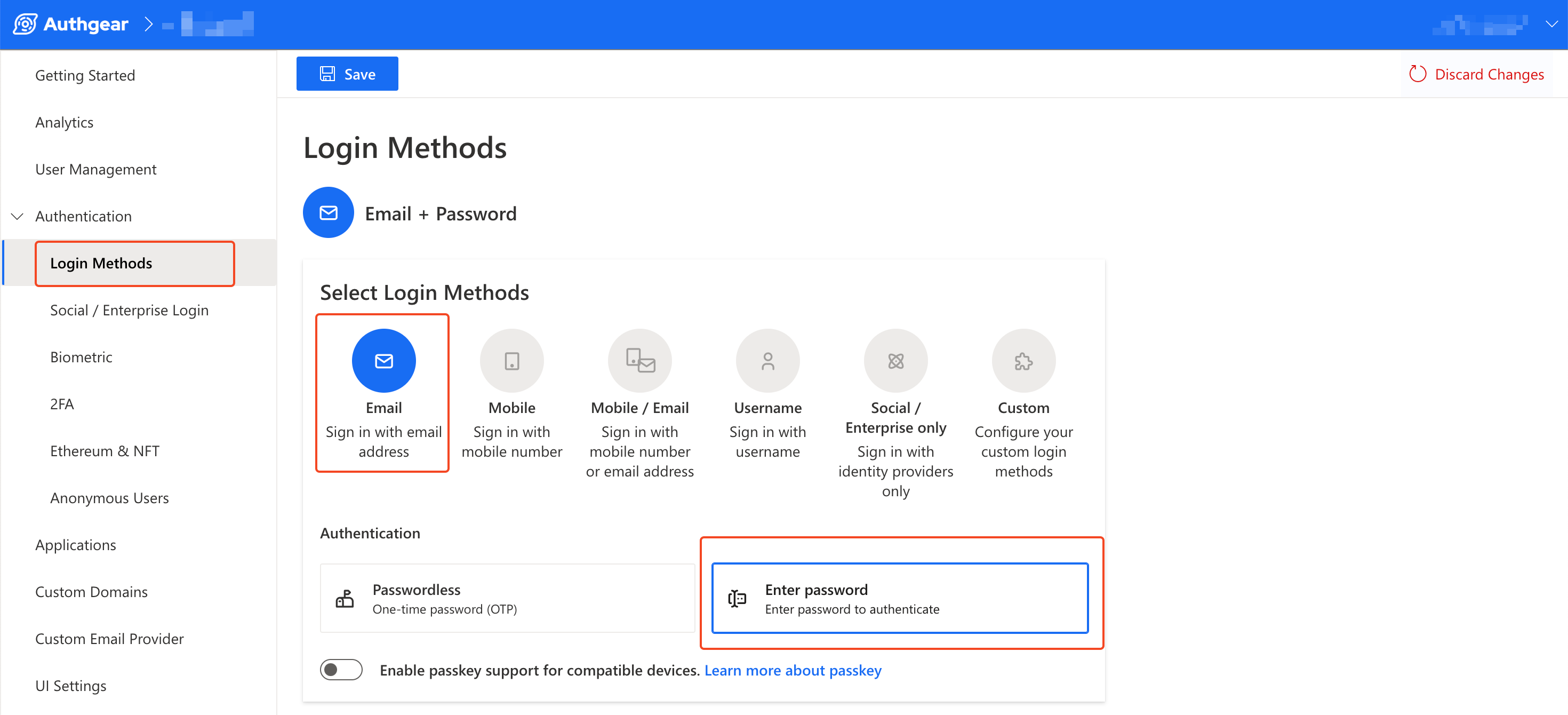
另外,请关闭 2FA(如果已启用),这样身份验证流程就不会包含我们的演示应用未涵盖的额外步骤。您可以在 Authany 管理台的身份验证 > 2FA 中关闭 2FA 要求。
第二部分:实现 Authentication Flow API
在本部分中,我们将使用 Express 和 Authentication Flow API 实现自定义登录和注册页面。
您在本部分构建的应用,正是您的自定义界面 URI 应该指向的那个应用。
步骤 1:搭建 Authany Express 示例应用
为您的 Authany 项目创建一个基础的 Express 应用。
首先,在您的电脑上运行以下命令,创建一个新的项目文件夹并安装所有必需的依赖:
创建项目文件夹/目录:
运行以下命令,把工作目录切换到新建的文件夹:
安装 Express:
在我们的示例应用中,将使用 Axios 这个 node 包来发送 HTTP 请求。运行以下命令在项目中安装 Axios:
安装 dotenv。我们将使用这个包,以便通过 .env 文件存储项目配置:
安装完上述依赖后,在之前创建的项目目录中新建一个 app.js 文件。将以下代码添加到该文件中:
const express = require('express');
const axios = require('axios');
require("dotenv").config();

const app = express();
app.use(express.urlencoded({ extended: true }));
const port = process.env.PORT || 3000;

const config = {
  client: {
    id: process.env.CLIENT_ID,
    secret: process.env.CLIENT_SECRET,
    redirect_url: process.env.REDIRECT_URL
  },
  auth: {
    tokenHost: process.env.AUTHGEAR_ENDPOINT,
    tokenPath: '/oauth2/token',
    authorizePath: '/oauth2/authorize'
  },
};

app.get('/', async (req, res) => {

  if (req.query.code != null) {
    const data = {
      client_id: config.client.id,
      client_secret: config.client.secret,
      code: req.query.code,
      grant_type: 'authorization_code',
      response_type: 'code',
      redirect_uri: config.client.redirect_url,
      scope: "openid"
    };

    try {
      const getToken = await axios.post(`${config.auth.tokenHost}${config.auth.tokenPath}`, data, {
        headers: { "Content-Type": "application/x-www-form-urlencoded" }
      });

      const accessToken = getToken.data.access_token;

      //Now use access token to get user info.
      const getUserInfo = await axios.get(`${config.auth.tokenHost}/oauth2/userinfo`, { headers: { "Authorization": "Bearer " + accessToken } });
      const userInfo = getUserInfo.data;
      res.send(`
        <div style="max-width: 650px; margin: 16px auto; background-color: #EDEDED; padding: 16px;">
          <p>Welcome ${userInfo.email}</p>
          <p>This demo app shows you how to add user authentication to your Express app using Authgear</p>
          <div>
            <pre>${JSON.stringify(userInfo, null, 2)}</pre>
          </div>
            <p>Checkout <a href="https://docs.authany.com/">docs.authgear.com</a> to learn more about adding Authgear to your apps.</p>

        </div>
    `);
    } catch (error) {
      res.send("An error occurred! Login could not complete. Error data: " + JSON.stringify(error.response.data));
    }
  }

  else {
    res.send(`
      <div style="max-width: 650px; margin: 16px auto; background-color: #EDEDED; padding: 16px;">
        <p>Hi there!</p>
        <p>This demo app shows you how to add user authentication to your Express app using Authgear</p>
          <p>Checkout <a href="https://docs.authany.com/">docs.authgear.com</a> to learn more about adding Authgear to your apps.</p>
        <a href="/startLogin">Login</a>
      </div>
    `);
  }
});

app.get('/startLogin', (req, res) => {
  res.redirect(`${config.auth.tokenHost}${config.auth.authorizePath}/?client_id=${config.client.id}&redirect_uri=${config.client.redirect_url}&response_type=code&scope=openid`);
});
创建一个 .env 文件,然后将以下代码添加进去:
CLIENT_ID=paste_your_client_id_here
CLIENT_SECRET=paste_your_client_id_here
AUTHGEAR_ENDPOINT=paste_your_client_id_here
REDIRECT_URL=http://localhost:3000/
在 .env 文件中填入来自您 Authany 应用配置页面的正确值。
完成这一步后,您应该已经有了一个可以连接 Authany 的 Express 应用。不过,我们还没有实现自定义登录/注册页面。接下来的步骤中,我们将实现这两个页面。
步骤 2:创建登录页面
在 app.js 文件中 app.get('/startLogin',...) 路由的下方,添加以下代码:
function rawURLQuery(url) {
    const index = url.indexOf('?');
    return (index >= 0) ? `?${url.substr(index + 1)}` : "";
}

app.get('/login', (req, res) => {
    //get URL query
    const URLQuery = rawURLQuery(req.url);
    res.send(`
    <!DOCTYPE html>
    <html lang="en">

    <head>
        <meta charset="UTF-8">
        <meta name="viewport" content="width=device-width, initial-scale=1.0">
        <link rel="stylesheet" href="https://cdn.jsdelivr.net/npm/bootstrap@4.0.0/dist/css/bootstrap.min.css"
            integrity="sha384-Gn5384xqQ1aoWXA+058RXPxPg6fy4IWvTNh0E263XmFcJlSAwiGgFAW/dAiS6JXm" crossorigin="anonymous">
        <title>Login</title>
    </head>

    <body>
        <div class="container pt-4">
            <form class="" action="./login" method="POST" enctype="application/x-www-form-urlencoded">
                <div class="">
                    <label class="">
                        Email
                    </label>
                    <input name="email" id="email" type="email" class="form-control mb-2" placeholder="Enter your email" />
                </div>
                <div>
                    <label>
                        Password
                    </label>
                    <input name="password" id="password" type="password" class="form-control mb-2" placeholder="Enter your password" />
                </div>
                <input type="hidden" name="url_query" value="${URLQuery}">
                <button type="submit" class="btn btn-primary">
                    Submit
                </button>
            </form>
            <div>
                <span>Or</span>
                <a href="/signup?${URLQuery}">Sign Up</a>
            </div>
        </div>
    </body>
    </html>
    `);
});

app.listen(port, () => {
    console.log(`server started on port ${port}!`);
});
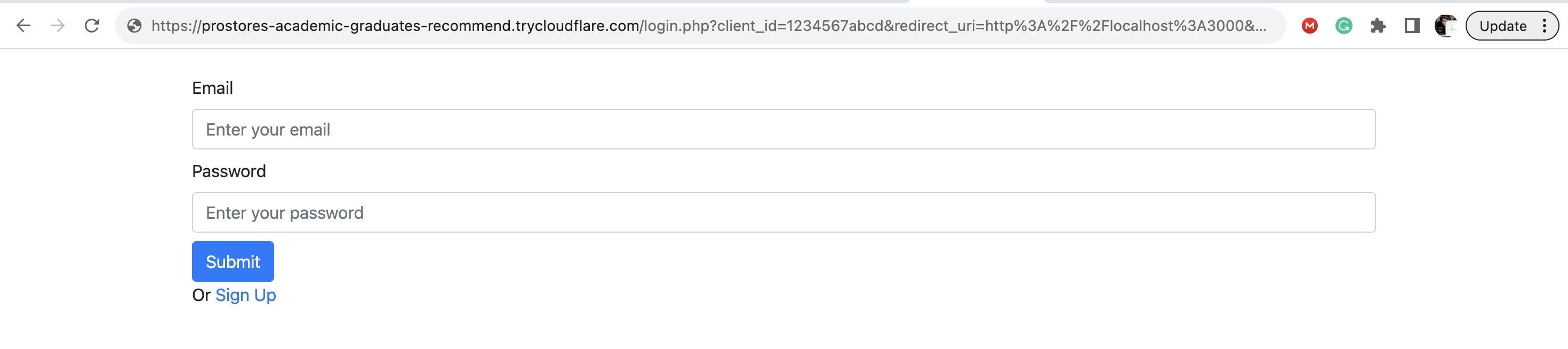
以上代码使用 Express 搭建了一个基础的邮箱 + 密码登录页面。
rawURLQuery() 函数从登录页面的 URL 中提取我们前面提到的 URL query。代码将这个 query 作为一个 <input type="hidden"> 的值,以便我们稍后在向 Authentication Flow API 发起的请求中包含这个值。
下面的截图展示了登录页面在浏览器中的呈现效果:
步骤 3:实现登录流程
现在您的应用需要携带用户输入的信息,向 Authentication Flow API 发起 HTTP 请求以完成身份验证。
首先,我们创建一个 userLogin() 函数来发送这个 HTTP 请求。为此,请在 app.js 中 rawURLQuery() 函数声明的上方添加以下代码:
const endpoint = process.env.AUTHGEAR_ENDPOINT;

async function userLogin(email, password, url_query) {
    const url = `${endpoint}/api/v1/authentication_flows?${url_query}`;

    const input = {
        "type": "login",
        "name": "default",
        "batch_input":
            [
                {
                    "identification": "email",
                    "login_id": email
                },
                {
                    "authentication": "primary_password",
                    "password": password
                }
            ]
    };

    const headers = {
        "Content-Type": "application/json",
        "Accept": "application/json",
    }

    try {
        const startLogin = await axios.post(`${url}`, input, {
            headers: headers
        });
        return startLogin;
    }
    catch (error) {
        return error.response;

    }
}
关于上面的代码,有以下几个要点需要注意:
- 该代码发起了一个类型为
login的 Authentication Flow API 请求,并在一步(一次 HTTP 请求)内完成整个登录流程。 - 如前所述,初始请求会把来自 Authany 的 URL query 添加到 API 端点上。
- 用户输入的邮箱和密码通过
batch_input参数放在请求体中发送。
HTTP 响应的结构如下所示:
{
    "result": {
        "state_token": "authflowstate_RB482Y95Q4BT8D4CAHXD499Y21MGAH2J",
        "type": "login",
        "name": "default",
        "action": {
            "type": "finished",
            "data": {
                "finish_redirect_uri": "https://cube-crisp-110.authanyid.com/oauth2/consent?code=HD2AS7394RJCGVYWYHQHXGDKYX8BZ28Q"
            }
        }
    }
}
现在,在 app.get('/login',...) 路由之后添加以下代码,创建一个处理登录表单提交动作的新路由:
app.post('/login', async (req, res) => {
    try {
        const apiResponse = await userLogin(req.body.email, req.body.password, req.body.url_query);
        if (apiResponse.status == 200 && apiResponse.data.result.action.data.finish_redirect_uri !== undefined) {
            res.redirect(apiResponse.data.result.action.data.finish_redirect_uri);
        } else {
            //this code will run usually when your authentication flow starts without the URL Query in the initial request.
            res.send(apiResponse.data);
        }
    }
    catch (error) {
        console.log(error);
        res.send("Error: authentication failed!");
    }
});
一旦登录流程完成并返回 finish_redirect_uri,我们就把用户重定向到这个 URL,由 Authany 完成身份验证流程,并把用户重定向回您的应用。
步骤 4:测试登录流程
要测试目前的进度,运行以下命令启动您的 Express 应用:
现在在浏览器中访问 localhost:3000 打开您的应用。页面加载后,点击登录链接。您应该会被重定向到自定义登录页面,而不是 Authany 的默认 Auth UI。
输入有效的邮箱和密码,然后点击提交按钮。登录成功后,您应该会被重定向回您的应用。
步骤 5:初始化注册流程
这一步演示了如何使用 Authentication Flow API 实现用户注册。与前面的登录流程示例不同,这次我们将用 2 个步骤(也就是 2 次 HTTP 请求)来完成注册流程。
第一步是初始化注册流程。为此,在 app.js 的 userLogin() 函数之后,用以下代码创建一个 initSignUp() 函数:
//function for first step of signup flow
async function initSignUp(url_query) {
    const url = `${endpoint}/api/v1/authentication_flows?${url_query}`;

    const input = {
        "type": "signup",
        "name": "default"
    };

    const headers = {
        "Content-Type": "application/json",
        "Accept": "application/json",
    }

    try {
        startSignUp = await axios.post(url, input, {
            headers: headers
        });

        return startSignUp.data.result.state_token;
    }
    catch (error) {
        return error.response;
    }
}
以下是上面代码的具体说明:
- 首先,代码把 URL query 的值添加到 Authentication Flow API 端点上,以满足在流程结束时获取
finish_redirect_uri的要求。 - 身份验证流程的类型也在 HTTP 请求体传入的
input变量中被指定为signup。 - 该函数返回 HTTP 请求响应中的
state_token值。下一步(请求)需要用到这个值来延续注册流程。
步骤 6:创建注册页面
要创建实际的注册页面,请在 app.js 中 app.post('/login',...) 路由之后添加以下代码:
app.get('/signup', async (req, res) => {
    const URLQuery = rawURLQuery(req.url);
    res.send(`
        <!DOCTYPE html>
        <html lang="en">

        <head>
            <meta charset="UTF-8">
            <meta name="viewport" content="width=device-width, initial-scale=1.0">
            <link rel="stylesheet" href="https://cdn.jsdelivr.net/npm/bootstrap@4.0.0/dist/css/bootstrap.min.css"
                integrity="sha384-Gn5384xqQ1aoWXA+058RXPxPg6fy4IWvTNh0E263XmFcJlSAwiGgFAW/dAiS6JXm" crossorigin="anonymous">
            <title>Register</title>
        </head>

        <body>
            <div class="container pt-4">
                <form class="" action="./signup" method="POST" enctype="application/x-www-form-urlencoded">
                    <div class="form-group">
                        <label class="">
                            Email
                        </label>
                        <input name="email" type="email" class="form-control mb-2" placeholder="Enter your email" />
                    </div>
                    <div class="form-group">
                        <label>
                            Password
                        </label>
                        <input name="password" type="password" class="form-control mb-2" placeholder="Enter your password" />
                    </div>
                    <div class="form-group">
                        <label>
                            Repeat Password
                        </label>
                        <input name="password2" type="password" class="form-control mb-2" placeholder="Enter your password" />
                    </div>
                    <input type="hidden" name="state_token" value="${await initSignUp(URLQuery)}">
                    <button type="submit" class="btn btn-primary">
                        Submit
                    </button>
                </form>
            <div>
        </body>
        </html>

    `);
});
以上代码包含用于渲染一个简单邮箱和密码注册页面的 HTML 代码。它还会调用 initSignUp() 来启动授权流程,并把状态令牌放入一个 <input type="hidden"> 中。
步骤 7:完成注册流程
要完成注册流程,首先在 app.js 中 initSignUp() 函数之后添加以下代码,创建一个 submitSignUpData() 函数:
async function submitSignUpData(email, password, state_token) {
    const url = `${endpoint}/api/v1/authentication_flows/states/input`;

    const input = {
        "state_token": state_token,
        "batch_input":
            [
                {
                    "identification": "email",
                    "login_id": email
                },
                {
                    "authentication": "primary_password",
                    "new_password": password
                }
            ]
    };

    const headers = {
        "Content-Type": "application/json",
        "Accept": "application/json",
    }

    try {
        const sendSignUpData = await axios.post(`${url}`, input, {
            headers: headers
        });
        return sendSignUpData;
    }
    catch (error) {
        console.log(error.response);
        return error.response;
    }
}
以上代码实现了注册流程的第二步。它获取第一步中的状态令牌,并将其放入第二次 HTTP 请求中发送,以便流程可以继续。
接下来,在 app.get('/signup',...) 路由之后添加以下代码:
app.post('/signup', async (req, res) => {
    try {
        const apiResponse = await submitSignUpData(req.body.email, req.body.password, req.body.state_token);
        if (apiResponse.status == 200 && apiResponse.data.result.action.data.finish_redirect_uri !== undefined) {
            res.redirect(apiResponse.data.result.action.data.finish_redirect_uri);
        } else {
            //this code will run usually when your authentication flow starts without the URL Query in the initial request.
            res.send(apiResponse.data);
        }
    }
    catch (error) {
        console.log(error)
        res.send("Error: authentication failed!");
    }
});
以上代码调用了 submitSignUpData() 函数,该函数发起注册流程的第二步并提交用户输入的信息。最后,用户会再次被重定向到 finish_redirect_uri,以完成身份验证流程。
总结
正如我们在本示例中为邮箱和密码身份验证实现了自定义界面一样,您也可以为 Authany 支持的其他身份验证流程设计自定义界面,例如 OTP 和 TOTP。
要了解 Authentication Flow API 支持的所有端点及其输入输出的更多信息,您可以查阅 Authentication Flow API 的 API 参考页面。
您可以在我们的 Authentication Flow API 示例 GitHub 仓库中找到本文示例应用的完整代码。