使用 PHP 实现 Authentication Flow API
您可以使用 Authentication Flow API 从零开始创建自己的登录和注册页面。在本指南中,我们将使用 PHP 来实现 Authentication Flow API。
在进入分步指南之前,先了解一些关于使用 Authentication Flow API 的关键事项。
- URL Query:当任意 Authany SDK 将用户重定向到您的自定义界面 URL 时,Authany 会在该 URL 上附加一些额外的查询参数。这些查询参数是获取
finish_redirect_uri所必需的。 - Endpoint:您可以在 Authany 管理台的应用配置页面(通常在 Endpoint 部分)找到您的 Authany 项目域名。完整的端点就是这个 Authany 域名加上对应操作的有效路径。例如,
https://my-project.authanyid.com/api/v1/authentication_flows用于启动一个身份验证流程。该 API 支持的两个有效路径是/api/v1/authentication_flows和/api/v1/authentication_flows/states/input(用于向已存在的身份验证流程传入输入)。 - State Token:Authentication Flow API 支持像 Auth UI 中默认身份验证流程那样的多步骤 UI 身份验证。State Token 可以用来实现这种类型的身份验证流程。您可以通过 State Token 把上一步的信息传递到下一步,例如把步骤 A 结果中的 State Token 作为步骤 B 的输入,以延续上一步的状态。
- Inputs:您可以在 HTTP 请求体中使用
input或batch_input参数向 Authentication Flow API 传值。当作为数组发送多个值时使用batch_input,只传 1 个值时使用input。 - Finish Redirect URI:身份验证流程结束时,用于将用户重定向回您应用的 URL。
前提条件
要跟着本文的示例操作,您需要准备好以下内容:
- 本地机器上已安装 PHP。
- 电脑上已安装 Composer。
- 一个代码编辑器,如 VS Code、Sublime、Atom,或任何您用于 PHP 开发的编辑器。
- 一个 Authany 账号。您可以在这里免费创建一个。
- 为您的 Authany 项目启用自定义界面。联系我们以启用自定义界面。
了解了 Authentication API 的基本概念以及跟随本示例所需的准备工作后,现在来看看如何从零开始创建我们的第一个自定义登录和注册页面。
第 1 部分:在管理台中配置 Authany 项目
在本节中,您将学习如何为 Authentication Flow API 配置您的 Authany 项目。
步骤 1:设置一个 Authany 应用
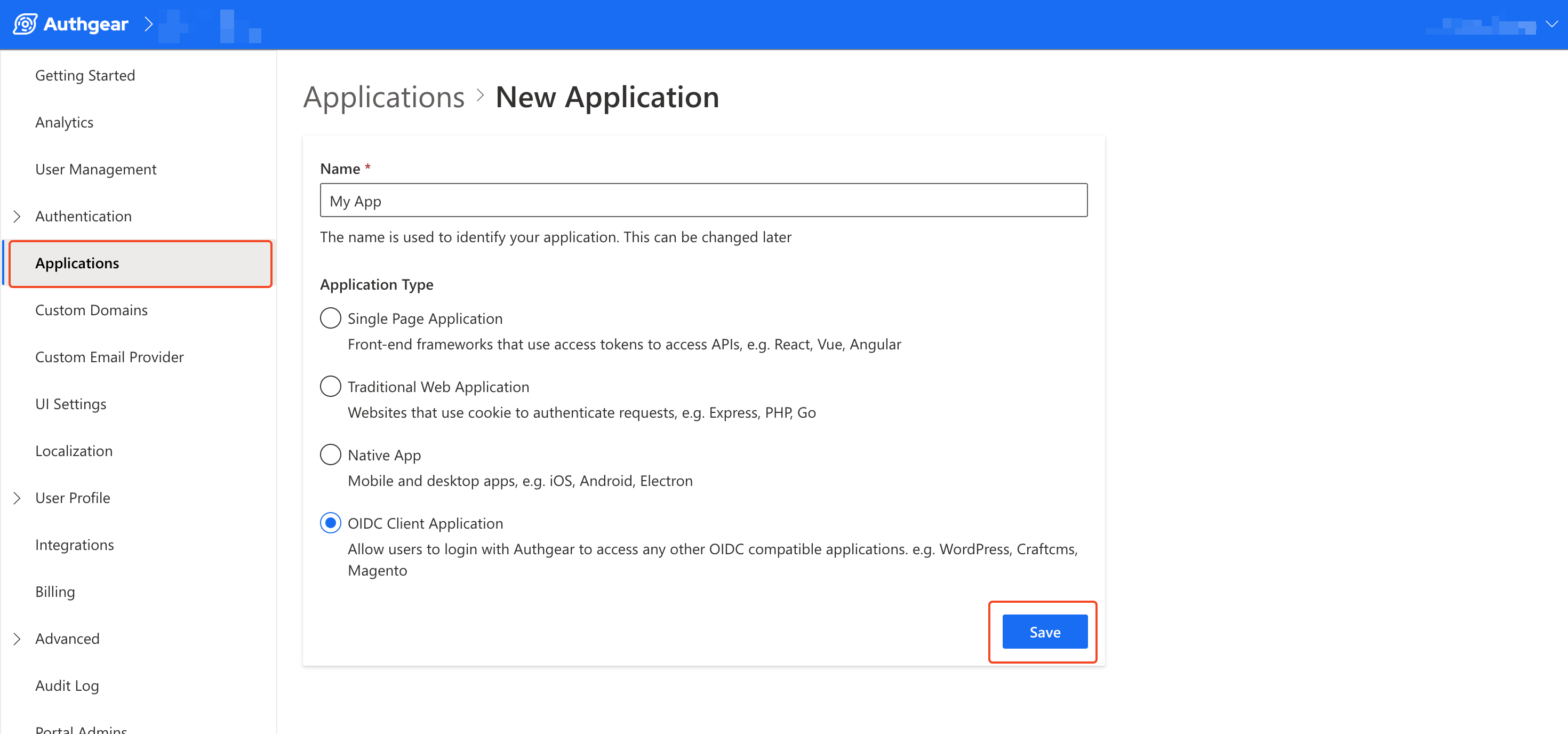
在 Authany 管理台中进入应用 > 添加应用(或选择一个已有应用后更新配置)。
输入您应用的名称,并将 Application Type 设置为 OIDC Client Application,然后点击保存按钮。
注意:您可以根据将要与 Authany 和您的自定义界面交互的客户端应用的性质,在管理台上选择任意 Application Type。
步骤 2:添加授权重定向 URI
在这一步中,您将向应用添加重定向 URI。授权重定向 URI 应该是您应用中的一个有效页面,您希望 Authany 在身份验证流程结束时将用户重定向到该页面。
要添加新的 URI,请滚动到您在上一步创建的应用配置页面中的 URIs 部分,然后点击添加 URI 按钮,输入一个有效的应用 URL。在本示例中,输入 http://localhost:8081/ 作为重定向 URI。
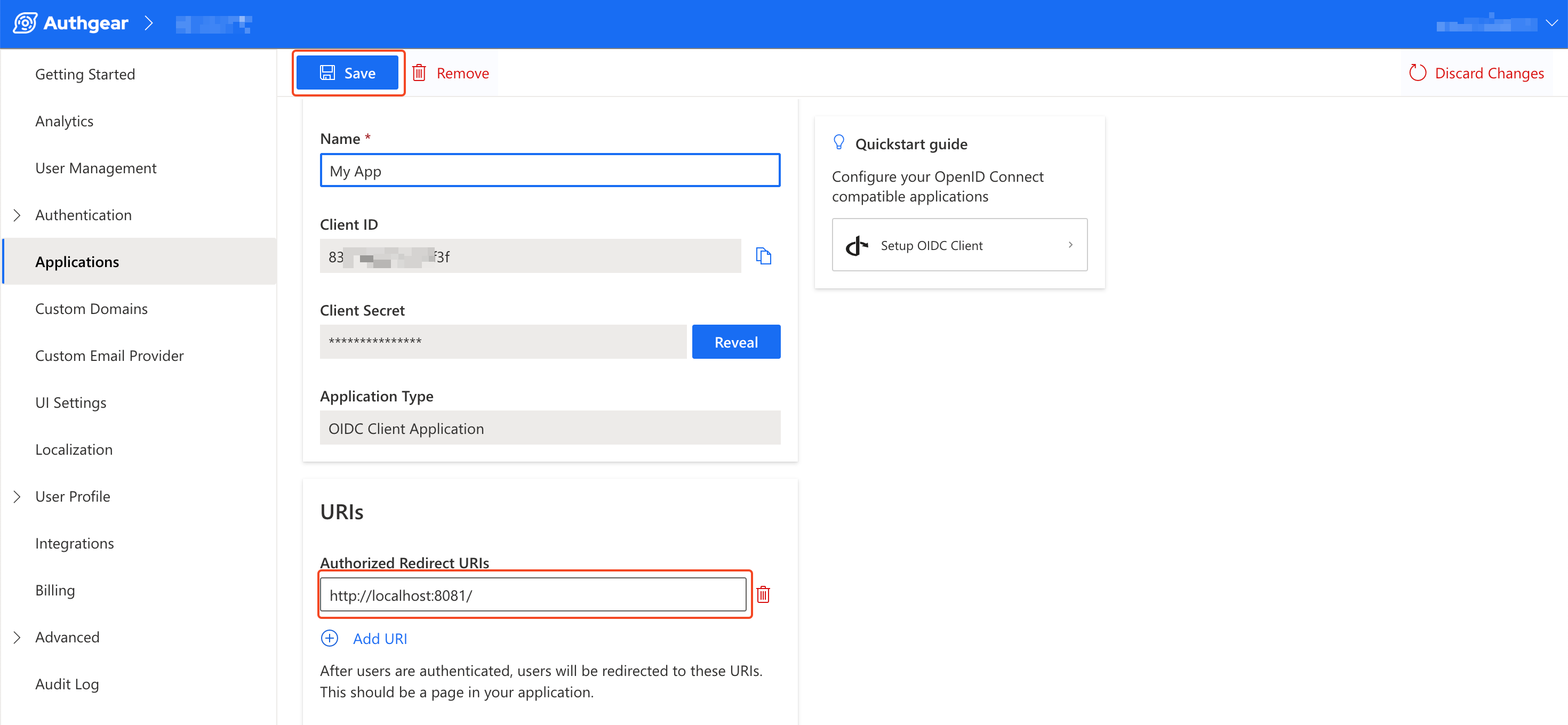
完成后,保存更改以继续。
步骤 3:添加自定义界面 URI
自定义界面 URI 的值应该是指向您自定义登录页面的链接(绝对 URL)。当用户发起身份验证请求时,Authany 会将用户重定向到该页面。同时,在重定向过程中,Authany 会自动附加前面提到的 URL Query。
现在,仍在您应用的配置页面中,滚动到自定义界面部分,添加指向您自定义登录页面的链接。
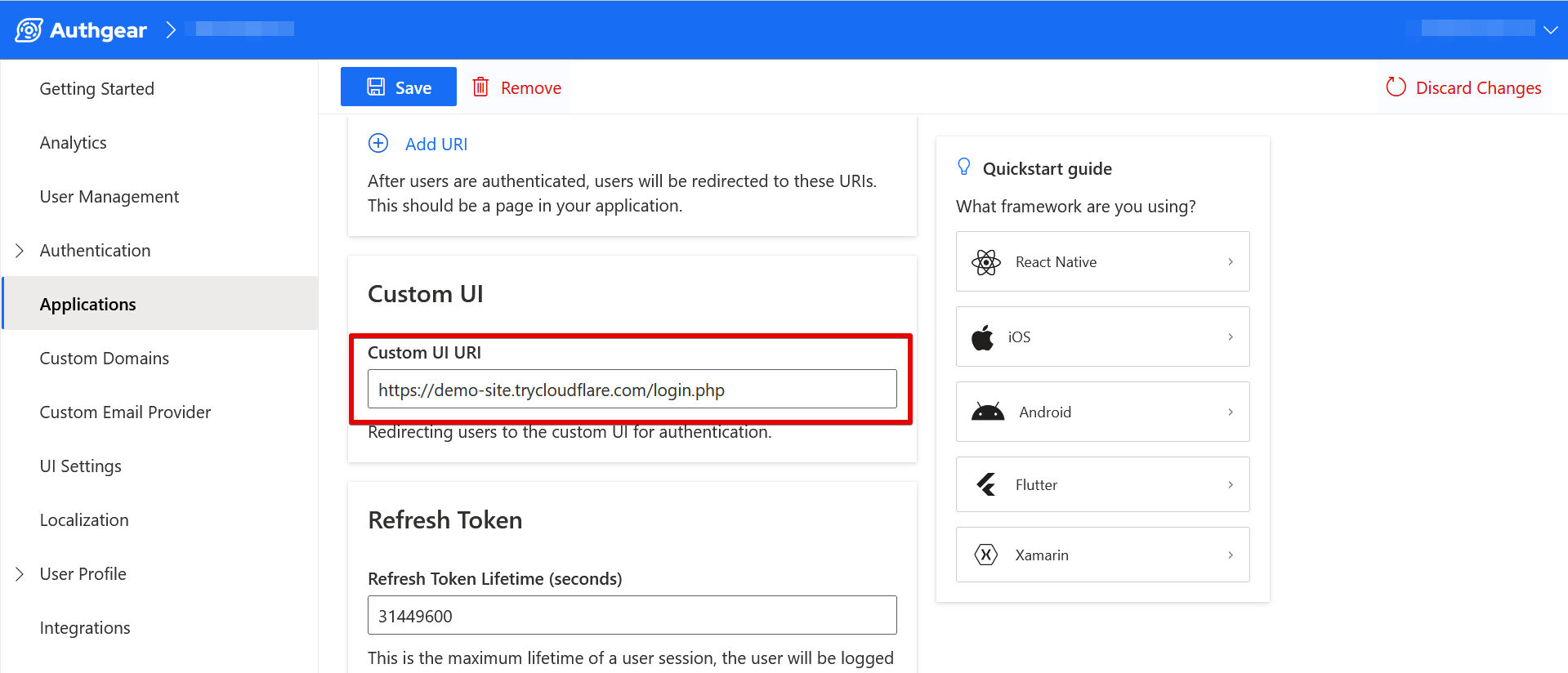
如果您在与运行 PHP 代码相同的设备的浏览器上测试自定义界面,可以在自定义界面 URI 中输入您的 localhost URL。例如,如果您在本地机器上使用 8081 端口运行 PHP 代码,可以使用以下 URL:
您也可以使用 CloudFlare Tunnel 为本地运行的 PHP 应用获取一个公网 URL,然后将 CloudFlare 提供的公网 URL 填写为自定义界面 URI。
步骤 4:启用邮箱 + 密码登录选项并禁用双重验证
在本教程的示例应用中,用户将使用邮箱和密码登录。因此,您需要在 Authany 管理台中启用该选项。
要启用它,请在身份验证 > 登录方式下启用 “Email + Password” 选项。
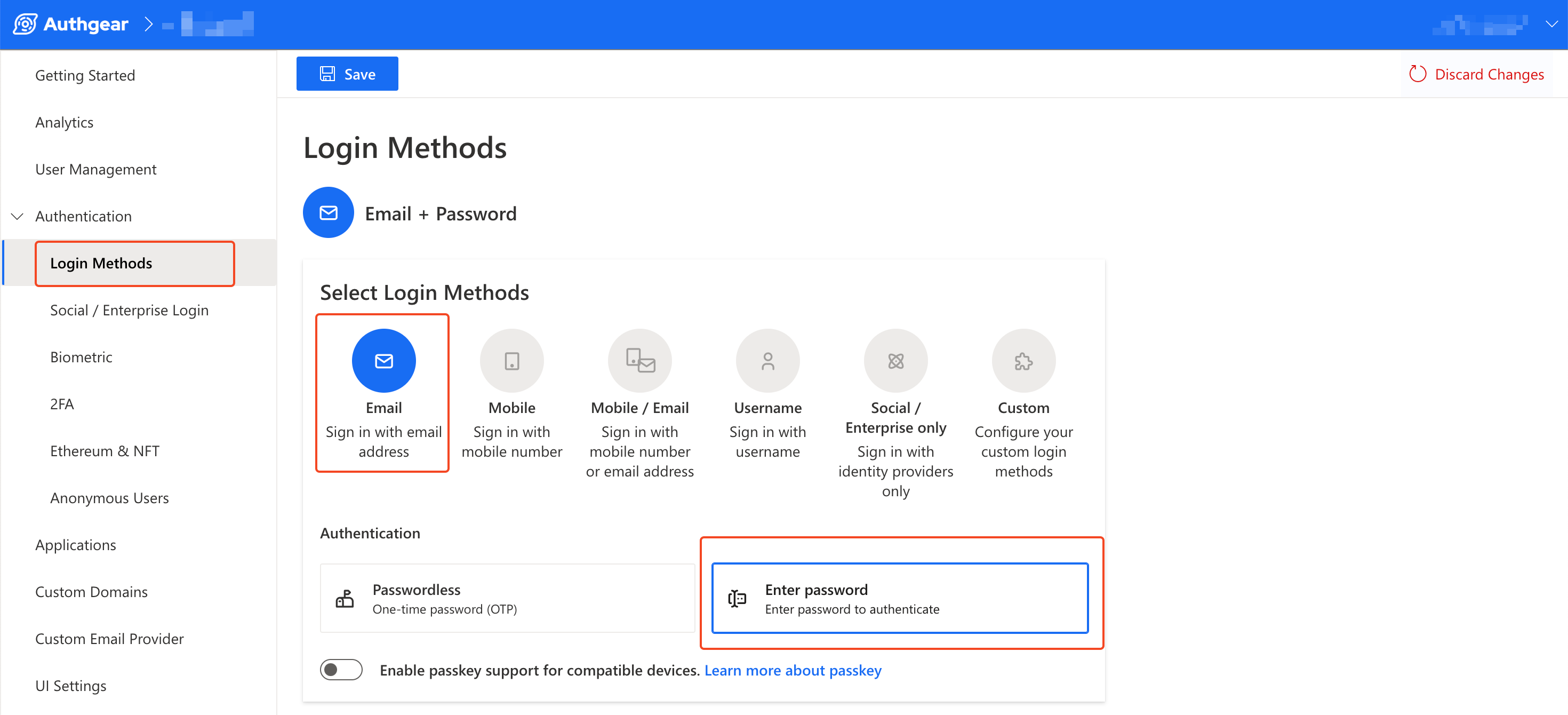
同时,禁用双重验证(如果已启用),以免身份验证流程包含我们示例应用未覆盖的额外步骤。您可以在 Authany 管理台的身份验证 > 双重验证中禁用双重验证要求。
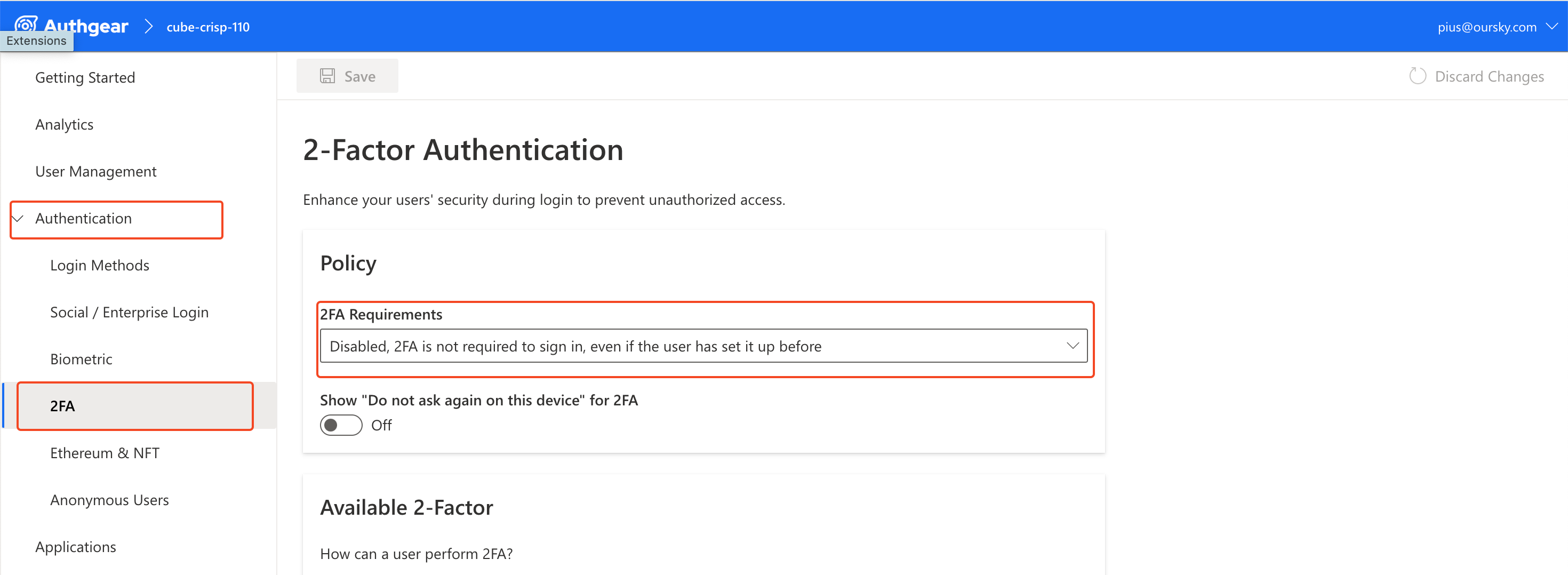
至此,我们已经完成了在 Authany 管理台上的必要配置。在下一部分,我们将设计一些自定义界面并实现 Authentication Flow API。
第 2 部分:实现 Authentication Flow API
现在您的 Authany 项目已设置为使用 Authentication Flow API,接下来我们一步步创建一个自定义登录和注册页面。本部分的示例应用使用 PHP 编写。
您在本部分构建的应用,正是您自定义界面 URI 所应指向的同一个应用。
步骤 1:搭建 Authany PHP 示例应用
使用以下命令或文件管理器,在您的电脑上为 PHP 项目新建一个文件夹:
运行以下命令,将当前目录切换到新建的文件夹:
在本示例中,我们将使用 oauth2-client 包与 Authany 交互。使用以下命令安装该包:
创建以下文件,并将对应代码添加到文件中:
config.php:
<?php
require 'vendor/autoload.php';

$appUrl = "";
$clientID = "";
$clientSecret = "";
$redirectUri = "http://localhost:8081/";

$provider = new \League\OAuth2\Client\Provider\GenericProvider([
    'clientId'                => $clientID,    // The client ID assigned to you by the provider
    'clientSecret'            => $clientSecret,    // The client password assigned to you by the provider
    'redirectUri'             => $redirectUri,
    'urlAuthorize'            => $appUrl.'/oauth2/authorize',
    'urlAccessToken'          => $appUrl.'/oauth2/token',
    'urlResourceOwnerDetails' => $appUrl.'/oauth2/userInfo',
    'scopes' => 'openid'
]);
?>
请根据您 Authany 应用配置页面上的值,填写正确的 $clientID、$clientSecret 和 $redirectUri。$appUrl 的值应该是您应用的端点。
index.php:
<?php
include "config.php";

// if code is set, get access token
if (isset($_GET['code'])) {
    $code = $_GET['code'];
    try {
        $accessToken = $provider->getAccessToken('authorization_code', [
            'code' => $code
        ]);
        $_SESSION['accessToken'] = $accessToken;
    } catch (\League\OAuth2\Client\Provider\Exception\IdentityProviderException $e) {
        // Failed to get the access token or user details.
        exit($e->getMessage());
    }
}
?>
<!DOCTYPE html>
<html lang="en">
<head>
    <meta charset="UTF-8">
    <meta name="viewport" content="width=device-width, initial-scale=1.0">
    <title>PHP Demo - Home</title>
</head>
<body style="background-color: #DEDEDE">
    <div style="max-width: 650px; margin: 16px auto; background-color: #FFFFFF; padding: 16px;">
        <h3>Hello world!</h3>
        <p>This demo app shows you how to add user authentication to your app using Authgear</p>
        <p>Checkout <a href="https://docs.authany.com/">docs.authgear.com</a> to learn more about adding Authgear to your apps.</p>
        <?php
        if (isset($_SESSION['accessToken'])) {
            //if access token exists in session, attempt to fetch user info
            $resourceOwner = $provider->getResourceOwner($accessToken);
            $userInfo = $resourceOwner->toArray();

            echo "Welcome back " . $userInfo['email'];
            echo "<br/>";
            echo '<a href="'.$appUrl.'/logout">Logout</a>';

        } else { ?>
        <p><a href="startLogin.php">Login/Signup</a></p>
        <?php
        }
        ?>
    </div>
</body>
</html>
上面的页面将作为我们示例应用的落地页。用户点击登录链接后,将被重定向到您的自定义登录页面。
startLogin.php:
<?php
include "config.php";

if (!isset($_GET['code'])) {
    // Fetch the authorization URL from the provider; this returns the
    // urlAuthorize option and generates and applies any necessary parameters
    // (e.g. state).
    $authorizationUrl = $provider->getAuthorizationUrl();

    // Get the state generated for you and store it to the session.
    $_SESSION['oauth2state'] = $provider->getState();

    // Redirect the user to the authorization URL.
    header('Location: ' . $authorizationUrl);
    exit;
}
?>
startLogin.php 中的代码通过将用户重定向到授权 URL,来发起一个常规的 Authany 身份验证流程。在我们的示例中,这个授权 URL 将指向我们的自定义登录页面。
步骤 2:创建登录页面
仍然在您的 PHP 项目文件夹中,创建一个新的 login.php 文件,并添加以下代码:
<?php $url_params = $_SERVER['QUERY_STRING'];
?>
<!DOCTYPE html>
<html lang="en">

<head>
    <meta charset="UTF-8">
    <meta name="viewport" content="width=device-width, initial-scale=1.0">
    <link rel="stylesheet" href="https://cdn.jsdelivr.net/npm/bootstrap@4.0.0/dist/css/bootstrap.min.css"
        integrity="sha384-Gn5384xqQ1aoWXA+058RXPxPg6fy4IWvTNh0E263XmFcJlSAwiGgFAW/dAiS6JXm" crossorigin="anonymous">
    <title>Login</title>
</head>

<body>
    <div class="container pt-4">
        <form class="" action="<?php echo "form.php?action=login&" . $url_params; ?>" method="POST">
            <div class="">
                <label class="">
                    Email
                </label>
                <input name="email" type="email" class="form-control mb-2" placeholder="Enter your email" />
            </div>
            <div>
                <label>
                    Password
                </label>
                <input name="password" type="password" class="form-control mb-2" placeholder="Enter your password" />
            </div>
            <button type="submit" class="btn btn-primary">
                Submit
            </button>
        </form>
        <div>
            <span>Or</span>
            <a href="signup.php?<?php echo $url_params; ?>">Sign Up</a>
        </div>
    </div>
</body>
</html>
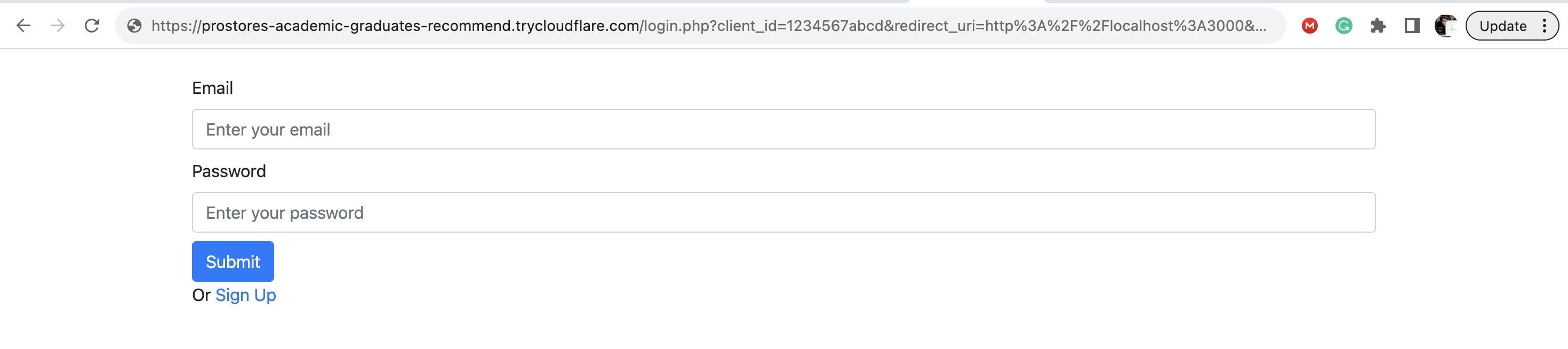
上面的代码创建了一个包含邮箱、密码字段和提交按钮的基本登录页面。
代码的第一行读取了 Authany 添加到您自定义界面 URI 上的 URL Query 值,并将其存储在 $url_params 变量中。完成身份验证流程需要用到这个值。
同时在上面的代码中,表单的 action 指向了 form.php,并在路径后附加了 $url_params。正是这个 form.php 文件将处理表单数据并完成登录流程。我们将在后续步骤中实现这个文件。
以下截图展示了浏览器中自定义登录页面的效果:
步骤 3:实现登录流程
在这一部分,您将开始真正与 Authentication Flow API 进行交互。
在第一次交互中,我们将向 API 端点发出一个 HTTP 请求,以将用户登录到我们的应用中。
在该请求中,我们会把用户在 login.php 页面输入的邮箱和密码发送给 API 端点,通过单个步骤完成身份验证流程。也就是说,我们将用单次 HTTP 请求发起并完成登录流程,这与后面注册和 OTP 流程中的做法不同。
我们将使用 GuzzleHttp 包向 Authentication Flow API 发出 HTTP 请求。因此,请在项目根目录下运行以下命令安装它:
现在创建一个新的 form.php 文件,并向其中添加以下代码:
<?php
require 'vendor/autoload.php';
use GuzzleHttp\Client;

$endpoint = "https://your-project.authanyid.com"; //Check Authgear Portal for your endpoint

if (isset($_GET["action"])) {
    $action = $_GET["action"];

    if ($action == "login") {
        $url_params = $_SERVER['QUERY_STRING'];
        $url = $endpoint . "/api/v1/authentication_flows";

        $client = new Client();
        $headers = [
            'Content-Type' => 'application/json',
            'Accept' => 'application/json',
        ];
        $response = $client->post($url . "?" . $url_params, [
            "json" => [
                'type' => 'login',
                'name' => 'default',
                "batch_input" => [
                    [
                        "identification" => "email",
                        "login_id" => $_POST['email']
                    ],
                    [
                        "authentication" => "primary_password",
                        "password" => $_POST['password']
                    ]
                ]
            ],
            "headers" => $headers
        ]);

        if ($response->getStatusCode() == 200) {
            $response_array = json_decode($response->getBody(), true);
            header("Location: " . $response_array["result"]["action"]["data"]["finish_redirect_uri"]);
        }

    }
}
以下是 form.php 中这段 PHP 代码目前所做的关键事情:
- 首先,它从表单 action 中读取 URL query,并将其附加到 API 端点。
- 然后,它向该端点发出一个 POST HTTP 请求,
Content-Type和Accept请求头的值均设置为application/json。向该端点发送请求时必须设置这些请求头的值。 - 接下来,表单中用户输入的内容(邮箱和密码)会被发送到 HTTP 请求体中。请求体中还包含
type和name参数,分别指定身份验证流程的类型(login)和流程名称(default)。 - 最后,从该 HTTP 请求的响应中读取
finish_redirect_uri的值。该值随后用于将用户重定向到 “finish redirect URI”,以完成登录流程。
上述请求的 HTTP 响应大致如下:
{
    "result": {
        "state_token": "authflowstate_RB482Y95Q4BT8D4CAHXD499Y21MGAH2J",
        "type": "login",
        "name": "default",
        "action": {
            "type": "finished",
            "data": {
                "finish_redirect_uri": "https://cube-crisp-110.authanyid.com/oauth2/consent?code=HD2AS7394RJCGVYWYHQHXGDKYX8BZ28Q"
            }
        }
    }
}
步骤 4:测试登录流程
启动您的 PHP 服务器,并尝试通过浏览器访问 index.php。如果您本地机器已安装 PHP 并设置好了环境路径,可以运行以下命令为您的项目启动一个 PHP 服务器:
现在点击落地页上的登录链接来测试登录流程。您应该会被重定向到自定义登录页面,而不是 Authany 提供的默认 AuthUI。
像普通用户测试您的实现一样,输入有效的邮箱和密码组合并点击登录按钮。身份验证流程结束时,用户应该会被重定向回应用。
步骤 5:初始化注册流程
在本注册流程示例中,我们将向 Authentication Flow API 发出两次请求。在这一步中,我们将实现第一次请求,它只用于初始化注册流程。
在项目文件夹中新建一个 signup.php 文件,并添加以下代码:
<?php
require 'vendor/autoload.php';
use GuzzleHttp\Client;

$endpoint = "https://your-project.authanyid.com"; //Check Authgear Portal for your endpoint
function initSignUp() {
    $url_params = $_SERVER['QUERY_STRING'];
    $url = $endpoint . "/api/v1/authentication_flows?" . $url_params;

    $client = new Client();
    $headers = [
        'Content-Type' => 'application/json',
        'Accept' => 'application/json',
    ];
    $response = $client->post($url, [
        "json" => [
            "type" => "signup",
            "name" => "default"
        ],
        "headers" => $headers
    ]);

    $response_array = json_decode($response->getBody(), true);

    $state_token = $response_array["result"]["state_token"];
    return $state_token;
}
?>
正如上面的代码片段所示,对于这个身份验证流程,type 为 “signup”。
initSignUp() 方法处理的是启动指定类型身份验证流程的这一步,并返回一个 state_token,供您继续该流程使用。
步骤 6:创建注册页面
在这一步,我们将创建一个注册页面。登录页面中已经包含一个指向注册页面的链接,并且带有 URL Query。
要为注册页面创建 UI,请在 "?>" PHP 嵌入闭合标签下方,将以下代码添加到 signup.php 文件中:
<!DOCTYPE html>
<html lang="en">
<head>
    <meta charset="UTF-8">
    <meta name="viewport" content="width=device-width, initial-scale=1.0">
    <link rel="stylesheet" href="https://cdn.jsdelivr.net/npm/bootstrap@4.0.0/dist/css/bootstrap.min.css"
        integrity="sha384-Gn5384xqQ1aoWXA+058RXPxPg6fy4IWvTNh0E263XmFcJlSAwiGgFAW/dAiS6JXm" crossorigin="anonymous">
    <title>Register</title>
</head>

<body>
    <div class="container pt-4">
        <form class="" action="form.php?action=signup" method="POST">
            <div class="form-group">
                <label class="">
                    Email
                </label>
                <input name="email" type="email" class="form-control mb-2" placeholder="Enter your email" />
            </div>
            <div class="form-group">
                <label>
                    Password
                </label>
                <input name="password" type="password" class="form-control mb-2" placeholder="Enter your password" />
            </div>
            <div class="form-group">
                <label>
                    Repeat Password
                </label>
                <input name="password" type="password" class="form-control mb-2" placeholder="Enter your password" />
            </div>
            <input type="hidden" name="state_token" value="<?php echo initSignUp(); ?>">
            <button type="submit" class="btn btn-primary">
                Submit
            </button>
        </form>
    <div>
</body>
</html>
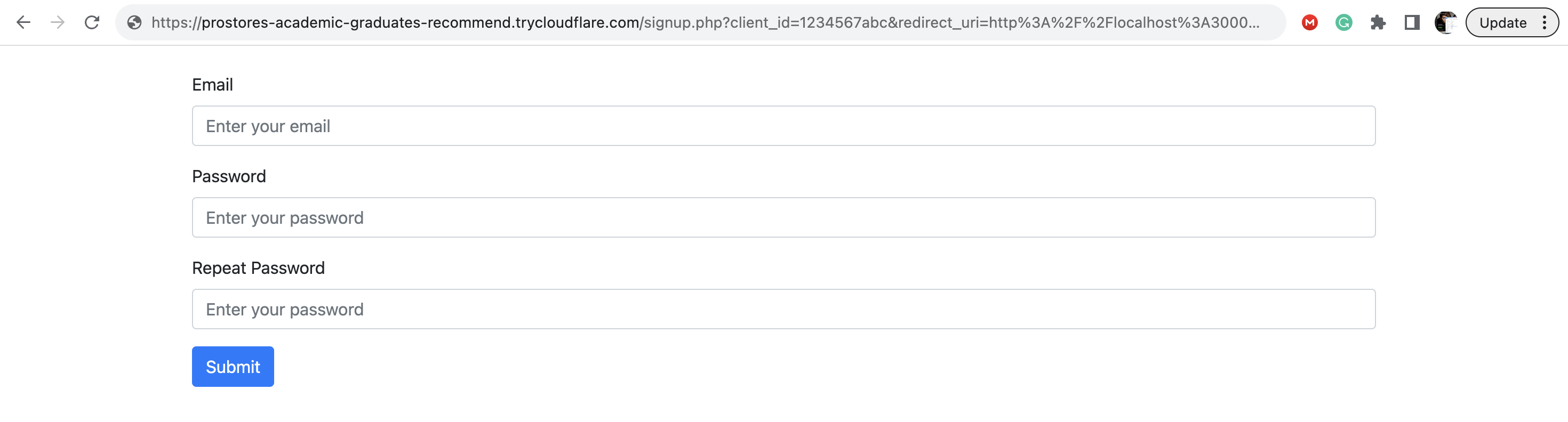
上面的代码实现了一个注册表单,包含供用户输入邮箱和密码的字段,以及一个提交按钮。<input type="hidden"> 的值是上一步返回的 state_token。您需要用到这个 state_token 才能继续该流程。
步骤 7:完成注册流程
打开 form.php,使用以下代码为 action=="signup" 的情况添加一个新的条件分支:
else if ($action == "signup") {

    $url = $endpoint . "/api/v1/authentication_flows/states/input";

    $client = new Client();
    $headers = [
        'Content-Type' => 'application/json',
        'Accept' => 'application/json',
    ];
    $response = $client->post($url, [
        "json" => [
            'state_token' => $_POST['state_token'],
            "batch_input" => [
                [
                    "identification" => "email",
                    "login_id" => $_POST['email']
                ],
                [
                    "authentication" => "primary_password",
                    "new_password" => $_POST["password"]
                ]
            ]
        ],
        "headers" => $headers
    ]);

    if ($response->getStatusCode() == 200) {
        $response_array = json_decode($response->getBody(), true);
        header("Location: " . $response_array["result"]["action"]["data"]["finish_redirect_uri"]);
    }

}
上面的代码将上一步得到的 state_token 作为请求体的一部分发送。
同时它也会发送用户在表单中输入的邮箱和密码。
在响应成功时,代码会将用户重定向到 finish_redirect_url。
再次使用您的前端应用测试您的实现,您应该能够通过自定义界面注册一个新账号。
结语
除了登录和注册,Authentication Flow API 还能实现更多功能。不过,本文的重点是为您提供一份指南,帮助您完成 Authentication Flow API 的第一次实现。
要了解更多受支持的流程、端点及其输入和响应,请查阅 Authentication Flow API 的官方 API 参考文档。