Flutter SDK
本指南将介绍如何将 Authany 集成到 Flutter 应用中。支持的平台包括:
- Flutter 3.0.0 或更高版本
- Android 最低 SDK 30(Android 11 或更高版本)
按照本指南,只需 🕐 10 分钟即可将 Authany 添加到您的 Flutter 应用中。
说明
本教程演示应用的完整代码可以在 Github 仓库这里找到。
在 Authany 中设置应用
在 https://manage.authany.com/ 注册一个 Authany 管理台账号,或者使用您自建部署的 Authany。
在项目列表中,创建一个新项目或选择一个已有项目。接下来,我们需要在项目中创建一个应用。
步骤 1:在管理台中创建应用
在左侧菜单栏中进入应用。
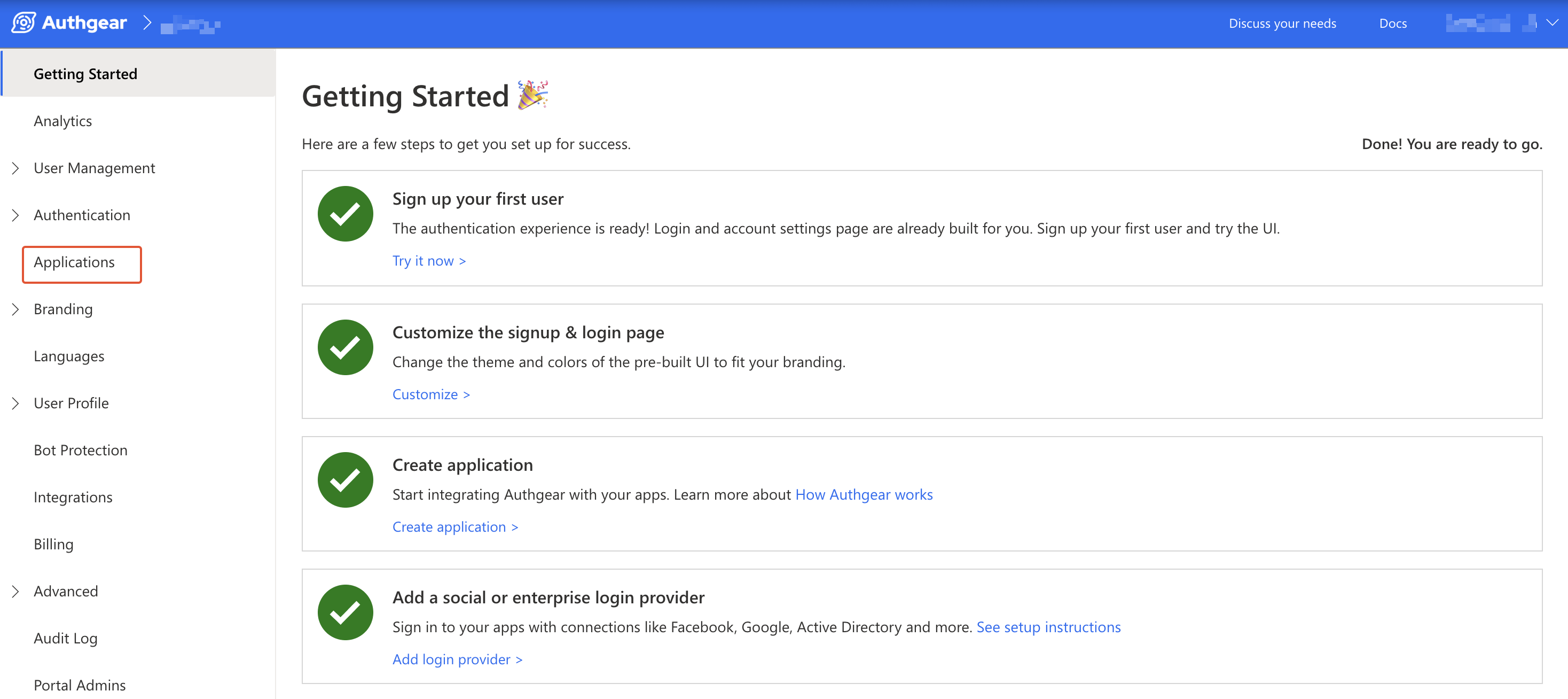
您会看到"新建应用"页面,或者点击顶部工具栏中的⊕添加应用。
输入应用名称,并选择原生应用作为应用类型,然后点击"保存"。
您会看到一系列可帮助您完成设置的指南,然后点击"下一步"。
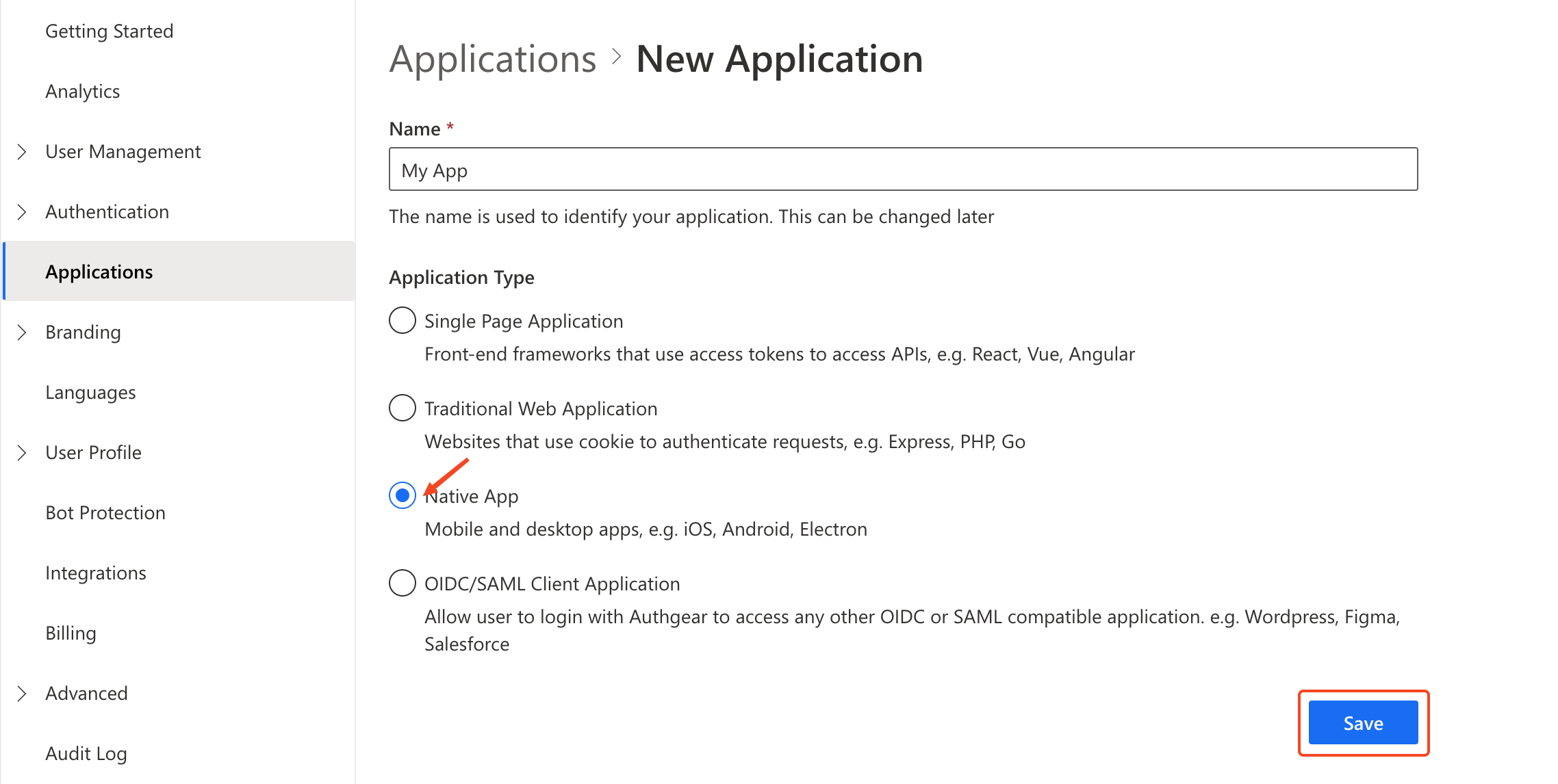
创建应用
步骤 2:配置应用
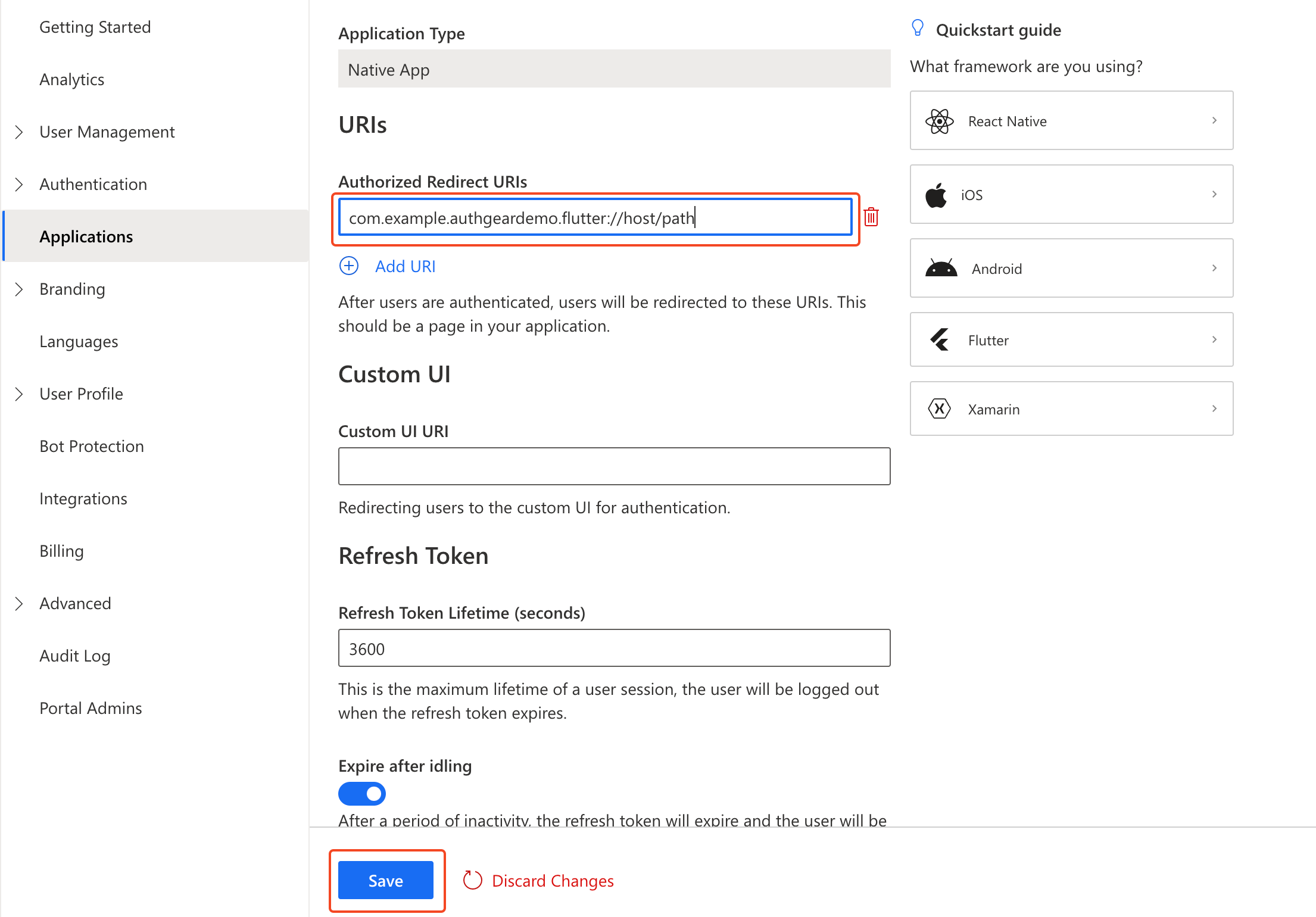
在您的 IDE 中,定义一个自定义 URI scheme,Authany 会在用户完成身份验证后使用它将用户重定向回您的应用。对于本指南的演示应用,该 URI scheme 为:com.example.authgeardemo.flutter://host/path。要了解更多关于在 Flutter 中设置 URI Scheme 的信息,请访问 https://docs.flutter.dev/ui/navigation/deep-linking。
返回 Authany 管理台,填写您在上一步中定义的重定向 URI。
点击"保存",并记下客户端 ID和端点。您之后也可以在应用列表中获取它们。
使用 Authany SDK 为 Flutter 应用添加用户身份验证
在本部分指南中,我们将使用 Authany Flutter SDK,为一个简单的演示应用添加用户身份验证。
该演示应用将包含一个登录按钮,用户点击后即可发起身份验证流程。此外还会包含一组组件,用于问候已登录用户、打开用户设置页面以及登出。
步骤 1:创建 Flutter 应用
如果您是 Flutter 新手,请参阅官方 Flutter 文档,了解如何在您的电脑上安装 Flutter。
运行以下命令创建一个新的 Flutter 项目:
步骤 2:安装 Authany SDK
在您的 Flutter 项目根目录下运行以下命令来安装 Authany SDK:
步骤 3:初始化 Authany
首先,在 lib/main.dart 文件顶部导入 Authany:
接下来,在页面的 State 类中创建一个类型为 Authgear 的字段变量 _authgear,以及一个 _init() 方法:
late Authgear _authgear;

Future<void> _init() async {
  _authgear = Authgear(endpoint: "<AUTHGEAR_ENDPOINT>", clientID: "<CLIENT_ID>");
  await _authgear.configure();
}
说明
注意: State 类是与有状态页面(widget)关联的类。例如,以下展示了为演示应用添加 _authgear 字段和 _init() 方法后的部分 State 类代码:
class _MyHomePageState extends State<MyHomePage> {
  late Authgear _authgear;

  Future<void> _init() async {
    _authgear = Authgear(endpoint: "<AUTHGEAR_ENDPOINT>", clientID: "<CLIENT_ID>");
    await _authgear.configure();
  }

  @override
  Widget build(BuildContext context) {
  //other codes including wigdets for UI
  ...
  }
}
将 "<AUTHANY_ENDPOINT>" 和 "<ClIENT_ID>" 替换为您之前创建的客户端应用的客户端 ID 和端点。
最后,重写 State 类的 initState() 方法以调用新建的 _init() 方法。这将初始化一个新的 Authany SDK 实例,供您执行诸如发起身份验证流程等操作。
步骤 4:添加登录按钮
在这一步中,我们将为演示应用添加一个登录按钮和其他界面组件。
为此,首先在 State 类中添加一个 _userInfo 字段变量:
我们的演示应用会根据 _userInfo 变量的值,决定何时显示登录按钮,或显示已登录用户的一组组件。
接下来,将 Scaffold 的 body 属性中的组件替换为以下内容:
Center(
child: (_userInfo != null) ?
loggedInUserScreen(_userInfo!.sub)
:
Column(
mainAxisAlignment: MainAxisAlignment.center,
children: [
Text("My Demo App"),
TextButton(
onPressed: _onPressedAuthenticate,
child: Text("Login"),
)])
,
)
现在,在 State 类中按如下方式实现自定义组件 loggedInUserScreen():
Widget loggedInUserScreen(String userId) {
return Column(
mainAxisAlignment: MainAxisAlignment.center,
children: [
Text("Welcome user $userId"),
TextButton(
onPressed: _onPressedSettings,
child: Text("User Settings"),
),
TextButton(
onPressed: _onPressedLogout,
child: Text("Logout"),
)
],
);
}
在下一步中,我们将实现 _onPressedAuthenticate() 方法。
步骤 5:发起身份验证流程
这里我们将实现 _onPressedAuthenticate() 方法,该方法会在用户点击登录按钮时被调用。
在 State 类中添加以下方法:
Future<void> _onPressedAuthenticate() async {
try {
final userInfo = await _authgear.authenticate(redirectURI: "com.example.authgeardemo.flutter://host/path");
setState(() {
_userInfo = userInfo;
});
} catch (e) {
debugPrint(e.toString());
}
}
上面的代码调用了 Authany SDK 的 authenticate() 方法,用于发起一个新的身份验证流程。请将 redirectURI 参数的值替换为您在客户端应用中注册的重定向 URI。
暂时先在 State 类中创建空的 _onPressedSettings() 和 _onPressedLogout() 方法,以便您可以构建应用:
此时,main.dart 的完整代码应如下所示:
import 'package:flutter/material.dart';
import 'package:flutter_authgear/flutter_authgear.dart';
void main() {
runApp(const MyApp());
}
class MyApp extends StatefulWidget {
const MyApp({super.key});
@override
State<MyApp> createState() => _MyAppState();
}
class _MyAppState extends State<MyApp> {
late Authgear _authgear;
UserInfo? _userInfo;
@override
void initState() {
  super.initState();
  _init();
}
Future<void> _init() async {
_authgear = Authgear(endpoint: "<AUTHGEAR_ENDPOINT>", clientID: "<CLIENT_ID>");
await _authgear.configure();
}
@override
Widget build(BuildContext context) {
return MaterialApp(
title: "MyApp",
home: Scaffold(
appBar: AppBar(title: const Text("MyApp")),
body: Center(
child: (_userInfo != null) ?
loggedInUserScreen(_userInfo!.sub)
:
Column(
mainAxisAlignment: MainAxisAlignment.center,
children: [
Text("My Demo App"),
TextButton(
onPressed: _onPressedAuthenticate,
child: Text("Login"),
)])
,
)
),
);
}
Future<void> _onPressedAuthenticate() async {
try {
final userInfo = await _authgear.authenticate(redirectURI: "com.example.authgeardemo.flutter://host/path");
setState(() {
_userInfo = userInfo;
});
} catch (e) {
debugPrint(e.toString());
}
}
Future<void> _onPressedSettings() async {
}
Future<void> _onPressedLogout() async {
}
Widget loggedInUserScreen(String userId) {
  return Column(
    mainAxisAlignment: MainAxisAlignment.center,
    children: [
      Text("Welcome user $userId"),
      TextButton(
          onPressed: _onPressedSettings,
          child: Text("User Settings"),
        ),
      TextButton(
          onPressed: _onPressedLogout,
          child: Text("Logout"),
        )
    ],
  );
}
}
检查点
此时,您可以保存代码,并运行以下命令,在移动设备或模拟器上测试应用:
应用运行后,您应该会看到登录按钮,点击它会发起一次新的身份验证。不过,由于我们尚未配置应用来处理来自 Authany 的重定向,您可能无法完成身份验证。
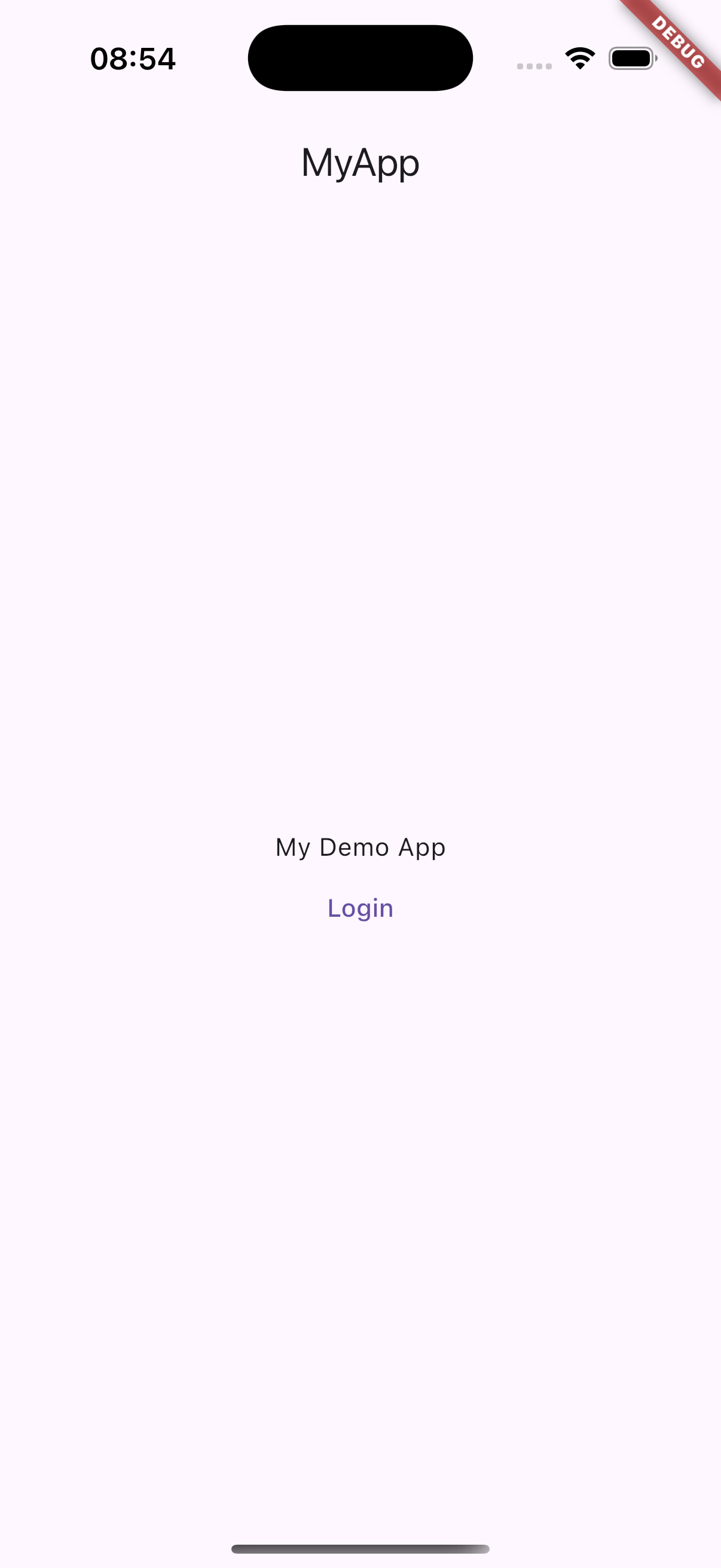
演示应用预览
步骤 6:为您的应用设置重定向 URI
要完成集成,需要设置应用以处理应用中指定的 redirectURI。这部分需要针对特定平台进行集成。
在这里,您需要声明应用支持的 URL scheme,以便设备能够在身份验证完成后,通过重定向 URI 将用户重定向回应用。
Android
在应用的 /android/app/src/main/AndroidManifest.xml 中添加以下 <activity> 条目。intent 系统会将重定向 URI 分派给 OAuthRedirectActivity,其余部分由 SDK 处理。
<!-- Your application configuration. Omitted here for brevity -->
<application>
  <!-- Other activities or entries -->

  <!-- Add the following activity -->
  <!-- android:exported="true" is required -->
  <!-- See https://developer.android.com/about/versions/12/behavior-changes-12#exported -->
  <activity android:name="com.authgear.flutter.OAuthRedirectActivity"
            android:exported="true"
            android:launchMode="singleTask">
            <intent-filter>
                <action android:name="android.intent.action.VIEW" />
                <category android:name="android.intent.category.DEFAULT" />
                <category android:name="android.intent.category.BROWSABLE" />
                <!-- Configure data to be the exact redirect URI your app uses. -->
                <!-- Here, we are using com.example.authgeardemo.flutter://host/path as configured in the portal -->
                <!-- NOTE: The redirectURI supplied in AuthenticateOptions *has* to match as well -->
                <data android:scheme="com.example.authgeardemo.flutter"
                    android:host="host"
                    android:pathPrefix="/path"/>
            </intent-filter>
  </activity>
</application>
您还需要在 AndroidManifest.xml 中添加一个 queries 部分。
<?xml version="1.0" encoding="utf-8"?>
<manifest xmlns:android="http://schemas.android.com/apk/res/android">
  <!-- Other elements such <application> -->
  <queries>
    <intent>
      <action android:name="android.support.customtabs.action.CustomTabsService" />
    </intent>
  </queries>
</manifest>
请从 AndroidManifest.xml 中删除以下这一行,因为该设置会与 SDK 冲突:
接下来,打开 /android/app/build.gradle,将 minSdk 设置为 30:
android {
    ...
    defaultConfig {
        applicationId = "com.example.myapp"
        minSdk = 30 // specify minSdk to 30
        targetSdk = flutter.targetSdkVersion
        versionCode = flutter.versionCode
        versionName = flutter.versionName
    }
}
说明
要了解为何将 minSdk 设置为 30,请参阅 https://developer.android.com/privacy-and-security/risks/strandhogg#mitigations
iOS
在 Info.plist 中声明 URL 处理
在项目 ios 文件夹下的 Info.plist 中,通过添加 CFBundleURLTypes 键以及 <dict> 内的相应值来添加匹配的重定向 URI,如下例所示。
<?xml version="1.0" encoding="UTF-8"?>
<!DOCTYPE plist PUBLIC "-//Apple//DTD PLIST 1.0//EN" "http://www.apple.com/DTDs/PropertyList-1.0.dtd">
<plist version="1.0">
<dict>
      <!-- Other entries -->
      <key>CFBundleURLTypes</key>
      <array>
              <dict>
                      <key>CFBundleTypeRole</key>
                      <string>Editor</string>
                      <key>CFBundleURLSchemes</key>
                      <array>
                              <string>com.example.authgeardemo.flutter://host/path</string>
                              <!-- Put the redirect URI your app uses here. -->
                      </array>
              </dict>
      </array>
</dict>
</plist>
现在,如果再次运行应用,您应该可以登录、被重定向回应用,并看到为已登录用户显示的那组组件。
步骤 7:登出
要将用户从当前应用会话中登出,您需要调用 SDK 的 logout 方法。
更新您之前添加的空 _onPressedLogout 方法,使其调用 logout 方法。
Future<void> _onPressedLogout() async {
  await _authgear.logout();
  setState(() {
      _userInfo = null;
  });
}
步骤 8:打开用户设置页面
Authany 提供了一个预置的用户设置页面,用户可以在其中查看和编辑个人资料详情,并修改密码、2FA 等安全设置。
SDK 提供了一个方法,让您可以轻松打开该用户设置页面。
更新您之前添加的空 _onPressedSettings 方法,使其发起打开用户设置页面的流程。
步骤 9:显示用户信息
此时,我们的应用已经显示了当前用户的信息(其唯一 ID,即 sub)。不过,Authany SDK 还提供了 getUserInfo() 方法,您可以显式调用它来获取一个包含当前用户信息(如邮箱、手机号码、姓名等)的对象。
调用 getUserInfo() 方法还可以刷新当前用户的访问令牌,以确保其会话状态确实为 authenticated,也就是说,已登录用户使用的不是过期的访问令牌。
更新您的 _init() 方法,检查用户的登录状态,并在状态为 SessionState.authenticated 时获取其用户信息。
Future<void> _init() async {
  _authgear = Authgear(endpoint: "<AUTHGEAR_ENDPOINT>", clientID: "<CLIENT_ID>");
  await _authgear.configure();
  if (_authgear.sessionState == SessionState.authenticated) {
    final userInfo = await _authgear.getUserInfo();
    setState(() {
      _userInfo = userInfo;
    });
  }
}
其他操作
获取登录状态
当您启动应用时,可能需要知道用户是否已登录(例如,如果用户尚未登录,则向其展示登录页面)。sessionState 反映的是 SDK 本地状态中的用户登录状态,这意味着即使 sessionState 为 SessionState.authenticated,如果会话已在远程被吊销,该会话也可能是无效的。初始化 Authany SDK 后,请在合适的时机调用 getUserInfo 来更新 sessionState。
// After authgear.configure, it only reflect SDK local state.
// value can be SessionState.noSession or SessionState.authenticated
SessionState state = _authgear.sessionState;

UserInfo? userInfo;
try {
  userInfo = await _authgear.getUserInfo();
  // read the userInfo if needed
} catch (e) {
  // failed to fetch user info
  // the refresh token maybe expired or revoked
}
// sessionState is now up to date
// it will change to SessionState.noSession if the session is invalid
state = _authgear.sessionState;
sessionState 的值可以是 SessionState.unknown、SessionState.noSession 或 SessionState.authenticated。初始时,sessionState 为 SessionState.unknown。调用 authgear.configure 后,如果找到了之前的会话,会话状态会变为 SessionState.authenticated;如果未找到,则变为 SessionState.noSession。
在 HTTP 请求中使用访问令牌
要在发送到应用服务器的 HTTP 请求中包含访问令牌,请使用 wrapHttpClient。
封装后的客户端会在每个 HTTP 请求中包含 Authorization 头,并自动刷新访问令牌。
后续步骤
为了保护您的应用服务器免受未经授权的访问,您需要将后端与 Authany 集成。
Flutter SDK 参考
有关 Flutter SDK 的详细文档,请访问 Flutter SDK 参考