Connect Apps to Google
Set up OAuth client on Google Cloud Platform
To configure Google OAuth client for Authany, you will need to create an OAuth client on Google Cloud Platform first.
Create a new project
Create a project on Google Cloud Platform through console. If you are adding Authany to your existing Google Cloud Platform projects, you may skip to the next step to create the OAuth client.
Create OAuth Consent Screen
After creating a new project, you will need to configure the OAuth consent screen. Press the  button on the top-left and go to APIs & Services -> OAuth consent screen and follow the instruction to create the consent screen.
Create OAuth client ID
- Go to -> APIs & services -> Credentials
- Click Create Credentials -> OAuth client ID
- Choose Web application in Application type and assign a name as reference. You should always choose Web application here regardless of the platform of the app you are creating. It is because this OAuth Client ID is used by your Authany services, which is a web application in Google’s classification.
- In Authorized JavaScript origins, add your Authany endpoint, e.g.
https://myproject.authanyid.com - In Authorized redirect URIs, add
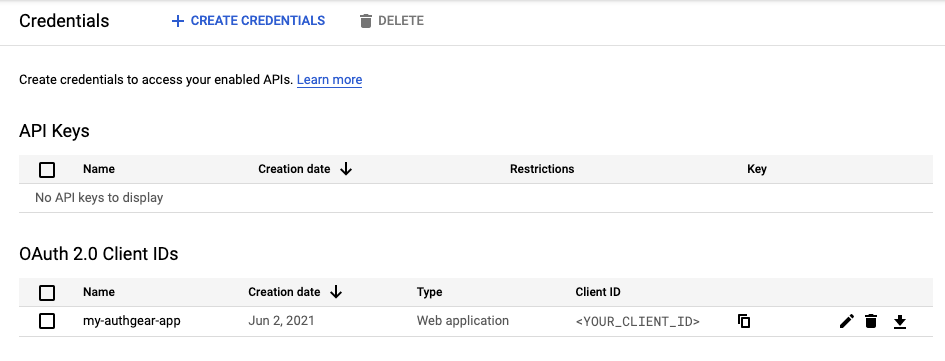
https://<YOUR_AUTHGEAR_ENDPOINT>/sso/oauth2/callback/google. For example,https://myproject.authanyid.com/sso/oauth2/callback/google - After creating a client ID, you will see the client ID under the OAuth 2.0 Client IDs section of the Credentials page.
Note
Redirect URI has the form of /sso/oauth2/callback/:oauth_provider_alias. The oauth_provider_alias is the OAuth Provider Alias configured for this provider in Authany Portal.
You can find more details in official Google Cloud Platform doc
Configure Sign in with Google in Authany Portal
Get your OAuth Client details
After creating an OAuth client, click the name of OAuth client to view the details.
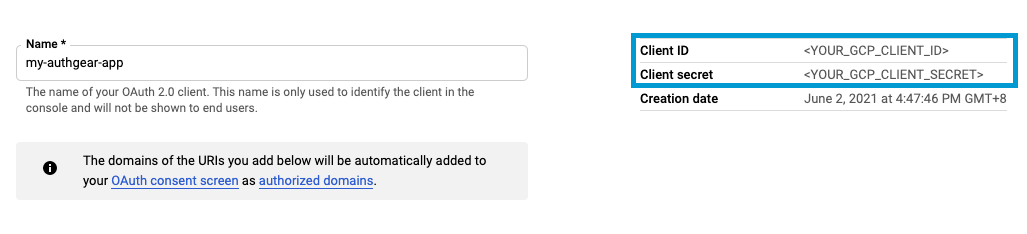
You will need the values of Client ID, Client secret to configure Google Sign In.
Configure in Authany Portal
- In the portal, go to Authentication > Social / Enterprise Login.
- Enable Sign in with Google.
- Fill in the Client ID and Client Secret with the values obtained from the previous step.
- Save the settings.
🎉Done! You have just added Google Sign In to your apps!
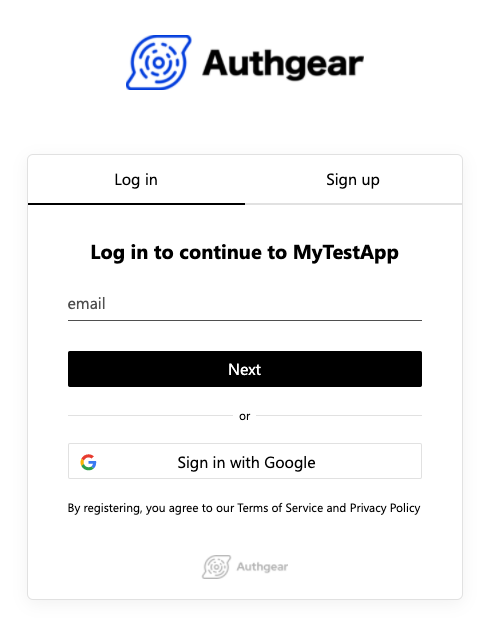
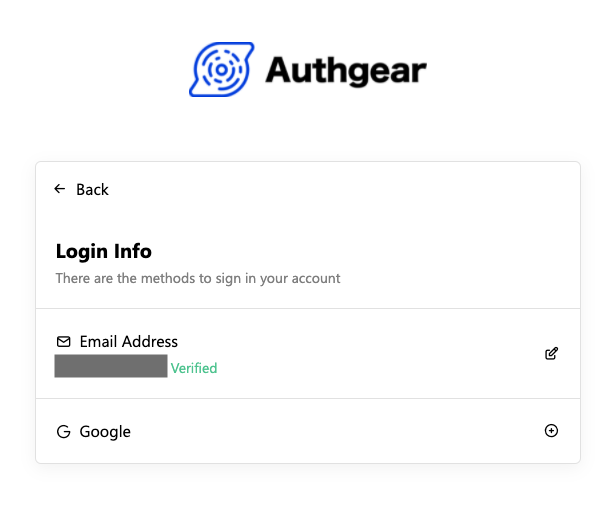
Your end-users can now sign in with Google on Authany pre-built Log In and Sign Up page. Existing end-users can connect their account to Google in the User Settings page.