API Queries and Mutations
Authany provides a GraphQL API that you can use to manage users and other resources right from your application or using the GraphiQL Explorer in Authany Portal > Advanced > Admin API.
The following section shows a detailed description and examples of supported queries and mutations.
1. Queries
1.1. auditLogs
The auditLogs query returns a list of all activities (logs) from the audit log.
Schema:
auditLogs(
first: Int
last: Int
userIDs: [ID!]
sortDirection: SortDirection
before: String
after: String
rangeFrom: DateTime
rangeTo: DateTime
activityTypes: [AuditLogActivityType!]
): AuditLogConnection
Example:
1.2. users
You can use this query to fetch all registered users on your application. The users query returns a list of type User.
The users query depends on a search index. Hence, the data it returns is NOT immediately consistent as it requires reindexing before the most recent data and updates are included. If getting real-time user data is important for your use case, consider using the node /nodes or getUser/getUsers queries instead.
Schema:
users(
first: Int
last: Int
searchKeyword: String
sortBy: UserSortBy
sortDirection: SortDirection
before: String
after: String
): UserConnection
Example:
{
  "data": {
    "users": {
      "edges": [
        {
          "node": {
            "id": "VXNlcjo4ZGM4ZDgyjjkoKA0LTRjZGEtODZiOC03OTY4MGUwYzA5OGM",
            "standardAttributes": {
              "email": "myuser@gmail.com",
              "email_verified": true,
              "family_name": "John",
              "given_name": "Doe",
              "updated_at": 1686820949
            }
          }
        },
        {
          "node": {
            "id": "VXNlcjplMzA3OTAyaxKJuILTRjMjQtOTFjMS1jMmNkNjNhNmE0YWY",
            "standardAttributes": {
              "email": "user2@gmail.com",
              "email_verified": true,
              "family_name": "Eliano",
              "given_name": "Don",
              "updated_at": 1694359032
            }
          }
        }
      ]
    }
  }
}
1.3. node
A node represents a single object of different Types. The node query allows you to query a single object using the node ID. You can learn more about node ID here.
Schema:
Example:
You can specify different object types to the node query to fetch an item of that type. Examples of node Types include User, AuditLog, Session, Authenticator, Authorization, and Identity.
The following example uses the AuditLog node type.
1.4. nodes
The nodes query returns a list of nodes. This works similarly to the node query except that instead of supplying a single ID, you can provide a list of IDs for the objects you are querying for.
Schema:
Example:
1.5 groups
The groups query returns a list of all groups in an Authany project. It will return nothing if no group has been created yet. Groups can be a field in the roles query.
Schema:
groups(
searchKeyword: String
excludedIDs: [ID!]
after: String
first: Int
last: Int
before: String
): GroupConnection
Example:
{
  "data": {
    "groups": {
      "edges": [
        {
          "cursor": "b2Zmc2V0OjA",
          "node": {
            "description": "Staff members with super admin permissions",
            "id": "R3JvdXA6OTU4YTA2ODIXRMb4n6MDAwMDAwMDAwMDA0ZDVjUKx",
            "key": "admin_staff"
          }
        },
        {
          "cursor": "b2Zmc2V0OjE",
          "node": {
            "description": "Group for quickly applying team_member role to batch users.",
            "id": "R3JvdXA6XRMb4n6MDAwMDAwMDAwMDA0ZDVjUKJl",
            "key": "regular_staff"
          }
        }
      ]
    }
  }
}
1.6 roles
You can use this query to get all the roles available in an Authany project. The roles query will return nothing if no roles have been created for the Authany project. Roles can also be a field in the node of the groups query. See Manage Users Roles and Groups to learn more about roles and groups.
Schema:
roles(
excludedIDs: [ID!]
last: Int
before: String
after: String
first: Int
searchKeyword: String
): RoleConnection
Example:
{
  "data": {
    "roles": {
      "edges": [
        {
          "cursor": "b2Zmc2V0OjA",
          "node": {
            "description": "Leads a specific department where they also work.",
            "groups": {
              "edges": []
            },
            "id": "Um9sZTozMjc5NWRiNhOTgtOTzMzZkZGNi1hOWVkLTE2MC0RlOWFkMTM",
            "key": "department_lead"
          }
        },
        {
          "cursor": "b2Zmc2V0OjE",
          "node": {
            "description": "Regular staff working in a specific department.",
            "groups": {
              "edges": [
                {
                  "node": {
                    "key": "regular_staff"
                  }
                }
              ]
            },
            "id": "Um9sZToyMjc5NWRiNhOTgtOTzMzZkZGNi1hOWVkLTE2MC0RlOWFkZTA",
            "key": "team_member"
          }
        }
      ]
    }
  }
}
1.7 getUser and getUsers Queries
The getUser and getUsers queries are a collection of Admin API queries for getting details about a single user or multiple users using specific attributes as the search key and in real-time. Unlike the users() query, the result from the getUser and getUsers queries is immediately consistent.
Learn more about all the queries in this collection here.
1.8 User.accountLockout
The accountLockout field on the User type returns the current account lockout state for a user. Select this field through any query that returns a User (for example, the node query in 1.3, or the getUser / getUsers queries in 1.7).
Schema:
type AccountLockout {
  lockoutType: LockoutType!
  isLocked: Boolean!
  lockedUntil: DateTime
  lockedIPs: [LockedIP!]!
}

type LockedIP {
  ipAddress: String!
  lockedUntil: DateTime!
}

enum LockoutType {
  per_user
  per_user_per_ip
}
The response shape depends on the project's configured Lockout Type:
- For
per_user,lockedUntilis the time the lock expires (UTC) andlockedIPsis empty. - For
per_user_per_ip,lockedUntilisnullandlockedIPslists each currently locked IP with its own expiry, ordered by expiry descending.
Example:
{
  "data": {
    "node": {
      "id": "VXNlcjowNGUyJJO4Mi04NmEzLTRjYjItOGQxNy14ZWU0Y2FlNzQ5Kse",
      "accountLockout": {
        "lockoutType": "per_user_per_ip",
        "isLocked": true,
        "lockedUntil": null,
        "lockedIPs": [
          { "ipAddress": "192.0.2.10", "lockedUntil": "2026-05-15T14:53:50Z" },
          { "ipAddress": "192.0.2.42", "lockedUntil": "2026-05-15T14:31:18Z" }
        ]
      }
    }
  }
}
See Account Lockout for an overview of the feature and how to unlock a user.
2. Mutations
With mutations, you can modify data from your application using the Admin API GraphQL. For example, you can use mutation to update
2.1. anonymizeUser
Calling this mutation will change a specific user account to an anonymous account. In other words, this query anonymizes a specific user. This action will delete the user's data like name and gender.
Schema:
Example:
2.2. createIdentity
The createIdentity mutation creates a new identity for a user.
Schema:
Note
Note: To use any loginID key, you must first enable the corresponding Login Method in your Authany Portal. For example, enable Mobile login method to create an identity using phone number.
Example:
{
  "data": {
    "createIdentity": {
      "identity": {
        "claims": {
          "email": "user@gmail.com",
          "https://authgear.com/claims/login_id/key": "email",
          "https://authgear.com/claims/login_id/original_value": "user@gmail.com",
          "https://authgear.com/claims/login_id/type": "email",
          "https://authgear.com/claims/login_id/value": "user@gmail.com"
        },
        "id": "SWRlbnRpdHk6YjHiZGVhNjctABCwMy00OWU2LWIyOTMtNTIwMGU3KKUkMTBl"
      }
    }
  }
}
2.3. createUser
The createUser mutation makes it possible to create a new user account from the Admin API.
Schema:
Example:
mutation {
  createUser(input: {definition: {loginID: {key: "email", value: "user@gmail.com"}}, password:"my$ecurepa55", sendPassword: true, setPasswordExpired: true}) {
    user{
      id
      standardAttributes
    }
  }
}
Note on password:
- If
passwordis an empty string (""), the server will generate a password only if the project haspasswordenabled. - You can include
sendPassword: trueandsetPasswordExpired: truein the input to send the new password to a user and set it as expired so they can set a new one the next time they log in. - If
passwordis null, no password will be created regardless of the project's configuration.
2.4. deleteAuthenticator
This mutation deletes an authenticator for a specific user.
Schema:
Example:
2.5. deleteAuthorization
You can use the deleteAuthorization mutation to delete an existing authorization for a user.
Schema:
Example:
2.6. deleteIdentity
The deleteIdentity mutation deletes the identity of a user.
Schema:
Example:
2.7. deleteUser
This mutation allows you to delete a specific user using the Admin API.
Schema:
Example:
2.8. generateOOBOTPCode
Calling the generateOOBOTPCode mutation will generate a new OOB OTP Code for a user. This mutation allows you to specify the purpose and target of the OTP as input.
Schema:
Example:
2.9. resetPassword
The resetPassword mutation lets you reset a user's password from the Admin API. This is only available if the user already has an existing password - it cannot be used for users who registered using third-party services (like Google).
Schema:
Example 1:
Example 2 (send new password to user):
You can include the following in the resetPassword mutation:
sendPassword: truesends the new password to a usersetPasswordExpired: trueforces the user to change their password on next login.
mutation {
  resetPassword(input: {userID: "<ENCODED USER ID>", password: "n3w-p4$s", sendPassword: true, setPasswordExpired: true}) {
    user {
      id
      standardAttributes
    }
  }
}
2.10. revokeAllSessions
With the revokeAllSessions mutation, you can revoke all sessions for a specific user.
Schema:
Example:
2.11. revokeSession
This mutation revokes a specific user session. You can specify the session using the session ID.
Schema:
Example:
2.12. scheduleAccountAnonymization
The scheduleAccountAnonymization mutation provides a means to schedule a user account anonymization from the Admin API.
Schema:
scheduleAccountAnonymization(input: ScheduleAccountAnonymizationInput!): ScheduleAccountAnonymizationPayload!
Example:
2.13. scheduleAccountDeletion
The scheduleAccountDeletion mutation provides a means to schedule a user account deletion from the Admin API.
Schema:
scheduleAccountDeletion(input: ScheduleAccountDeletionInput!): ScheduleAccountDeletionPayload!
Example:
2.14. sendResetPasswordMessage
You can send a password reset message to a user from the Admin API using the sendResetPasswordMessage mutation.
Schema:
Example:
2.15. setDisabledStatus
The setDisabledStatus mutation enables you to enable or disable a user's account.
Schema:
Example:
2.16. setVerifiedStatus
You can use the setVerifiedStatus mutation to set a user as verified and unveried from the Admin API.
Schema:
Example:
2.17. unscheduleAccountAnonymization
This mutation allows you to cancel a previously scheduled mutation.
Schema:
unscheduleAccountAnonymization(input: UnscheduleAccountAnonymizationInput!): UnscheduleAccountAnonymizationPayload!
Example:
2.18. unscheduleAccountDeletion
This mutation allows you to cancel a previously scheduled deletion.
Schema:
unscheduleAccountDeletion(input: UnscheduleAccountDeletionInput!): UnscheduleAccountDeletionPayload!
Example:
2.19. updateIdentity
The updateIdentity mutation updates an existing identiy of a user.
Schema:
Example:
2.20. updateUser
You can use this mutation to update an existing user's details. You can update standard attributes such as email, phone, family_name, given_name, and gender for the user. Or you can modify custom fields using the customAttributes argument.
Note
Note: To update the email, phone or username standard attribute for a user using this mutation, you must first add the new value to the user's Identities. See createIdentity mutation and updateIdentity.
Schema:
Example 1 (Standard Attributes):
For this updateUser example, we will be updating the standard attributes for a user. The first thing to do is to extract all the current values of the user's standard attributes into a variable. Then, add new fields or modify existing fields in the variable with new values.
Note: It is important to include the current values of the fields that you don't wish to update but still want to keep. The Admin API will delete any existing fields you omit in the variable.
The following block of code shows an example variable. If you're using GraphiQL, simply create the variable in the variable tab of GraphiQL like this:
Example 2 (Custom Attributes)
The following example shows how to update custom attributes.
Note: You must have created the custom attributes you wish to update in Authany Portal > User Profile > Custom Attributes.
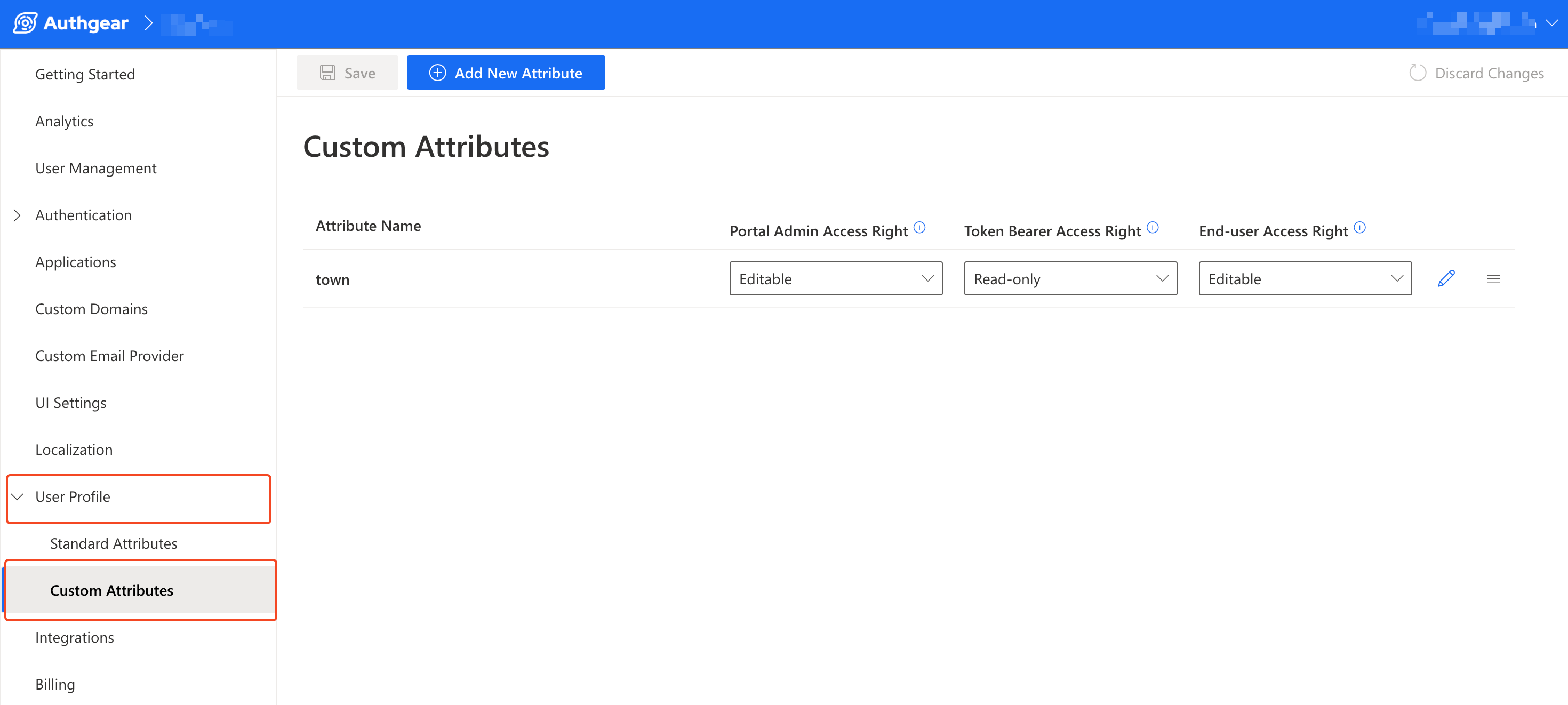
Create a variable and extract the current custom attributes into it. Modify the values of the attributes you wish to update or add new attributes.
Note: Again, it is important to include the current values of the fields that you don't wish to update but still want to keep. The Admin API will delete any existing fields you omit in the variable.
The following block of code shows an example of the variable. You can set the variable in the variable tab of GraphiQL.
2.21 createGroup
Run this mutation to add a new access management group to your Authany application.
Schema:
Example:
Note: The value of key can not be empty, must be between 1 and 40 characters long, accepted characters are [a-zA-Z0-9:_] and the prefix authgear: is reserved for Authany internal use.
2.22 createRole
You can use this mutation to add a new access management role to your Authany application.
Schema:
Example:
Note: The value of key can not be empty, must be between 1 and 40 characters long, accepted characters are [a-zA-Z0-9:_] and the prefix authgear: is reserved for Authany internal use.
2.23 addRoleToGroups
Use this mutation to add a role to one or more groups in a single operation.
Schema:
Example:
2.24 addGroupToRoles
Adds a group to one or more roles in a single operation.
Schema:
Example:
2.25 addUserToRoles
Adds a user to one or more roles in a single operation.
Schema:
Example:
2.26 addRoleToUsers
Adds a role to one or more users in a single operation.
Schema:
Example:
2.27 addUserToGroups
Adds a user to one or more groups in a single operation.
Schema:
Example:
2.28 addGroupToUsers
Adds a group to one or more user in a single operation.
Schema:
Example:
2.29 updateRole
Updates details about an existing role.
Schema:
Example:
Note: Pass null as the value of key, name or description if you do not wish to update them and pass and empty string ("") to delete the value of name and description. Also, some GrahpQL libraries may not allow you to pass a literal null directly in the query, in such cases, use a variable to defind the value of input.
2.30 updateGroup
Updates details about an existing group.
Schema:
Example:
Note: Pass null as the value of key, name or description if you do not wish to update them and pass and empty string ("") to delete the value of name and description. Also, some GrahpQL libraries may not allow you to pass a literal null directly in the query, in such cases, use a variable to defind the value of input.
2.31 removeUserFromGroups
Removes a user from one or more groups they're currently in.
Schema:
Example:
2.32 removeRoleFromGroups
Removes a role from one or more groups.
Schema:
Example:
2.33 removeUserFromRoles
Removes a user from one or more roles.
Schema:
Example:
2.34 removeGroupFromRoles
Removes a group from one or more roles in a single operation.
Schema:
Example:
2.35 removeRoleFromUsers
Removes a role from one or more users in a single operation.
Schema:
Example:
2.36 removeGroupFromUsers
Removes group from one or more users in a single operation.
Schema:
Example:
2.37 deleteGroup
Use this mutation to delete an existing group.
Schema:
Example:
2.38 deleteRole
Use this mutation to delete an existing role.
Schema:
Example:
2.39 resetAccountLockout
The resetAccountLockout mutation clears all account lockout state for a user, allowing them to authenticate again immediately without waiting for the lockout duration to elapse. The mutation clears lockout state across all authenticator types that participate in account lockout (password, TOTP, OOB OTP, recovery code). For per_user lockouts the global lock is cleared. For per_user_per_ip lockouts every IP-specific lock for the user is cleared. If account lockout is not configured or not enabled, the mutation succeeds with no effect.
Schema:
Example:
See Account Lockout for an overview of the feature, including how to unlock a user from the Authany Portal.