Use Authany as SAML Identity Provider for Dropbox
Use Authany as SAML Identity Provider for Dropbox
Security Assertion Markup Language (SAML) is a standard that allows an Identity Provider (IdP) and a Service Provider (SP) to perform user authentication and authorization without exchanging a user's password.
In this post, you'll learn how to set up Authany as an Identity Provider and Dropbox as a Service Provider.
Prerequisites
- An Authany account. Sign up for free.
- A Dropbox Business Advanced account.
Step 1: Create an Authany Client Application
You need an Authany client application of type OIDC/SAML Client Application to use Authany as a SAML identity provider.
To create a new client application, log in to Authany Portal, select your project then click on the Applications link from the navigation menu.
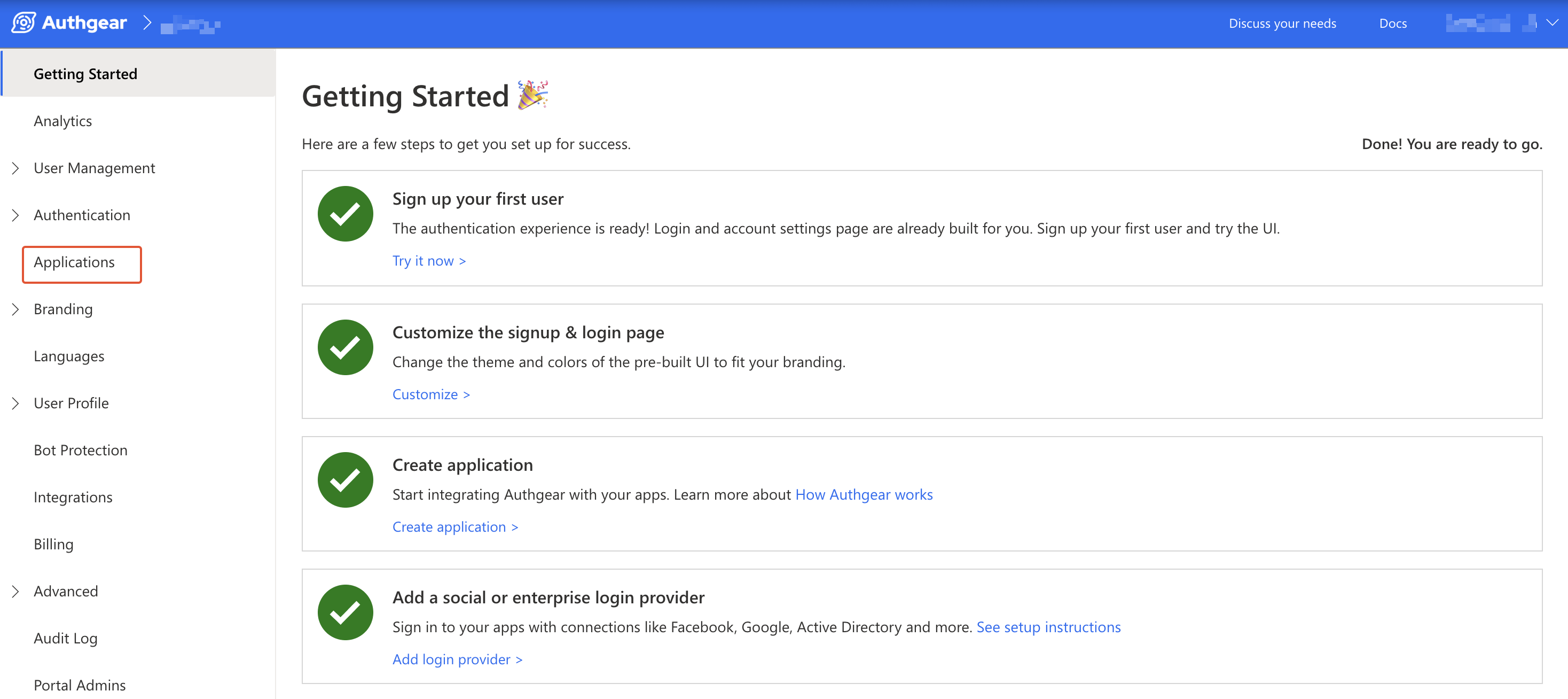
Next, click on Add Application to create a new client application. Alternatively, select an existing application of type OIDC/SAML Client Application and skip to step 2.
On the New Application page, enter Name and select OIDC/SAML Client Application as the Application Type.
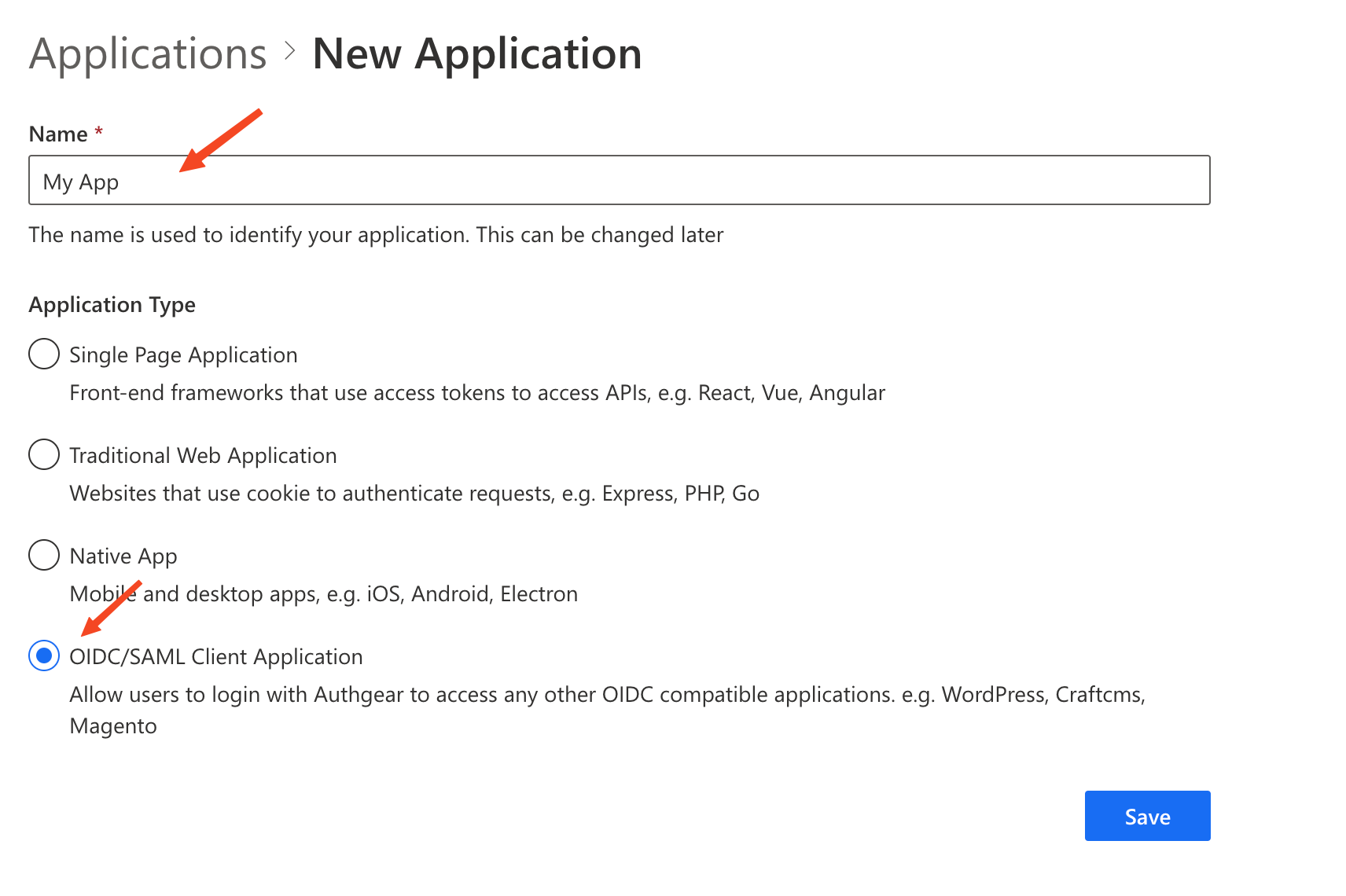
Click Save to proceed.
Step 2: Enable SAML 2.0 in Client Application
By default, SAML 2.0 is not enabled for the client application.
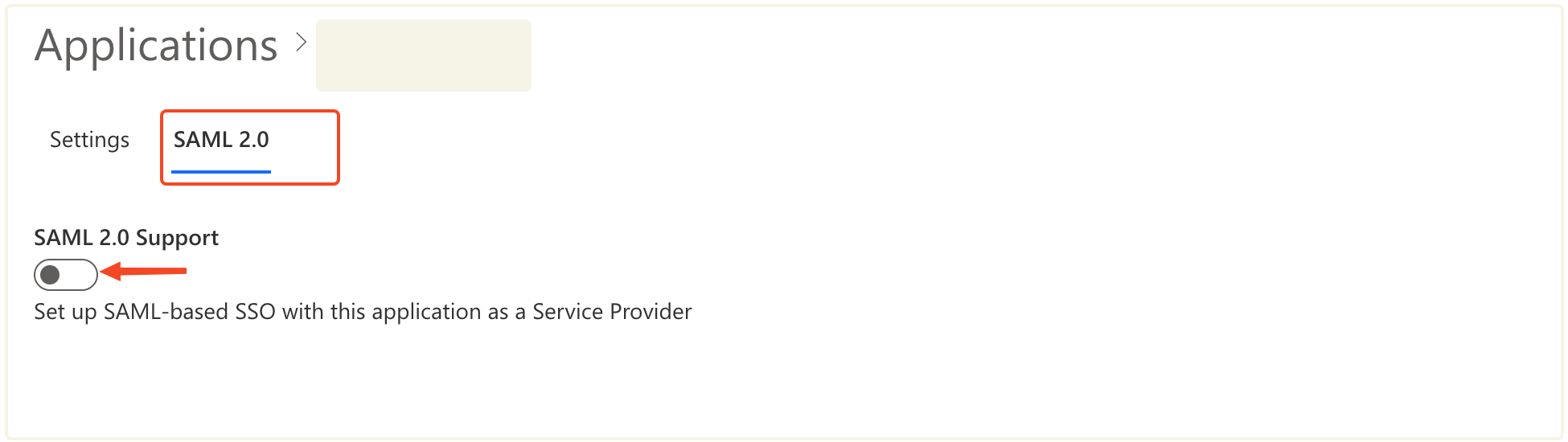
To enable SAML for your client application, click on the SAML 2.0 tab then toggle the SAML 2.0 Support switch on.
Next, change NameID Format to urn:oasis:names:tc:SAML:1.1:nameid-format:emailAddress.
Add the following URL (Dropbox post-back URL) in Allowed Assertion Consumer Service URLs (ACS URLs) field:
Click on Save to keep your changes.
Step 3: Get SAML IdP Configuration and Download Certificate
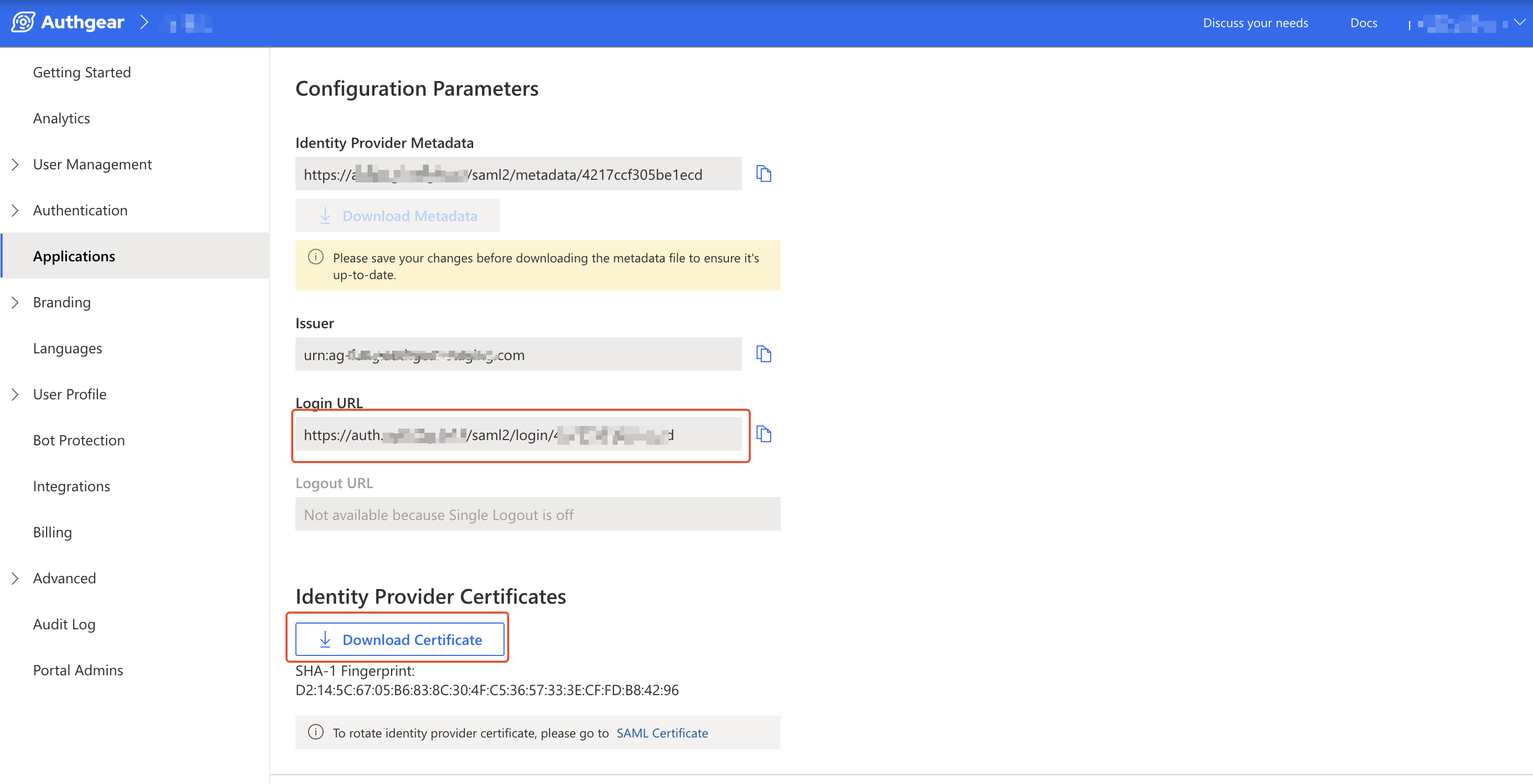
Scroll down to the Configuration Parameters section of your Authany client application's SAML 2.0 tab. Note the value for the login URL.
Also, download the Identity Provider Certificate for the client application to your computer.
You'll use the Login URL and certificate later in the Dropbox Admin console.
Step 4: Add Authany SAML IdP in Dropbox
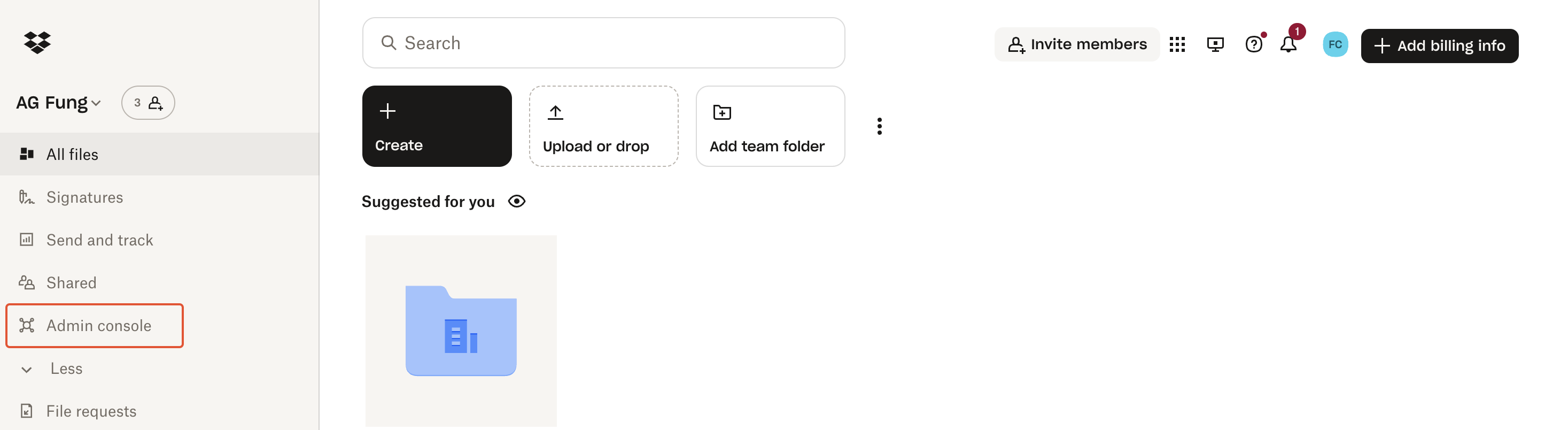
Log in to your Dropbox Business Advanced account then click on Admin console in the navigation menu.
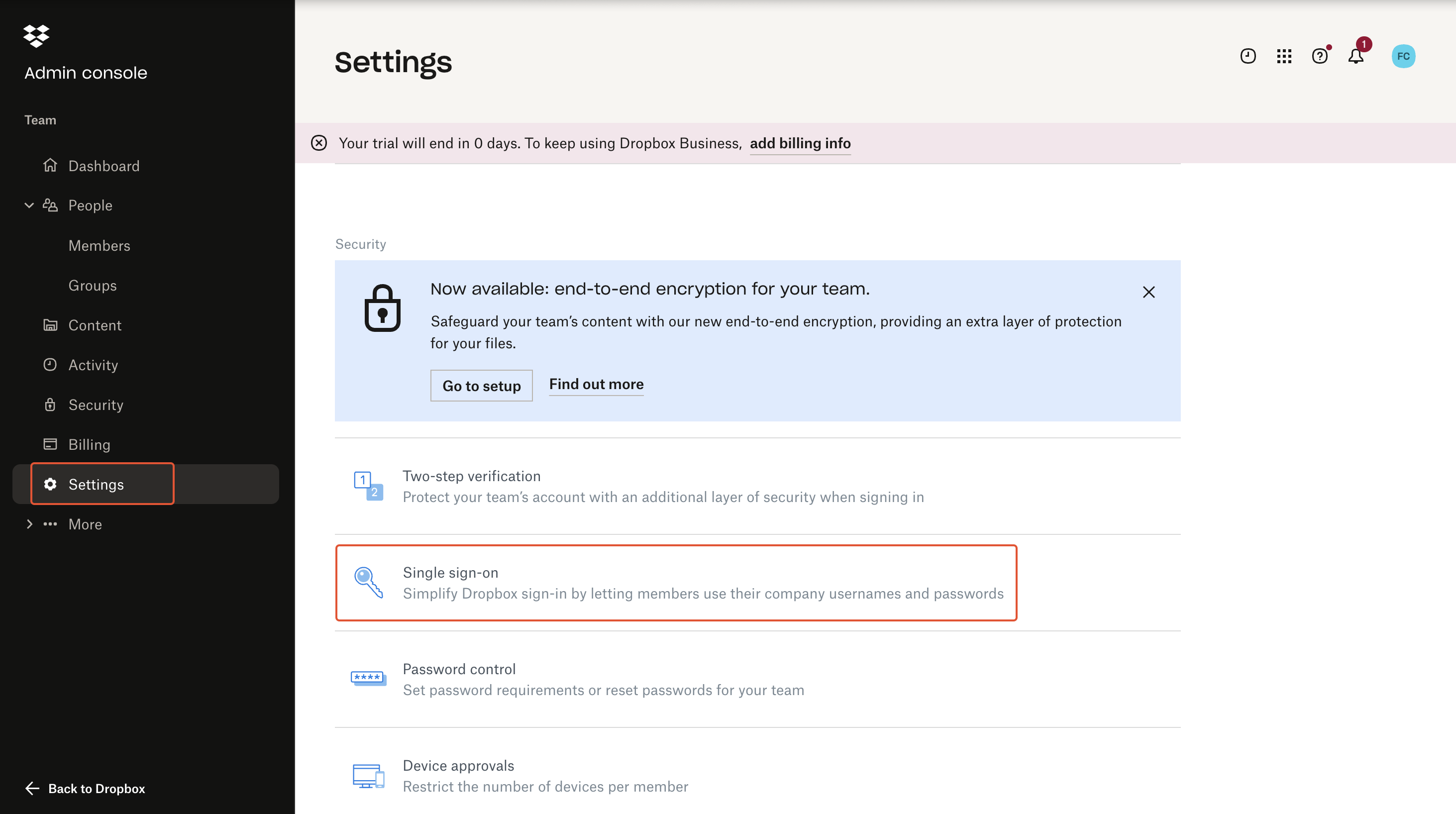
In the Dropbox Admin console navigate to Settings > Single sign-on.
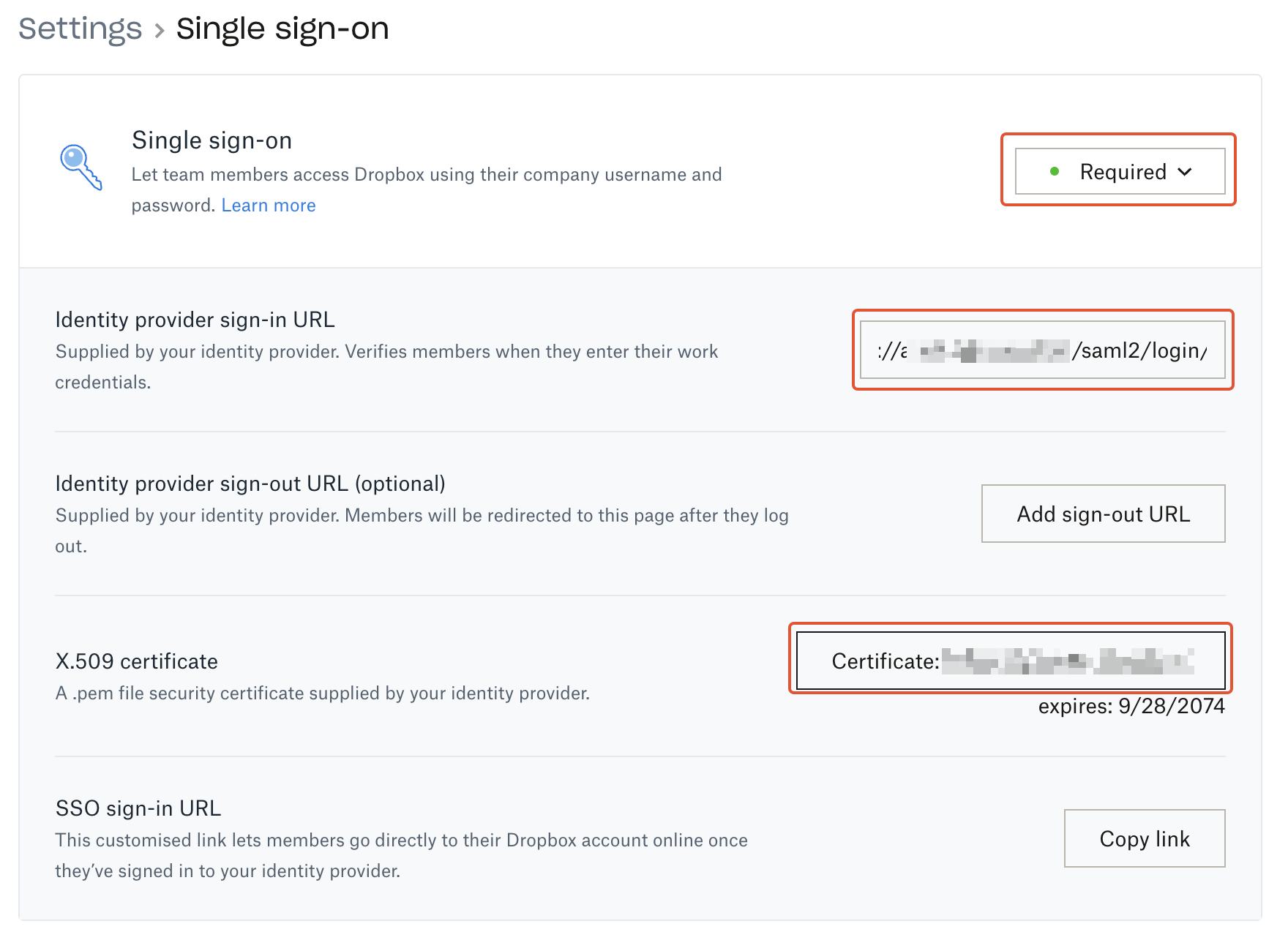
Now in the Dropbox Single sign-on settings page, set Single sign-on to Required. Then, configure the following:
- Paste the value for your Authany client application's
Login URLin theIdentity provider sign-in URLfield. - Under X.509 certificate, click on the Certificate upload button, then upload the Identity Provider Certificate you downloaded from your Authany client application in the previous step.
Step 5: Login to Dropbox Using Authany SAML
To test your SAML implementation, you need to add a new user to your Dropbox with an email address that is associated with a user account in your Authany project.
To add a new user to your Dropbox, navigate to Admin console > People > Members > Invite member.
Accept the invite for the new user, and try to log in to Dropbox using the registered email address for the new user. You should be redirected to the Authany SAML login page. On successful login to the Authany account, you should be redirected and signed in to Dropbox.