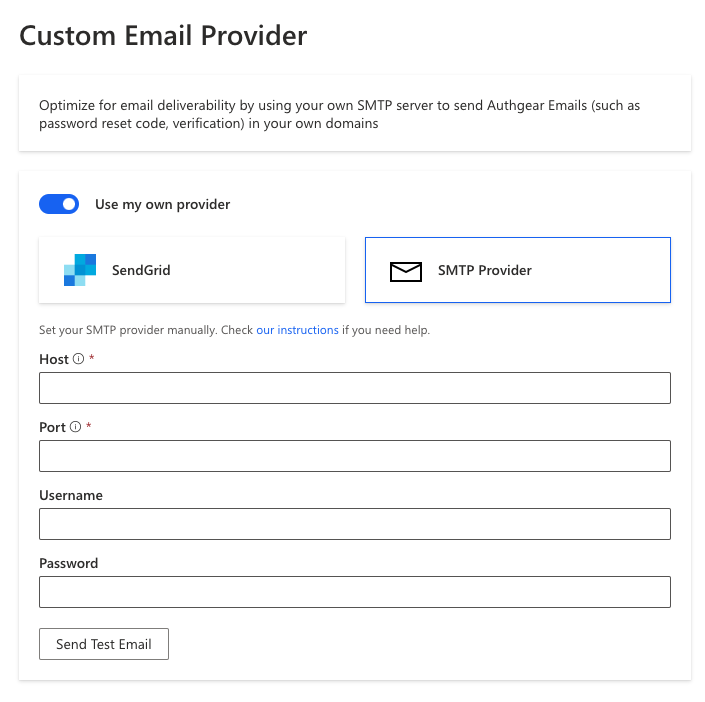
Custom Email Provider
To send Authany emails to end-users with your own domain, e.g. support@myapp.com. You will need to configure the external SMTP provider.
Authany currently supports SendGrid and other custom SMTP Providers.
Send from an email address under your domain
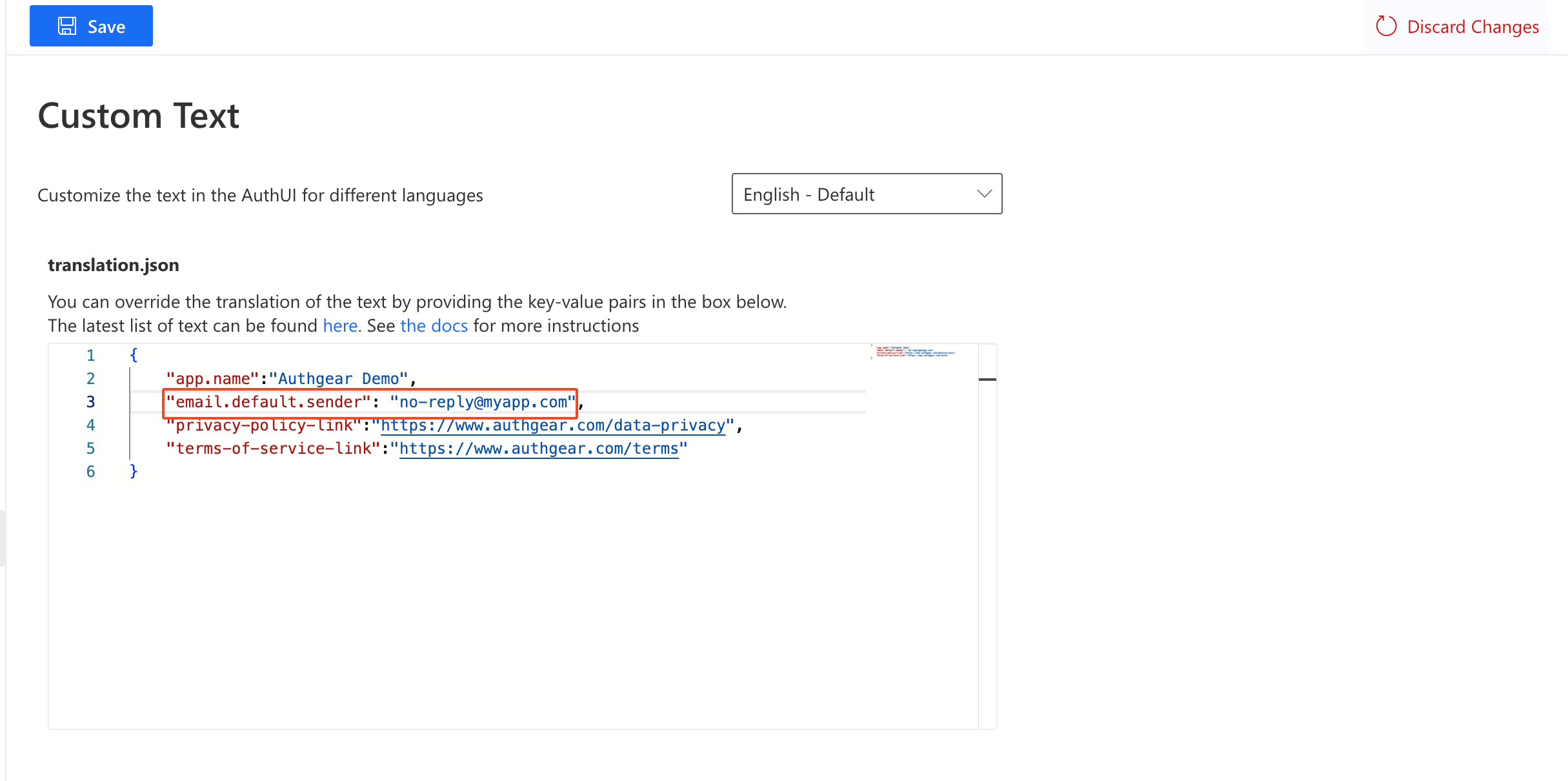
The sender address can be configured by changing the value of theemail.default.sender key in the localization JSON. Go to Portal > Branding > Custom Text and add/change the value of email.default.sender to your own email address, for example no-replay@myapp.com, and Save the settings. The value can be set separately for each locale.
Sender domain authentication
Before adding the email service provider to Authany, make sure the sender domain is verified and authenticated on the email service. For example, your domain myapp.com should be configured in your SendGrid account so Authany can use the account to send emails with no-reply@myapp.com.
Follow the instructions from the email service provider for setting up your domain:
Configure the external SMTP provider
The external SMTP provider can be set up in Portal > Advanced > Custom Email Provider. Enable the Use my own provider toggle to see the fields.
Use SendGrid as external SMTP provider
- Log in to your SendGrid account
- Create API Key in Settings > API Keys
- Set the API Key Name for your reference the choose Restricted Access under API Key Permissions
- Under Access Details, expand Mail Send and give Full Access to the Mail Send permission
- Click Create & View. Copy the API key created and save it somewhere safe
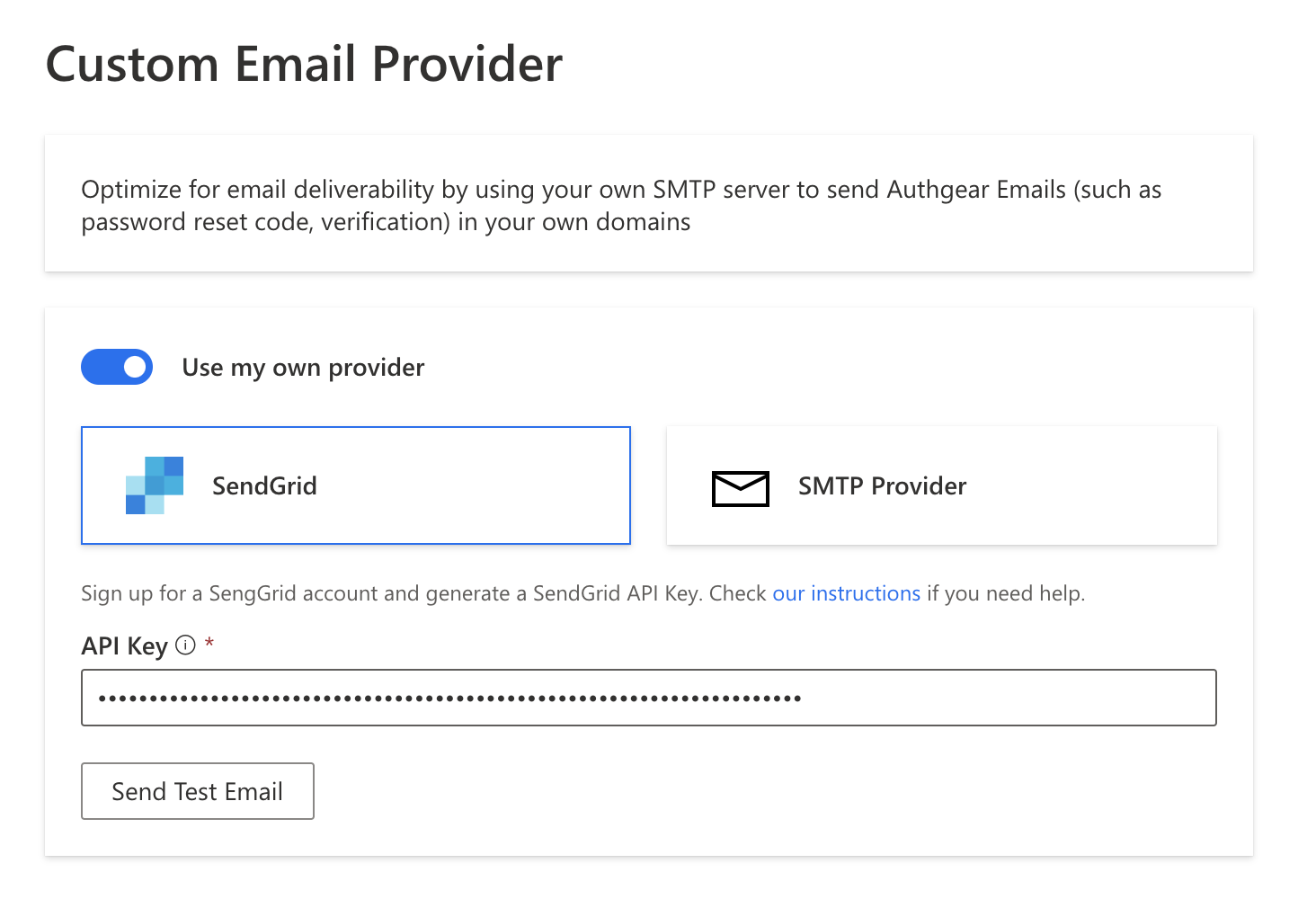
- In Authany Portal, navigate to Custom Email Provider
- Enable Use my own provider.
- Choose SendGrid and paste the API key you copied, and Save
- You can send a test email to check the configuration
Using other SMTP Providers
Other SMTP providers can be set manually by providing the Host, Port, Username, and Password. They can be obtained from the documentation or instructions from your email service provider.